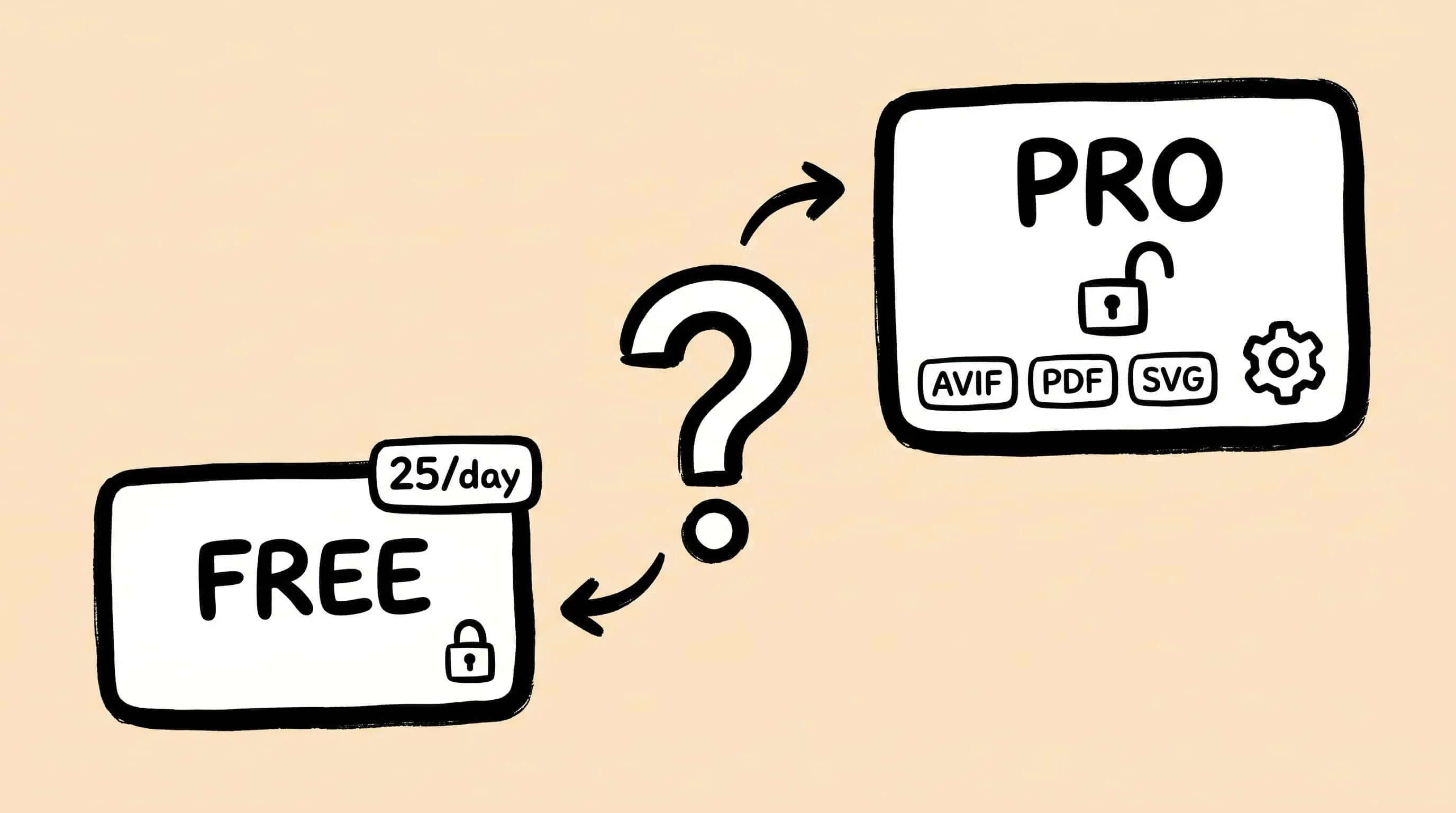
Zipic Free vs Pro: Which Version Do You Actually Need?
Zipic Free vs Pro compared: daily limits, advanced formats, automation, presets, and pricing. See which features the free tier covers and when Pro is worth it.
Zipic is free to download and free to use every day. But a handful of features — advanced formats, folder monitoring, unlimited presets — sit behind a one-time Pro license. So the real Zipic Free vs Pro question comes down to this: does the free tier cover what you actually do, or do you keep hitting a wall?
This is not a roundup of compression apps to pick between. If you haven’t chosen a tool yet, start with the best image compression software for Mac. This guide assumes Zipic is already on your Mac and answers one thing only — where Free stops, what Pro adds, and which version fits the way you work.
What Zipic Free Includes
The free tier is a working compressor, not a trial stub. Install Zipic, and on day one you get:
- 25 image compressions per day, with full batch processing — drag a folder in and Zipic processes everything in it.
- Compression for the standard formats: JPEG, PNG, WebP, HEIC, and GIF.
- Format conversion to JPEG, WebP, and HEIC.
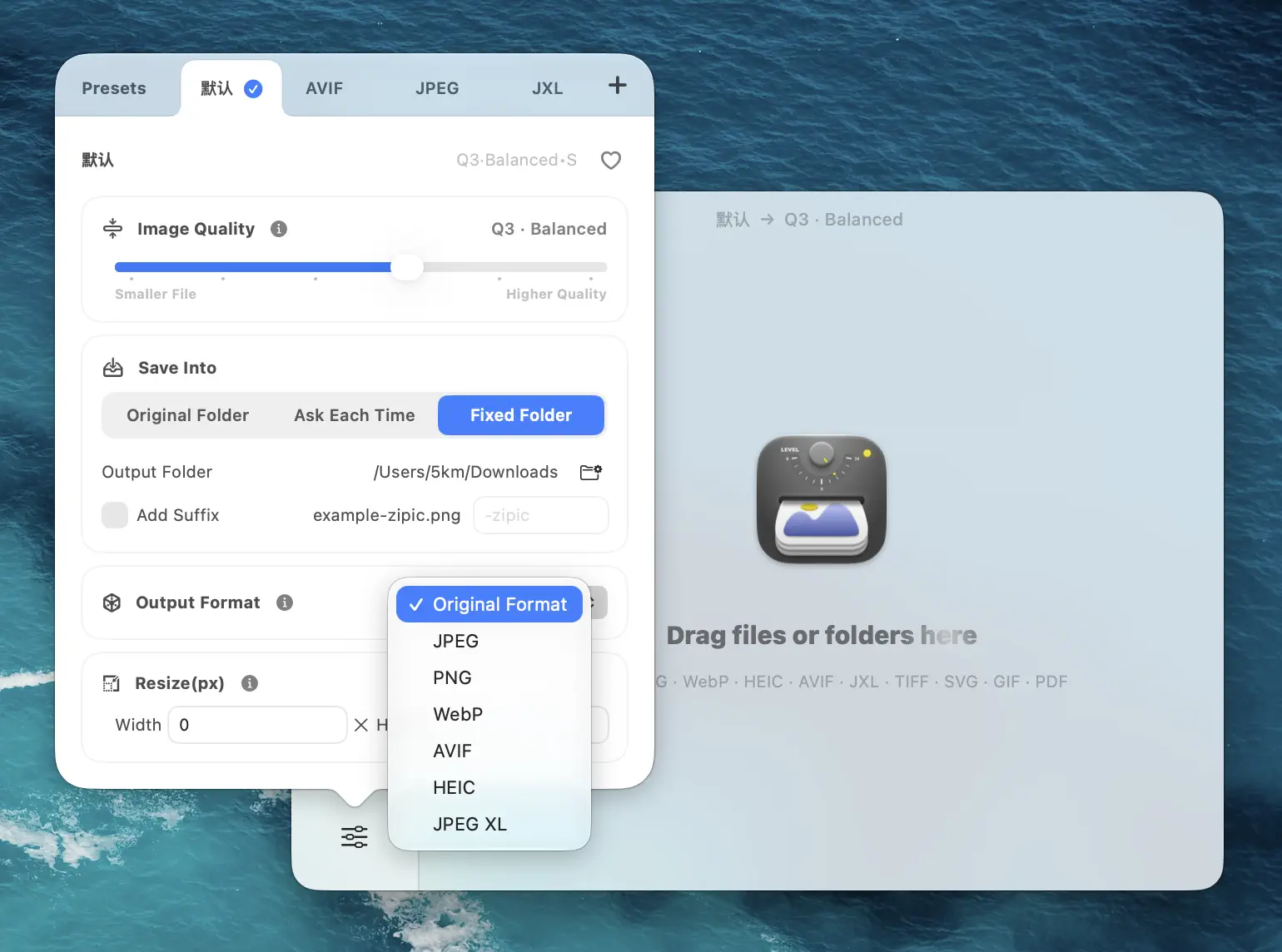
- Resize — batch-resize images to a target width, height, or scale.
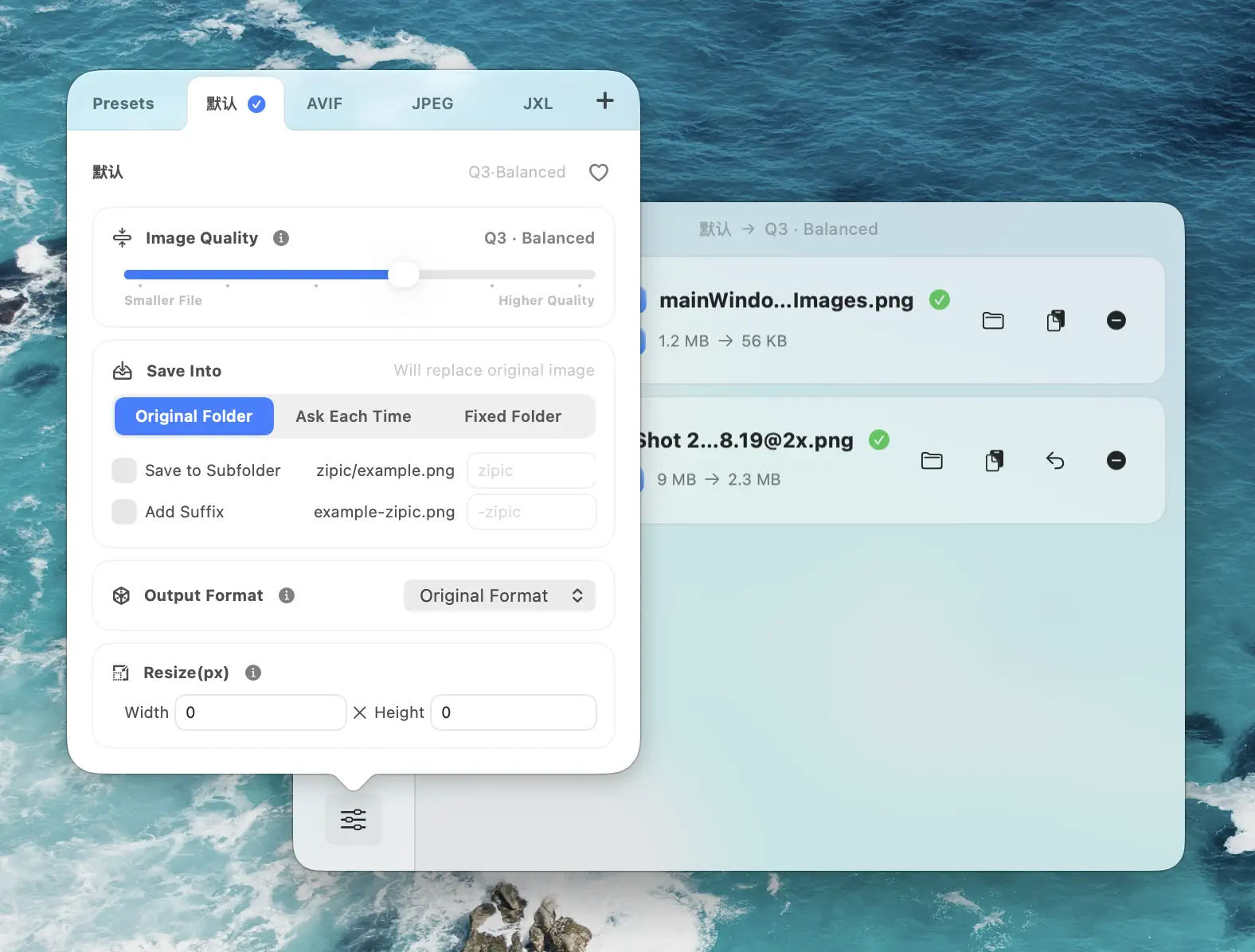
- Save option configuration — choose output location, filename suffix, and format.
- One custom preset, on top of the built-in defaults.
- Smart Skip, which recognizes files Zipic already compressed and skips them, and the Raycast extension for compressing Finder selections.
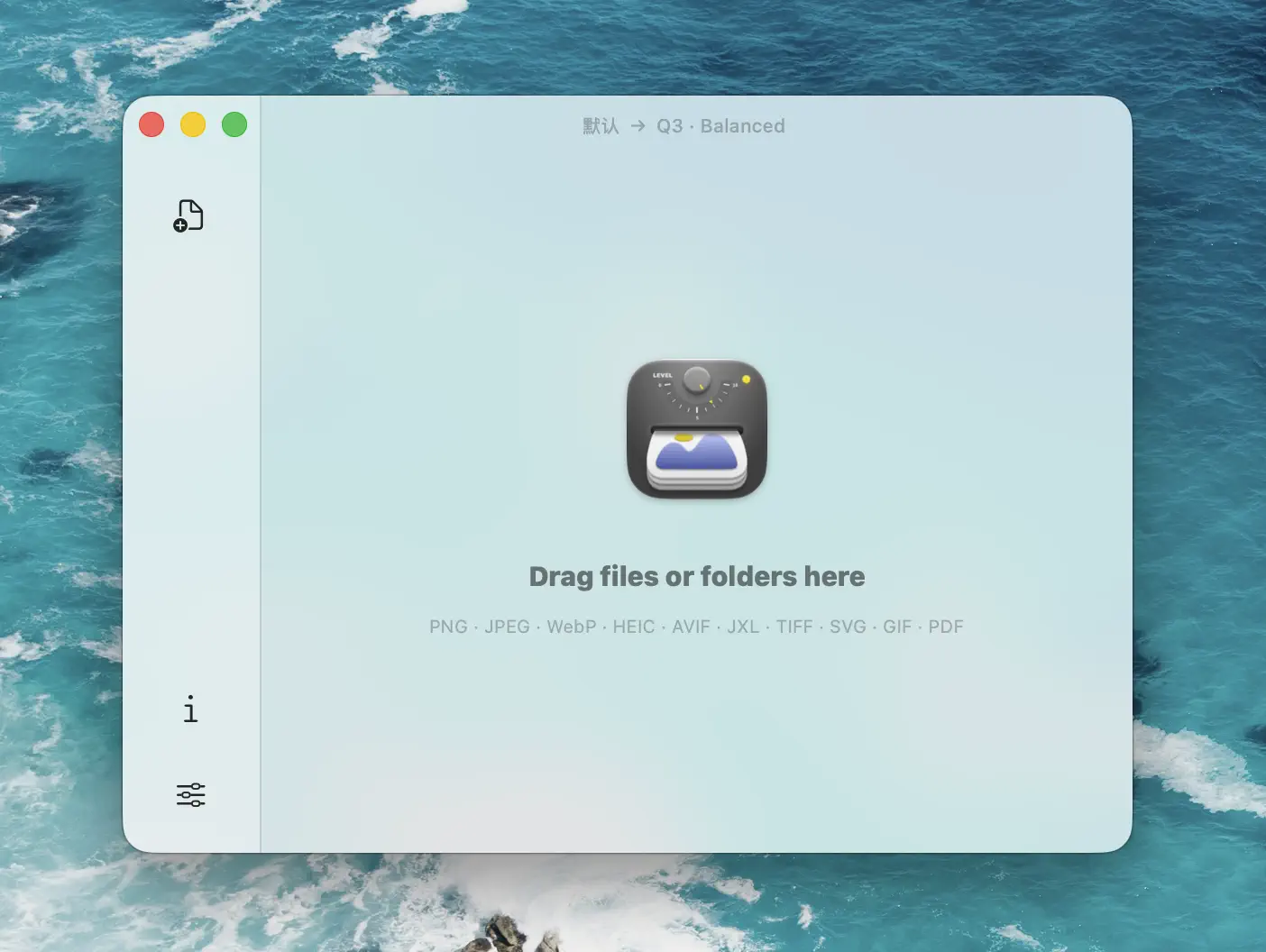
The counter in the top-right corner — labeled Remaining xx images — is your daily budget. That same button opens the activation window when you’re ready to go Pro.
The 25-a-Day Limit, in Practice
Each image you compress counts as one toward the daily 25, and the count resets each day. A batch of ten screenshots uses ten; a folder of forty product photos exhausts the budget and stops partway.
For occasional use — trimming a few screenshots before a blog post, shrinking an attachment, cleaning up one folder a week — 25 a day is rarely a problem. The limit starts to bite when compression becomes routine: a photographer culling a shoot, a developer exporting assets, an online seller preparing a product catalog. If you compress images most days, you’ll hit that limit regularly — and that’s usually the moment Free stops making sense.
The daily limit is the only quota in Zipic. There is no watermark, no file-size cap, and no quality penalty on the free tier — the 25 images you do compress come out exactly as they would under Pro.
What Zipic Pro Unlocks
A Pro license removes the daily limit and turns on the features Free leaves off. They fall into four groups.
More formats. Pro adds compression for APNG, AVIF, TIFF, ICNS, SVG, PDF, and JPEG XL, and adds AVIF and JPEG XL as conversion targets. If your work touches modern web formats, app icons, vector assets, or PDFs, this is the line that matters most.
Automation. Folder monitoring auto-compresses new images dropped into a watched folder, with a configurable monitoring depth. Apple Shortcuts and AppIntents let Zipic run inside Shortcuts workflows. The URL Scheme works on Free as a plain trigger, but only Pro can pass compression options through it — see the Zipic URL Scheme guide for what those parameters do.
Faster input. Paste-to-compress, drag-to-Notch, clipboard auto-compression, and Finder context-menu actions all become available — four ways to compress an image without opening the main window.
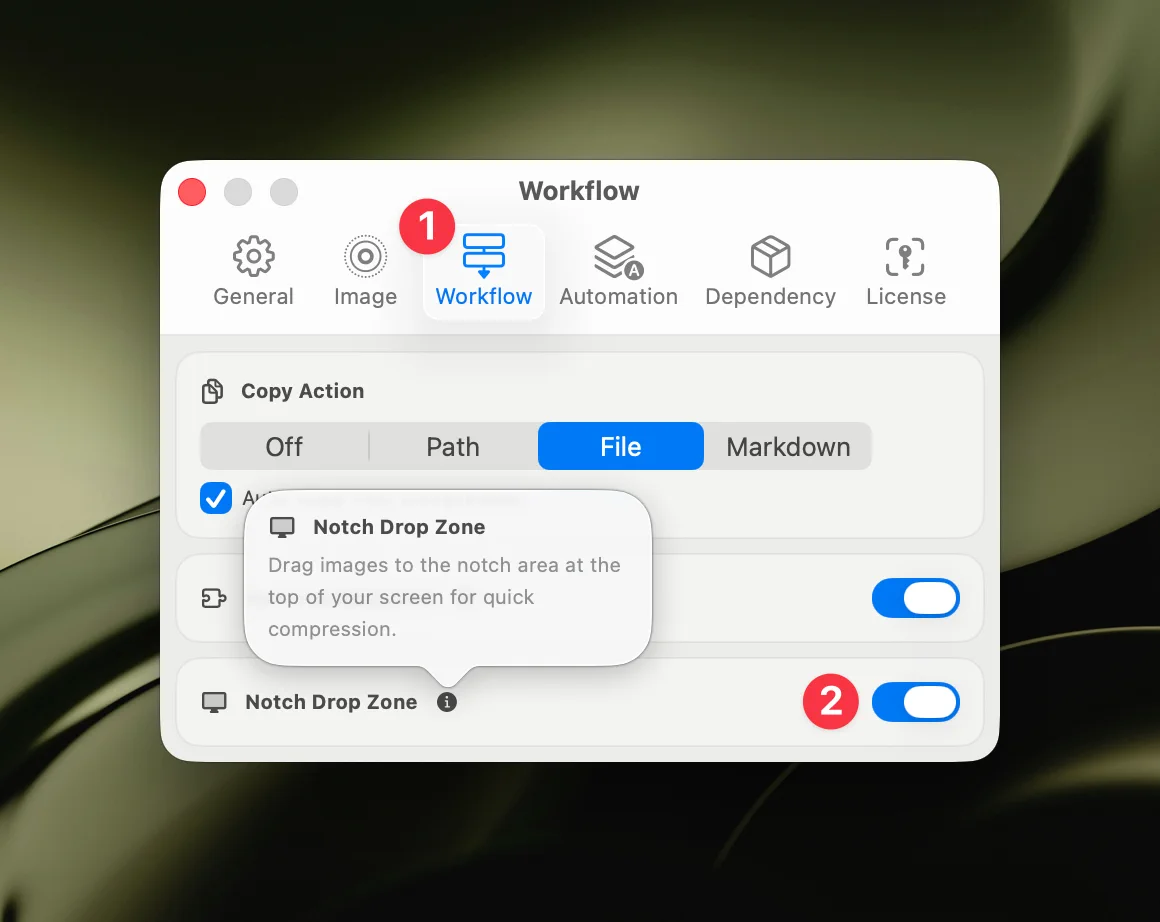
Output control. Pro adds unlimited custom presets with favorites, configurable metadata deletion (Free keeps metadata by default), the before/after comparison view, custom notification styles, hiding the Dock icon, and copy-to-clipboard after compression.
Zipic Free vs Pro: The Full Feature Table
| Feature | Free | Pro |
|---|---|---|
| Daily compression limit | 25 images/day | Unlimited |
| Batch processing | ✅ | ✅ |
| Resize | ✅ | ✅ |
| Compress formats | JPEG, PNG, WebP, HEIC, GIF | + APNG, AVIF, TIFF, ICNS, SVG, PDF, JPEG XL |
| Convert formats | JPEG, WebP, HEIC | + AVIF, JPEG XL |
| Custom presets | 1 (plus defaults) | Unlimited + favorites |
| Smart Skip | ✅ | ✅ |
| Raycast extension | ✅ | ✅ |
| Before/after comparison view | ❌ | ✅ |
| Folder monitoring | ❌ | ✅ |
| Apple Shortcuts & AppIntents | ❌ | ✅ |
| URL Scheme | Trigger only | Full parameters |
| Paste to compress | ❌ | ✅ |
| Drag to Notch | ❌ | ✅ |
| Clipboard auto-compression | ❌ | ✅ |
| Finder context menu | ❌ | ✅ |
| Metadata | Kept by default | Configurable deletion |
| Custom notification styles | ❌ | ✅ |
| Hide Dock icon | ❌ | ✅ |
| Copy to clipboard after compression | ❌ | ✅ |
| Future features | ❌ | ✅ |
The Engines Behind the Pro Formats
The advanced formats are not a paywall toggle. Each one runs on a compression engine Zipic builds and maintains: pngoptim, a Rust engine that also handles APNG; gifoptim, a Rust engine for GIF; SVGift, a Swift engine for SVG; pdfoptim, a Rust PDF engine written from scratch to replace an external Ghostscript dependency; and zipic-jpeg, a customized MozJPEG build for JPEG. Only WebP and AVIF lean on third-party libraries — libwebp and libavif, which are already industry standards.
The free tier already runs on these engines for the standard formats. What Pro funds is the format-specific work on top — APNG frame optimization, PDF font subsetting, SVG plugin handling — and the ongoing maintenance of all of it. You can read the engine stories in the pdfoptim deep dive and the APNG and animated WebP guide.
Zipic Pro Pricing: Solo, Personal, Team
Zipic Pro is a one-time purchase with lifetime updates — no subscription. There are three licenses, separated only by how many devices each one activates:
- Solo License — $19.99, one device.
- Personal License — $29.99, two devices. This is the most popular option.
- Team License — $129.99, ten devices.
Every license unlocks the same full feature set; you are paying for device count, not for tiers of functionality. Purchases come with a 14-day refund window, and students and educators can apply for an education discount. You can buy directly on the pricing page or through the Mac App Store as an in-app purchase.
You don’t have to decide blind, either. Every device can start a one-time 7-day Pro trial — all Pro features unlocked, no card required up front. When the trial ends, the device falls back to Free with all your settings, presets, and compression history preserved.
Which Version Should You Choose?
Stay on Free if you compress images occasionally, work mostly with JPEG, PNG, WebP, HEIC, and GIF, stay under 25 images a day, and don’t need automation. The free tier handles that completely, with no quality compromise.
Upgrade to Pro if any of these is true: you compress images most days, you need AVIF, JPEG XL, PDF, SVG, ICNS, or APNG, you want folder monitoring or Apple Shortcuts in your workflow, you need to strip metadata before publishing, or you want the faster input shortcuts. If you automate compression with Apple Shortcuts, Pro is required — that integration is Pro-only.
The honest test: run the 7-day trial during a normal work week. If you reach for a Pro feature and notice it’s gone when the trial ends, you have your answer.
Frequently Asked Questions
Is Zipic Pro a subscription? No. Pro is a one-time purchase, and it includes all future updates at no extra cost.
Does the 7-day trial require a credit card? No. The trial unlocks every Pro feature with no payment details up front. Each device can run it once.
Can I use one Pro license on several Macs? That depends on the license: Solo activates one device, Personal two, and Team ten. You can deactivate a device in Settings → License to free up a slot.
What happens to my work when the trial ends? The device returns to the Free tier, but your settings, presets, and compression history all stay. Nothing is deleted.
Related Articles
- Best Image Compression Software for Mac in 2026
- Best Free Image Compression Tools for Mac in 2026
- Automate Image Compression with Apple Shortcuts and Zipic
- Zipic URL Scheme Guide: Integrate Compression into Any Workflow
- Batch Compress PDF on Mac with pdfoptim Rust Engine
- Zipic Updates 2026: The Year of Self-Built Compression Engines
For the full license breakdown, see the Introduction — License Options and Activating Pro Version documentation.
Ready to try it? Download Zipic and start compressing. Every download includes a full 7-day Pro trial — see Pro pricing when you’re ready to unlock everything.
Related Reading
How to Compress Images on Mac Fast (Without Ruining Quality)
Compress images on Mac with drag-and-drop, Finder, presets, and batch automation — protect originals, check quality at 100%, then scale the workflow.
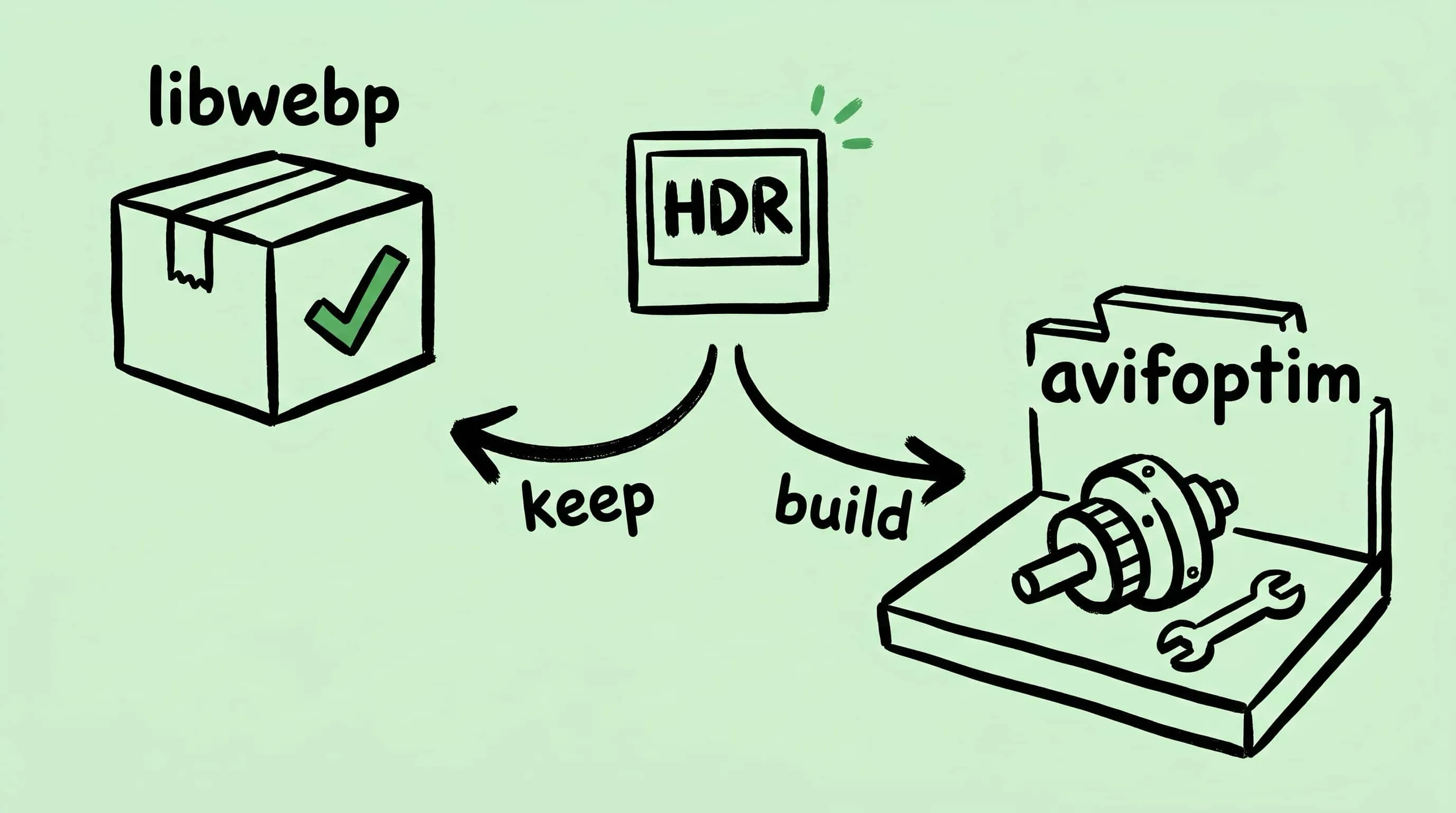
Why Zipic Kept libwebp for WebP but Built Its Own AVIF Encoder
Zipic keeps Google's libwebp for WebP but built avifoptim after libavif failed to preserve iPhone HDR photos. The engineering trade-off explained.
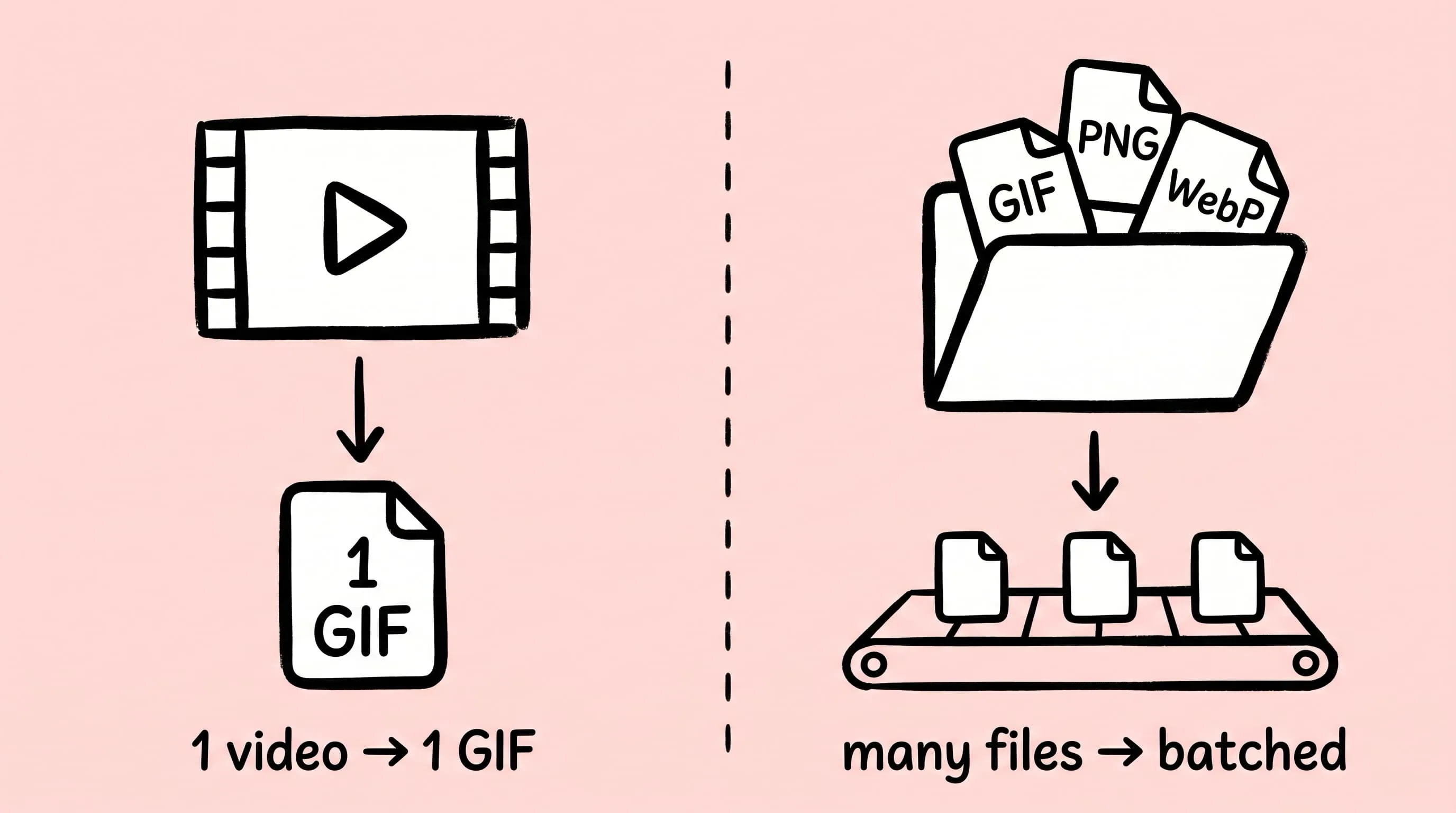
Best gifski Alternative on Mac: When One Video at a Time Isn't Enough
gifski is a great video-to-GIF encoder, but it cannot batch, monitor folders, or compress existing GIFs. Here is the Mac gifski alternative for those jobs.
How to Compress and Optimize SVG Files on Mac with Zipic
Need an SVG optimizer on Mac? Compress and optimize SVG files with Zipic — strip editor bloat, pick from six quality steps (Q1–Q6), and batch entire icon sets.