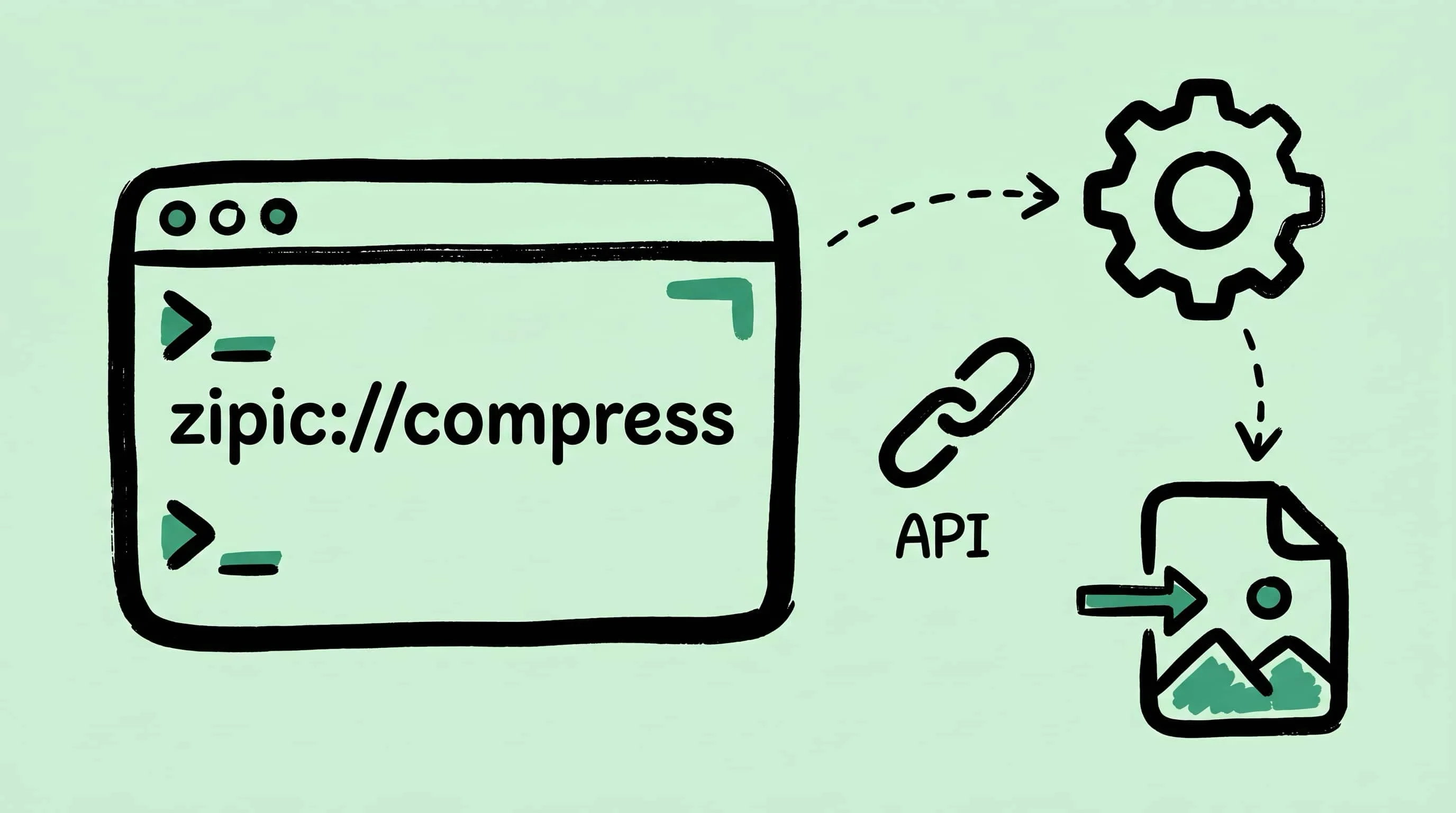
Zipic URL Scheme Guide: Integrate Compression into Any Workflow
Complete reference for Zipic's URL Scheme — parameters, multi-language code examples, and automation recipes to build an image compression API on Mac.
If you’ve read our articles on Apple Shortcuts, Raycast, folder monitoring, or developer workflows, you’ve already seen zipic://compress pop up in bits and pieces — a parameter here, a one-liner there. But none of those articles gave the URL Scheme itself the spotlight. This one does.
This is the dedicated, all-in-one reference for Zipic’s URL Scheme: every parameter, every combination rule, code examples in six languages, and real automation recipes you can drop into your projects. Think of it as the image compression API documentation for Mac — one URL, endless integrations.
Why URL Scheme Is Your Image Compression API on Mac
Zipic offers three integration surfaces:
| Integration | Best for | Requires Pro |
|---|---|---|
URL Scheme (zipic://compress) |
Any tool that can open a URL — shell, Python, Node, Lua, AppleScript, Automator | Parameters only |
CLI (zipic compress) |
Terminal-first workflows, CI/CD, structured JSON output | No (basic) |
| AppIntents (Shortcuts) | Native macOS Shortcuts, Siri, Apple Intelligence | Yes |
URL Scheme has the widest reach: if your tool can call open "zipic://..." or equivalent, it works. No socket, no binary dependency, no Shortcuts app. That makes it the go-to for cross-tool automation — Hammerspoon scripts, Makefile targets, git pre-commit hooks, Raycast extensions, and one-off terminal commands all use the same zipic://compress?... syntax.
Free vs. Pro: Calling zipic://compress with just a url parameter works on the Free tier (using current app settings). Adding parameters like format, level, or directory requires Zipic Pro.
Complete Parameter Reference
Base URL: zipic://compress
Every parameter is optional except url (you need at least one file to compress). When a parameter is omitted, Zipic uses whatever is currently configured in the app.
| Parameter | Type | Default | Description |
|---|---|---|---|
url |
string (path) | — | File or folder path. Repeat for multiple targets. |
level |
double | App setting | Image quality, 1.0–6.0 (step 1.0), matching Q1–Q6 in the interface. Higher = smaller file, lower quality. |
format |
string | original |
Output format: original, jpeg, png, webp, heic, avif, jxl |
location |
string | original |
Where to save: original (same folder) or custom (specify directory) |
directory |
string | — | Custom output folder path. Only used when location=custom. |
specified |
boolean | false |
When true with location=custom, saves to the app’s configured default folder instead of directory. |
width |
double | 0 |
Target width in pixels. 0 = no resize. |
height |
double | 0 |
Target height in pixels. 0 = no resize. |
addSuffix |
boolean | false |
Append a suffix to the output filename. |
suffix |
string | -compressed |
The suffix text. Only applied when addSuffix=true. |
addSubfolder |
boolean | false |
Save output into a subfolder within the target directory. |
Parameter Combination Rules
The save-location parameters interact in specific ways. Here’s the decision tree:
Where does the output file go?
location=original(default) → Same folder as the source file.directoryis ignored.location=custom+specified=false+directory=/some/path→ Saves to/some/path.location=custom+specified=true→ Saves to the default folder configured in Zipic’s preferences.directoryis ignored.
What is the output filename?
addSuffix=false(default) → Overwrites the source file (or the file in the output directory keeps the original name).addSuffix=true+suffix=-min→ Appends-minbefore the extension:photo.jpg→photo-min.jpg.
Resize behavior:
- Both
width=0andheight=0→ No resize. width=1920+height=0→ Resize to 1920px wide, maintain aspect ratio.width=0+height=1080→ Resize to 1080px tall, maintain aspect ratio.- Both set → Resize to exact dimensions (may distort).
Multi-File and Folder Targets
Repeat the url parameter for each target:
open "zipic://compress?url=/Users/me/photo1.jpg&url=/Users/me/photo2.png&url=/Users/me/screenshots/"Folders are expanded recursively — Zipic compresses every supported image file inside. Supported formats: JPEG, PNG, WebP, GIF, HEIC, AVIF, TIFF, ICNS, SVG, PDF, JPEG-XL.
Practical limits: URL Scheme passes everything through a single URL string. For very large batches (hundreds of files), the URL can get unwieldy. In that case, point url at a folder instead of listing individual files, or switch to the zipic CLI which accepts unlimited arguments via stdin.
Output Control: Format, Location, and File Naming
Here are the most common parameter combinations for output control:
Convert to WebP and Save to a Custom Folder
open "zipic://compress?url=/Users/me/assets/hero.png&format=webp&location=custom&directory=/Users/me/dist/images"Compress in Place with a Suffix (Non-Destructive)
open "zipic://compress?url=/Users/me/photo.jpg&level=3.0&addSuffix=true&suffix=-optimized"Result: photo-optimized.jpg in the same folder as the original. The source file is untouched.
Resize and Convert for Social Media
open "zipic://compress?url=/Users/me/banner.png&format=webp&width=1200&level=2.0&location=custom&directory=/Users/me/social"Use the App’s Default Output Folder
open "zipic://compress?url=/Users/me/photo.jpg&location=custom&specified=true"This uses whatever folder you’ve set in Zipic → Preferences → Save Location, without hardcoding the path in your script.
Calling Zipic from Any Language or Script
The URL Scheme works with any tool that can open a URL on macOS. Here are copy-paste examples for six languages.
Bash / Zsh
#!/bin/bash
URL="zipic://compress?url=$1&format=webp&level=3.0&location=custom&directory=$2"
open "$URL"
Usage: ./compress.sh /path/to/image.png /path/to/output
Python
import subprocess
import urllib.parse

def compress(path, fmt="webp", level=3, output_dir=None):
    params = {"url": path, "format": fmt, "level": str(float(level))}
    if output_dir:
        params["location"] = "custom"
        params["directory"] = output_dir
    url = "zipic://compress?" + urllib.parse.urlencode(params)
    subprocess.run(["open", url])
Swift
import AppKit

func compress(path: String, format: String = "webp", level: Double = 3.0) {
    var components = URLComponents(string: "zipic://compress")!
    components.queryItems = [
        URLQueryItem(name: "url", value: path),
        URLQueryItem(name: "format", value: format),
        URLQueryItem(name: "level", value: String(level))
    ]
    if let url = components.url {
        NSWorkspace.shared.open(url)
    }
}
Node.js
const { execSync } = require("child_process");

function compress(path, format = "webp", level = 3) {
  const params = new URLSearchParams({
    url: path,
    format,
    level: level.toFixed(1),
  });
  execSync(`open "zipic://compress?${params}"`);
}
Go
package main

import (
	"fmt"
	"net/url"
	"os/exec"
)

func compress(path, format string, level float64) error {
	params := url.Values{}
	params.Set("url", path)
	params.Set("format", format)
	params.Set("level", fmt.Sprintf("%.1f", level))
	return exec.Command("open", "zipic://compress?"+params.Encode()).Start()
}
AppleScript
set imagePath to "/Users/me/photo.jpg"
set schemeURL to "zipic://compress?url=" & imagePath & "&format=webp&level=3.0"
open location schemeURL
AppleScript is particularly useful for integrating with apps like Finder, Mail, or any scriptable macOS application.
Four Automation Recipes for Image Compression Workflows
Recipe 1: Git Pre-Commit Hook
Compress new images before they enter version control:
#!/bin/bash
# .git/hooks/pre-commit
STAGED_IMAGES=$(git diff --cached --name-only --diff-filter=A -- '*.png' '*.jpg' '*.jpeg')
for img in $STAGED_IMAGES; do
  ABS_PATH="$(cd "$(dirname "$img")" && pwd)/$(basename "$img")"
  open "zipic://compress?url=$ABS_PATH&level=3.0"
  sleep 2
  git add "$img"
done
Recipe 2: Makefile Target
Add a compress target to your project:
IMAGES := $(wildcard src/assets/*.png src/assets/*.jpg)

compress:
	@for img in $(IMAGES); do \
		open "zipic://compress?url=$$(pwd)/$$img&format=webp&level=3.0&location=custom&directory=$$(pwd)/dist/images"; \
		sleep 1; \
	done
	@echo "Compression requests sent to Zipic"
Recipe 3: Hammerspoon Hotkey
Bind a global hotkey to compress the currently selected Finder files:
-- ~/.hammerspoon/init.lua
hs.hotkey.bind({"ctrl", "alt"}, "C", function()
  local script = [[
    tell application "Finder"
      set selectedFiles to selection as alias list
      set urlParams to ""
      repeat with f in selectedFiles
        set filePath to POSIX path of f
        set urlParams to urlParams & "url=" & filePath & "&"
      end repeat
    end tell
    return urlParams
  ]]
  local ok, params = hs.osascript.applescript(script)
  if ok and params ~= "" then
    local url = "zipic://compress?" .. params .. "format=webp&level=3.0"
    hs.urlevent.openURL(url)
  end
end)
Recipe 4: Watch Script for Export Directories
Auto-compress when a design tool exports new files:
#!/bin/bash
# Requires fswatch: brew install fswatch
WATCH_DIR="$HOME/Design Exports"
OUTPUT_DIR="$HOME/Compressed"

fswatch -0 "$WATCH_DIR" | while read -d '' file; do
  if [[ "$file" =~ \.(png|jpg|jpeg|webp|tiff)$ ]]; then
    encoded=$(python3 -c "import urllib.parse; print(urllib.parse.quote('$file'))")
    open "zipic://compress?url=$encoded&format=webp&level=3.0&location=custom&directory=$OUTPUT_DIR"
  fi
done
Troubleshooting URL Scheme Calls
Spaces and Special Characters in Paths
File paths with spaces must be URL-encoded. In shell scripts, open handles most encoding automatically when you quote the URL. But if you’re building the URL string programmatically, encode the path:
# Shell — quoting is usually enough
open "zipic://compress?url=/Users/me/My Photos/hero.jpg"

# If that fails, percent-encode explicitly
ENCODED=$(python3 -c "import urllib.parse; print(urllib.parse.quote('/Users/me/My Photos/hero.jpg'))")
open "zipic://compress?url=$ENCODED"
“Zipic Is Not Running”
URL Scheme requires Zipic.app to be running. If it’s not, macOS will launch it — but there’s a startup delay. For scripts that fire immediately:
open -a Zipic  # Ensure the app is running
sleep 1        # Wait for launch
open "zipic://compress?url=/path/to/image.jpg"
Permission Errors on Output Directory
If Zipic can’t write to your directory path, compression silently falls back to the original file’s folder. Make sure the output directory exists and Zipic has Full Disk Access (System Settings → Privacy & Security → Full Disk Access).
Nothing Happens After Calling the URL
Common causes:
- Typo in the scheme — it’s
zipic://compress, notzipic://Compressorzipic:///compress. - Missing
urlparameter — at least one file path is required. - Non-existent file — Zipic silently skips files that don’t exist at the given path.
- Pro parameter on Free tier — adding
format=avifwithout Pro shows a Pro upgrade prompt in the app.
Large Batches Are Slow
URL Scheme processes one request at a time (FIFO). If you’re sending hundreds of images, consider:
- Pointing
urlat a folder instead of listing individual files - Switching to the
zipicCLI which supports structured JSON output and handles large batches natively
URL Scheme vs CLI vs AppIntents: Choosing the Right Image Compression API
| Criteria | URL Scheme | CLI (zipic) |
AppIntents |
|---|---|---|---|
| Setup | Zero — works if Zipic is installed | Install CLI from menu bar | Zipic Pro required |
| Calling method | open "zipic://compress?..." |
zipic compress file.jpg --format webp |
macOS Shortcuts app |
| Structured output | None (fire-and-forget) | JSON per file (--json) |
Shortcuts result variable |
| Error handling | App-level only | Exit codes + JSON errors | Shortcuts error handling |
| Batch size | Limited by URL string length | Unlimited (stdin/args) | Unlimited (Shortcuts loop) |
| Best for | Cross-tool glue, quick scripts, Hammerspoon, Raycast | CI/CD, build pipelines, large batches | Native macOS automation, Siri, Apple Intelligence |
| Silent mode | Requires app setting | Always silent | Built-in |
| Preset support | Uses active preset | --preset <name> flag |
Shortcuts parameter |
Rule of thumb: Start with URL Scheme for one-off automation and glue scripts. Graduate to the CLI when you need structured output, exit codes, or batch processing. Use AppIntents when you want native Shortcuts integration and Siri support.
The video above shows a URL Scheme call in the terminal — one open command triggers compression with format conversion, and the result appears in the output folder.
Ready to automate? Download Zipic and start building. URL Scheme works on the Free tier for basic compression. Every download includes a full 7-day Pro trial. For format conversion, custom output paths, and all parameters in this guide, upgrade to Zipic Pro.
Related Articles
- Automate Image Compression with Apple Shortcuts and Zipic — native AppIntents workflows
- Raycast Image Compression: Hotkey Compress with Zipic — Raycast extension that uses URL Scheme under the hood
- macOS Automation: Auto-Compress with Folder Monitoring — set-and-forget folder watching
- Image Compression for Web Developers: Automate Your Workflow — developer-focused pipeline guide
- Zipic Documentation: Workflow Integration — official URL Scheme and Shortcuts documentation
- Zipic Documentation: Command Line Tool — CLI reference for terminal-first workflows
Related Reading
Image Compression CLI on Mac: Zipic for AI Agents and Scripts
Use Zipic's image compression CLI on Mac with --json, dry runs, exit codes, and presets so AI agents and scripts can compress locally.
Raycast Image Compression: Hotkey Compress with Zipic
Set up Raycast image compression with the Zipic extension on macOS. Install, bind a global hotkey, and compress any Finder selection in one keystroke.
Automate Image Compression with Apple Shortcuts and Zipic
Drive Zipic Pro's native AppIntents from Apple Shortcuts on macOS. Five ways to trigger compression — Quick Action, in-app hotkey, menu bar, Share Sheet, and scheduled automation — paired with five real recipes.
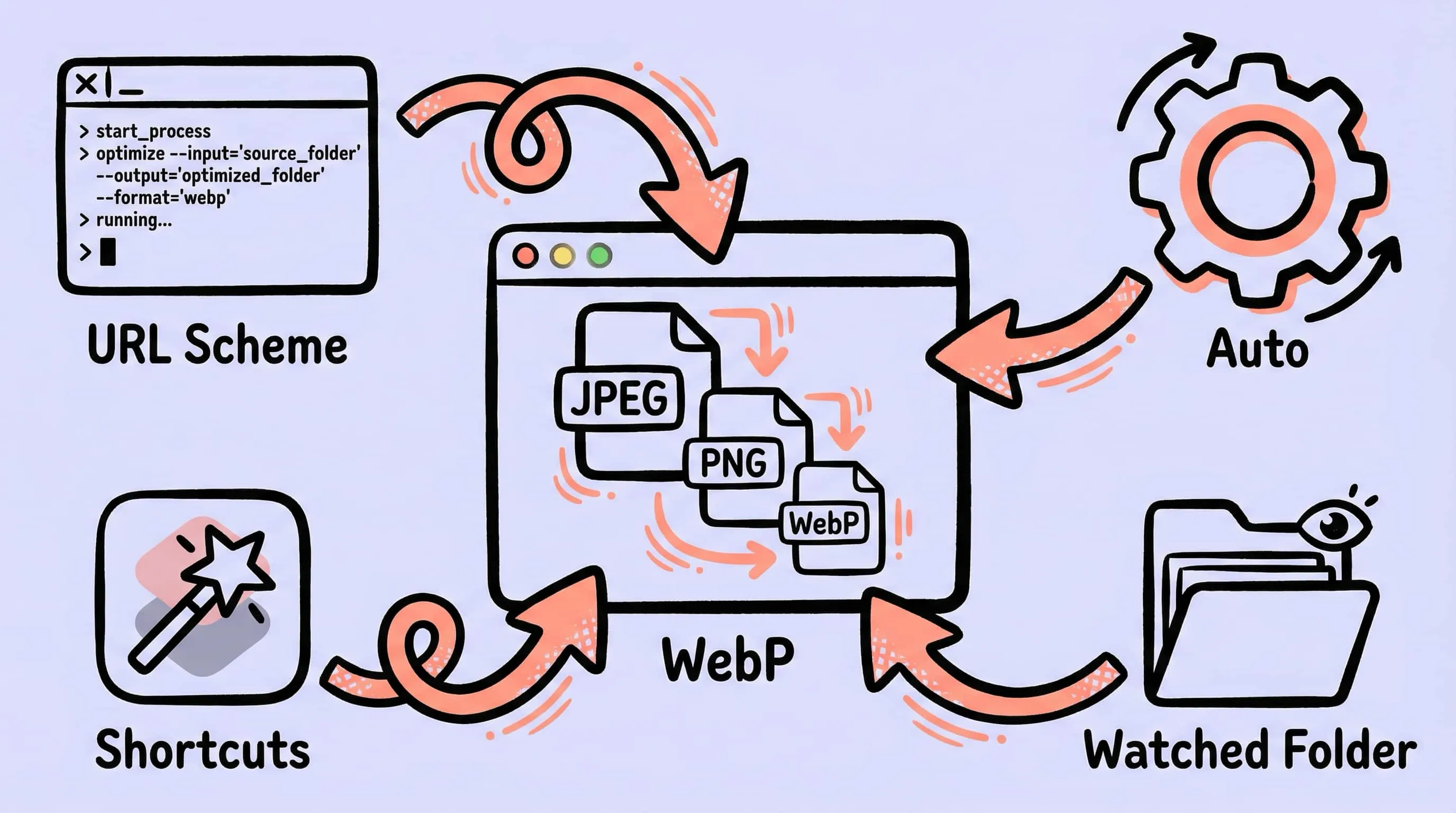
Image Compression for Web Developers: Automate Your Workflow
An image optimizer for developers on Mac. Compress images for web development with URL Scheme, Apple Shortcuts, folder monitoring, and an image compression API.