APNG and Animated WebP on Mac: Compress Modern Animated Formats
Compress APNG and animated WebP on Mac in 2026. Inside the formats, when each beats GIF, and how Zipic optimizes them with the in-house pngoptim engine.
If you’ve tried to compress APNG on Mac, you’ve probably noticed two things. Most image compressors quietly ignore the format and pass the file through unchanged. The few tools that do touch APNG often flatten the animation back to a single static frame. Animated WebP gets the same cold shoulder from desktop tooling — every modern browser plays it, but the apps in your menu bar pretend it does not exist.
This guide takes both formats seriously on a Mac. You’ll see what APNG and animated WebP actually are at the byte level, where each one wins over GIF, and how to compress both losslessly in Zipic — including the in-house pngoptim Rust engine that powers APNG optimization in Zipic 1.9+.
Why APNG and Animated WebP Beat GIF in 2026
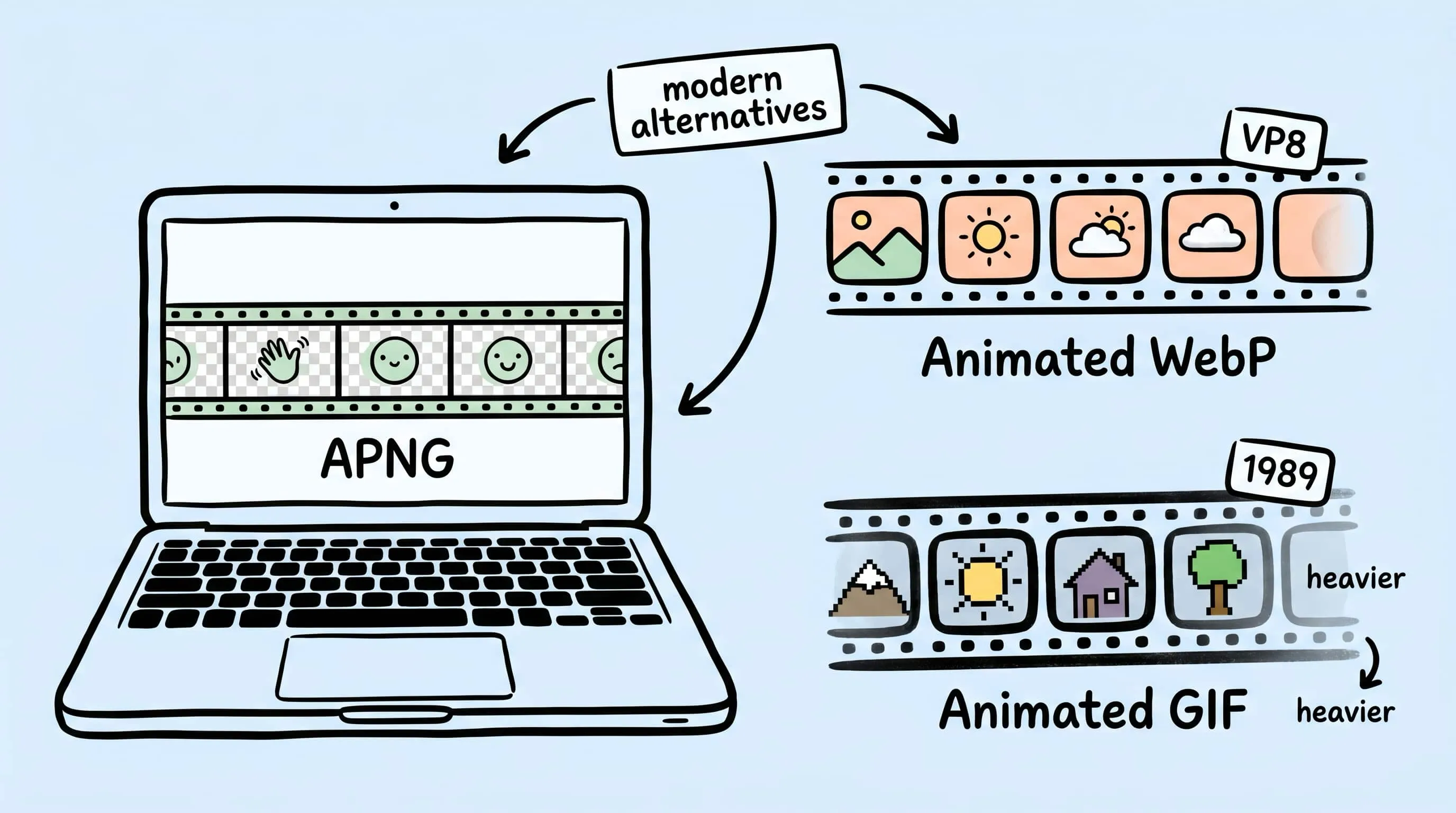
GIF89a was published in 1989. It uses a 256-color indexed palette per frame, has only 1-bit transparency, and ships every frame as a self-contained LZW bitmap with no temporal compression. That is why a 4-second screen recording routinely lands at 6 MB as GIF and under 1 MB as animated WebP or MP4. We covered that ceiling in detail in the GIF compression guide.
The two modern alternatives both solve different parts of the same problem:
- APNG (Animated PNG) keeps PNG’s full 24-bit color and 8-bit alpha channel. It is the right format for crisp UI loops, animated stickers, screen-recordings of vector content, and anywhere clean edges and transparency matter more than absolute file size.
- Animated WebP wraps VP8 (lossy) or VP8L (lossless) frames in a RIFF container with proper frame-disposal hints. On Google’s own corpus it is ~64% smaller than GIF at the lossy setting and ~19% smaller at the lossless setting (WebP FAQ). It is the right format for photographic loops, video-derived clips, and high-frame-count animation on the open web.
Both are mainstream in 2026. APNG sits at 95.46% global browser support, working in Chrome 59+, Safari 8+, Firefox 3+, and Edge 79+ (caniuse — APNG). WebP overall sits at 95.57% — every current Chromium, every current Firefox, and every Safari since 14 (macOS Big Sur, September 2020) — with full animated WebP support across the same matrix (caniuse — WebP).
Inside APNG: A PNG Container That Plays Frames
APNG was first proposed by Mozilla engineers in 2004, shipped natively in Firefox 3 in 2008, and finally elevated to a W3C Recommendation when it was folded into PNG Third Edition on 24 June 2025. That history explains the format’s defining constraint: an APNG must remain a valid PNG to a non-animation-aware reader.
Mechanically, APNG adds three ancillary chunks on top of a normal PNG:
- acTL (animation control) — total frame count and loop count, placed before the first
IDAT - fcTL (frame control) — per-frame metadata: width, height, x/y offset, delay numerator/denominator, dispose mode, blend mode
- fdAT (frame data) — compressed pixel data for frames after the first
The first frame is just the regular IDAT payload, which means a viewer that does not know about APNG simply renders that frame as a normal PNG and ignores the unknown chunks. This graceful fallback is APNG’s killer feature: you can ship one file and trust that even an obscure CMS or chat bot will display something meaningful.
Because every frame is still a deflate-compressed bitmap with PNG’s filter pipeline, APNG inherits two practical properties:
- Lossless by default. Re-encoding does not degrade the image. You can compress and recompress without seeing JPEG-style ringing.
- Sharp on UI content. PNG was designed for synthetic graphics — line art, icons, screen recordings, sticker artwork — and APNG keeps that strength frame-by-frame.
Where APNG struggles is photographic motion: long video-derived loops with continuous tone do not benefit much from PNG’s filter prediction, and the file balloons compared to a VP8/VP9-style codec.
Inside Animated WebP: VP8/VP8L With Frame Disposal
Animated WebP is part of the Google WebP Container Specification — a RIFF wrapper around either VP8 (lossy) or VP8L (lossless) per frame. The spec adds:
- VP8X chunk — header advertising “this WebP has animation”
- ANIM chunk — global background color and loop count
- ANMF chunks — one per frame, carrying offset, duration, dispose method, blend method, and a complete VP8 or VP8L payload
Practically, that gives you three properties GIF cannot offer:
- Real codec compression. VP8 uses block prediction and DCT-based transforms with a quality knob from 0–100. Photographic frames compress dramatically better than per-frame palette quantization.
- 8-bit alpha in both lossy and lossless modes. No more dithered fringes against transparent backgrounds.
- Mixed lossy + lossless frames in a single file. A loop can keep its first reference frame lossless and let subsequent frames go lossy.
The trade-off is the format’s age: animated WebP is limited to 8-bit color depth (no HDR), the spec defines a ~16384×16384 canvas ceiling, and some decoders enforce smaller per-frame limits.
How to Compress APNG on Mac With Zipic
Zipic compresses APNG files directly using its in-house pngoptim engine — a single-binary Rust tool we wrote as a modern alternative to pngquant. Per the pngoptim README, the engine runs roughly 1.69× faster than pngquant on average and produces 2–3% smaller files at equivalent quality. APNG support is built-in: animated PNGs are auto-detected — no special flag — and the engine quantizes to a global shared palette while preserving frame timing.
APNG compression is a Zipic Pro feature. Both .apng files and .png files that contain animation route through the same Pro path.
The Zipic workflow is preset-first: configure the compression options, then add files. There is no separate “Start” button — adding files triggers the job.
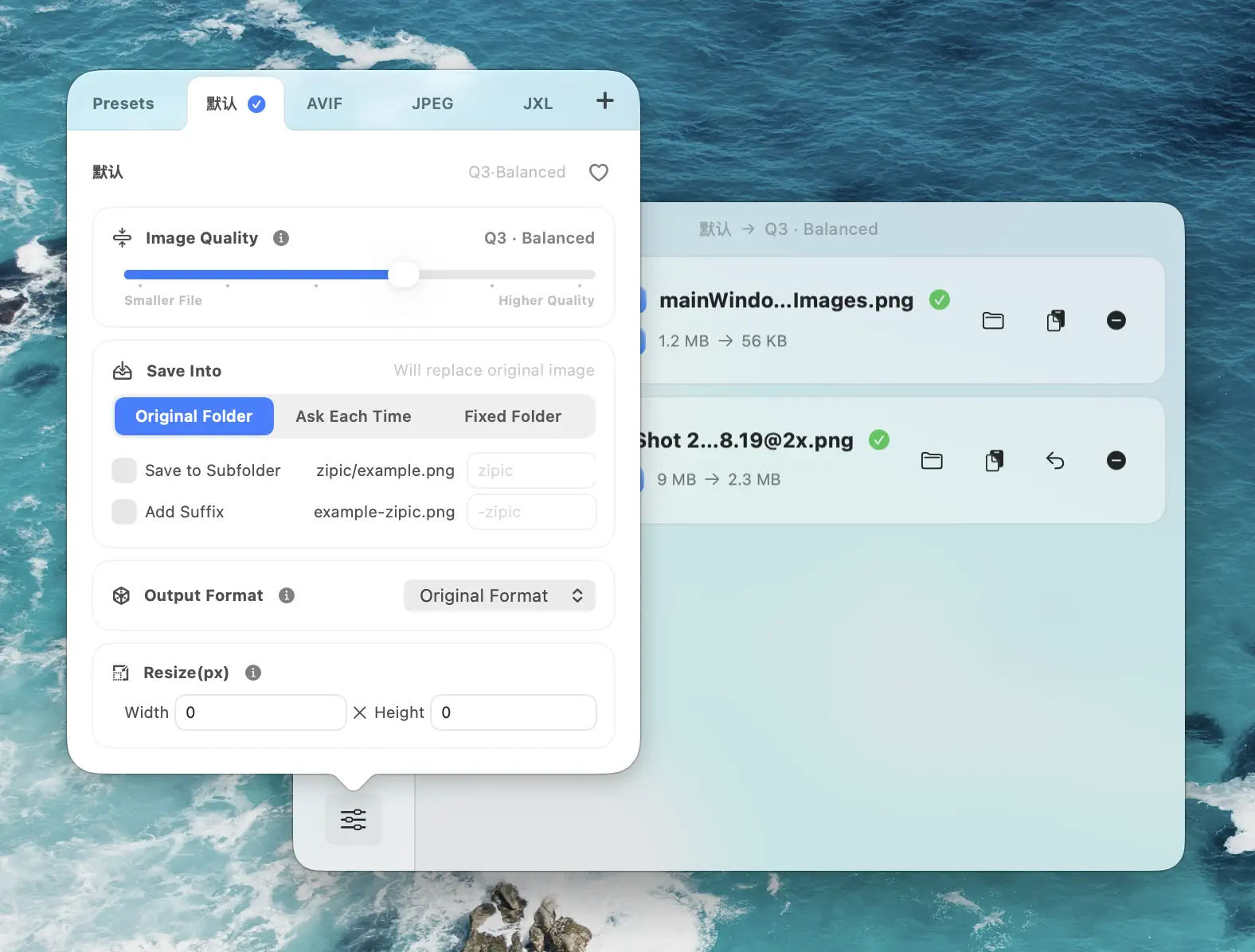
Open Compression Settings at the bottom-left of the main window and either edit the default preset or create a new one for animated work:
- Image Quality: 2–3 for sticker-pack work where every pixel matters; 4–5 when you have a long UI loop and the global palette is forgiving
- Save Format: Leave at the original — Zipic compresses APNG in place and does not convert APNG to other animated formats (or vice versa). Format conversion in Zipic applies to static images only.
- Resize: Long edge 480–800 px is plenty for documentation loops; iMessage stickers must stay within 206×206 points — see the FAQ for sticker-specific rules
- Save Location: Output to a sibling folder (e.g.
~/Stickers/optimized/) so you can A/B against the source frame-by-frame in Quick Look before shipping
Drag a folder of APNGs into the main window; Zipic detects animation, routes to the pngoptim path, preserves frame count and timing, and writes the optimized output to your chosen location. Click any thumbnail to open the comparison preview and verify the animation is intact.
Safe Mode vs Aggressive Mode
The pngoptim engine offers two structural-optimization modes for APNG via the APNG-Safe-Mode preference in Zipic:
- Safe (default) — folds duplicate frames where the pixel data is bit-for-bit identical. This is round-trip lossless and works on every APNG decoder.
- Aggressive — adds frame-rectangle minimization on top of frame folding, shrinking each
fdATchunk to the smallest dirty rectangle. Slightly less compatible with old decoders, but with rollback safety: if the rect minimization would corrupt timing, the engine falls back to safe mode automatically.
Default to safe mode for sticker packs and external distribution. Switch to aggressive when you control the decoder (your own app, your own docs site) and the extra savings on long static-segment loops are worth the audit.
How to Compress Animated WebP on Mac With Zipic
Animated WebP compression in Zipic does not require Pro — the WebP encoder auto-detects animation and routes to its animated path. The same preset works for both static and animated WebP sources; no separate setting needed.
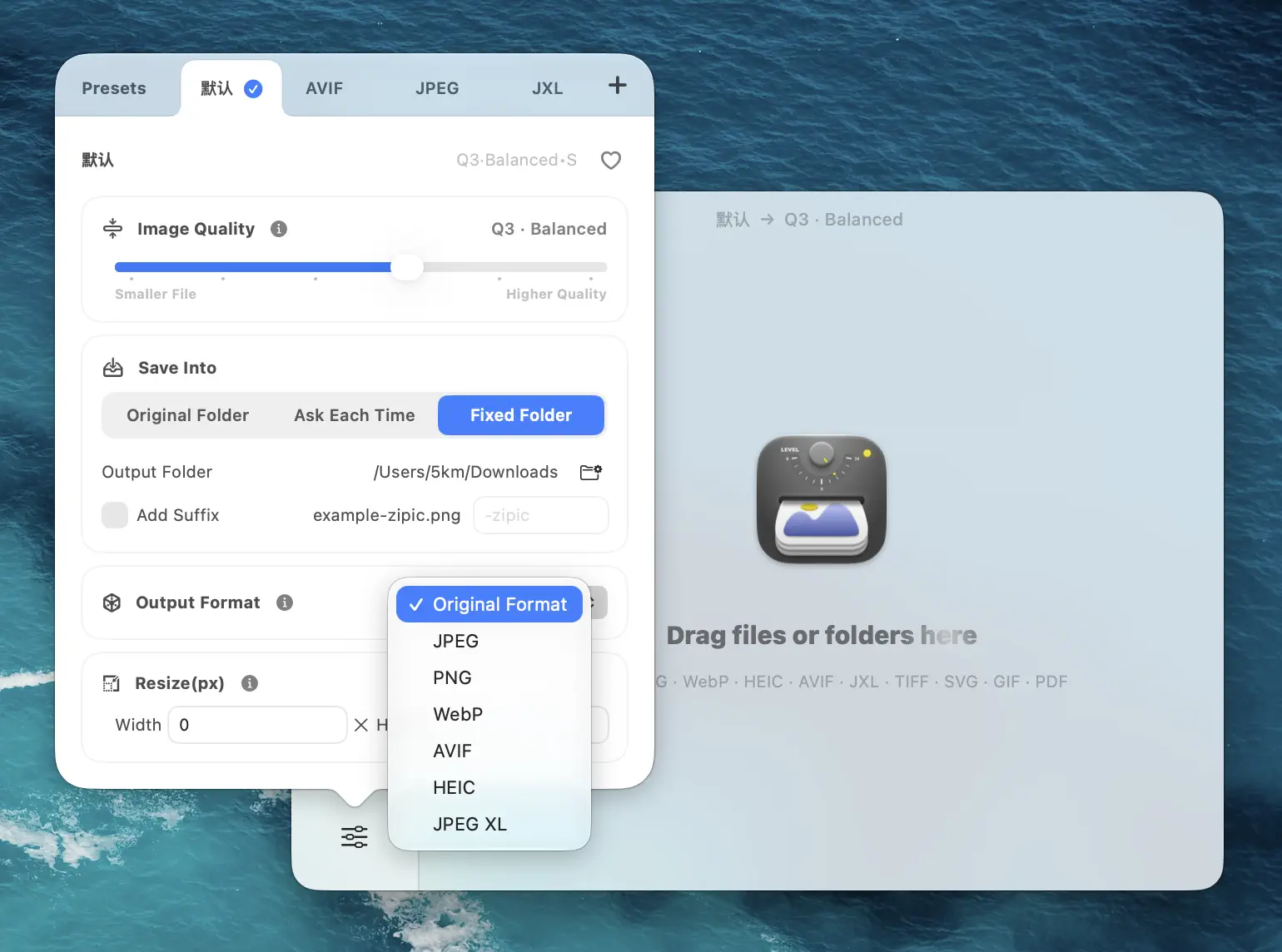
Practical preset values for animated WebP:
- Image Quality: 3 for UI loops (lossless preferred when alpha is sharp); 4–5 for video-derived loops where frames are continuous-tone
- Save Format: Leave at the original to keep WebP-in / WebP-out in place
- Resize: Animated WebP scales the same way GIF does — long edge 800–1280 px for in-page loops, smaller for chat reactions
A note on conversion scope: just like APNG, Zipic compresses animated WebP in place but does not convert between animated formats — no animated WebP → GIF, no GIF → animated WebP, no APNG → animated WebP. For those conversions you reach for a command-line tool.
For the static-WebP side of the workflow, see the WebP image optimizer guide.
Creating APNG and Animated WebP From Source (Outside Zipic)
Zipic is a compressor, not an authoring tool. If you are starting from a PNG sequence, a video, or a GIF, you assemble the animated file with one of these and then bring it back into Zipic for compression.
Build APNG from a PNG sequence
apngasm is the canonical assembler:
brew install apngasm                     # one-time install
apngasm out.apng frame*.png 1 30          # 1/30s frame delay
For GUI users on Mac, APNGb wraps apngasm’s assemble and disassemble paths in a native macOS app.
Build animated WebP from a GIF or PNG sequence
Google’s gif2webp is part of libwebp:
brew install webp                                # one-time install
gif2webp -q 75 input.gif -o output.webp          # quality-targeted lossy
gif2webp -lossless input.gif -o output.webp      # lossless (slightly smaller than GIF)
For PNG sequences, img2webp is the matching tool:
img2webp -loop 0 -q 80 frame_*.png -o output.webpOnce the file exists, drop it into Zipic for a final pass.
Convert source video to either format
For short product clips, ffmpeg writes both:
# MP4 / H.264 source → APNG (no quality knob, lossless)
ffmpeg -i clip.mp4 -plays 0 out.apng

# MP4 source → animated WebP (quality 75, loops forever)
ffmpeg -i clip.mp4 -vcodec libwebp -loop 0 -q:v 75 out.webp
Then compress in Zipic.
APNG vs Animated WebP vs GIF: When Each Wins
| Job | Best format | Why |
|---|---|---|
| Animated iMessage / iOS sticker | APNG | Apple’s Human Interface Guidelines accept PNG / APNG / GIF / JPEG (no animated WebP). 500 KB cap, 100×100–206×206 pt, ≤30 FPS. |
| Crisp UI loop on a docs site | APNG or animated WebP lossless | PNG-style filters keep edges sharp. Pick APNG if you need maximum decoder reach, animated WebP if you control the audience. |
| Photographic loop on the open web | Animated WebP (lossy) | VP8 destroys palette-based formats on continuous-tone content. ~64% smaller than GIF on average. |
| WhatsApp animated stickers | Animated WebP (mandatory) | WhatsApp accepts WebP only: 512×512 px, 500 KB cap on animated, transparent background required, animation duration ≤10 s (WhatsApp Stickers spec). |
| Slack / Discord custom animated emoji | GIF | Lowest common denominator. Slack custom emoji caps at 128 KB; APNG works on desktop but is inconsistent on mobile. Discord serves animated emoji as WebP internally, but the upload format that always works is GIF. |
| Email newsletter hero | GIF | Most email clients still strip <picture>/<source> tags and don’t decode WebP/APNG. |
| Marketing video on a landing page | MP4 + WebM in <video> |
Even animated WebP cannot match a real video codec. Lighthouse explicitly recommends this. |
The decision is rarely “best format in the abstract” — it is “best format for this destination”. Pick the destination, then the format follows.
Quick Decision Flow
When an animated asset crosses your desk, ask in this order:
- Will it ship to iMessage / iOS stickers? → APNG, ≤500 KB, 206×206 pt cap.
- Is the content UI / line-art / sharp transparency? → APNG (or animated WebP lossless if reach is open-web only).
- Is the content photographic / video-derived? → Animated WebP lossy.
- Does the destination strip everything except GIF? (email, legacy chat, old CMS) → GIF.
- Do you control an HTML5 page? → Skip animated images entirely and use
<video>.
Once the format decision is made, compression itself is the easy part: APNG and animated WebP both go through Zipic; GIF goes through Zipic via the GIF workflow; MP4/WebM is ffmpeg’s job.
FAQ
Does Zipic preserve animation when compressing APNG? Yes. The pngoptim engine routes APNG sources through its animation-aware path and preserves every frame, the original delays, and the loop count. Verify with the comparison preview in Zipic’s main window after compression.
Why is APNG compression Pro-only when GIF compression is free? APNG compression depends on Zipic’s in-house pngoptim engine, which is one of the engineering investments behind the Pro tier alongside zipic-jpeg, gifoptim, svgo-swift, and pdfoptim. The free tier covers the broad image-compression surface; Pro funds the format-specific engines.
Can I convert a GIF to APNG or animated WebP inside Zipic?
No. Zipic compresses animated formats in place — its format-conversion settings apply only to static images. For GIF → animated WebP use gif2webp; for GIF → APNG decompose with gifsicle and reassemble with apngasm.
How much smaller will my APNG get after Zipic? On previously-uncompressed APNGs the global-palette quantization step typically saves 20–60%, depending on color complexity. Aggressive mode adds another 5–15% on long static-segment loops where most of each frame is unchanged. Already-tight APNGs (artist-tuned sticker exports) may save in the low single digits.
Is animated WebP smaller than APNG? For photographic content, yes — usually 30–60% smaller because VP8 beats PNG’s filter pipeline on continuous tone. For sharp UI / line-art content, APNG and animated WebP lossless are within a few percent of each other; pick by destination compatibility.
Does animated WebP support transparency the way APNG does? Yes. Animated WebP carries an 8-bit alpha channel in both lossy (VP8) and lossless (VP8L) modes. Visually, the alpha quality is on par with APNG’s; the difference is codec efficiency on the underlying RGB.
What about animated AVIF? Should I use it instead? Animated AVIF exists and compresses photographic motion even more aggressively, but tooling is still rough on the encoding side and Firefox has open issues with image-sequence playback. For 2026, animated WebP remains the safer “next-gen animated” pick. We covered the static AVIF side in What Is AVIF?.
Sources
- APNG specification — W3C PNG Third Edition
- WebP Container Specification — Google Developers
- WebP FAQ — animated WebP vs GIF size
- APNG browser support — caniuse.com (95.46% global)
- WebP browser support — caniuse.com (~97% global)
- pngoptim — Zipic’s in-house Rust PNG/APNG engine
- iMessage apps and stickers — Apple Human Interface Guidelines
- Zipic image compression formats
- Zipic image compression basics
Related Articles
- GIF Compression on Mac: Reduce Size and Keep Animation
- pngoptim Deep Dive: Rust PNG Compression Engine for Mac
- WebP Image Optimizer for Mac: Convert and Compress to WebP
- JPEG vs PNG vs WebP: Which Image Format Should You Use?
- Batch Compress Images on Mac: Complete Tutorial
Try Zipic
Stop letting your APNG and animated WebP files balloon while the rest of your toolchain ignores them. Download Zipic, set an APNG preset to safe mode at Q3, and let the in-house pngoptim engine handle the batch. APNG compression is a Pro feature — Every download includes a full 7-day Pro trial. See pricing.
Related Reading
How to Compress Images on Mac Fast (Without Ruining Quality)
Compress images on Mac with drag-and-drop, Finder, presets, and batch automation — protect originals, check quality at 100%, then scale the workflow.
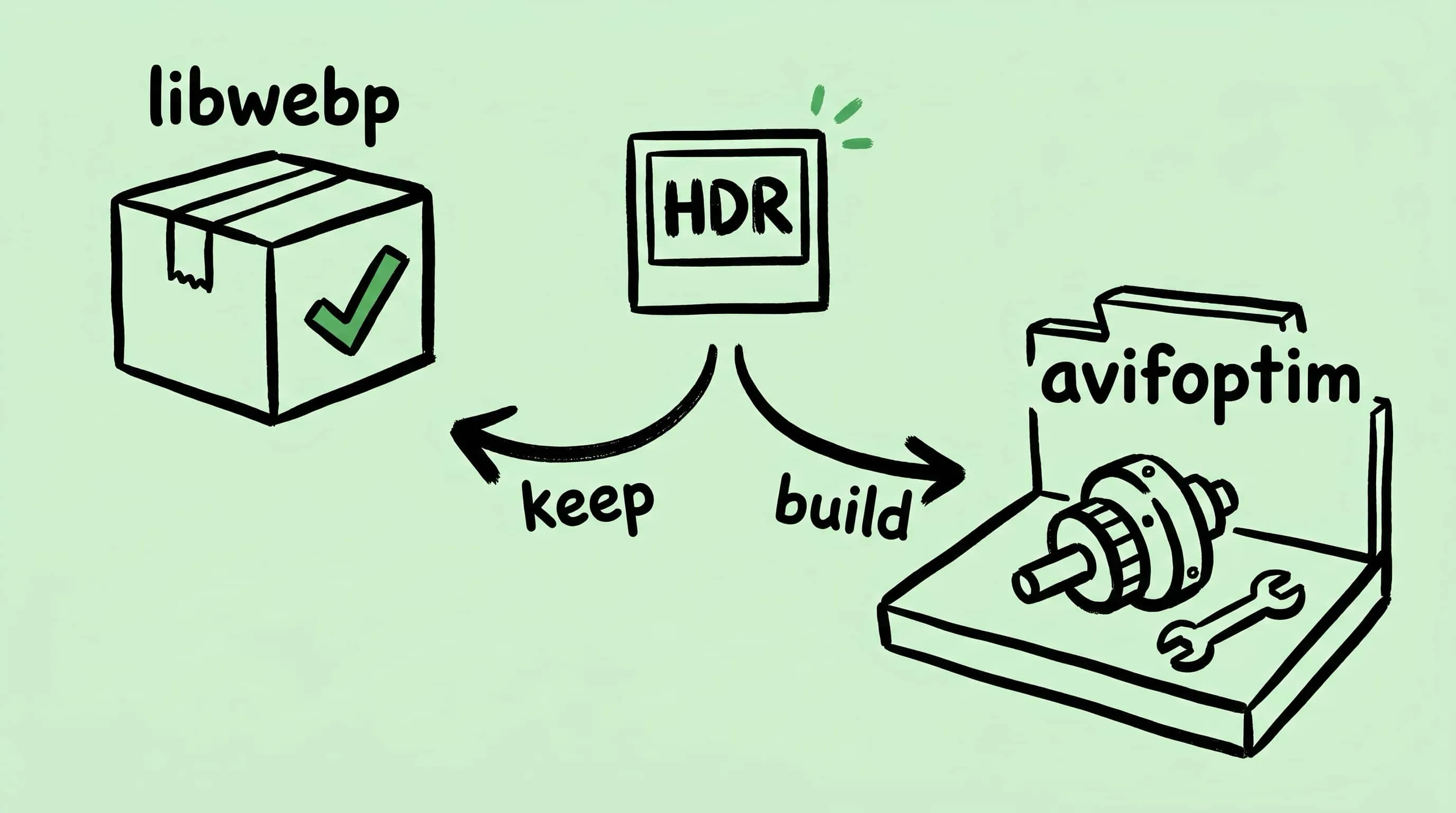
Why Zipic Kept libwebp for WebP but Built Its Own AVIF Encoder
Zipic keeps Google's libwebp for WebP but built avifoptim after libavif failed to preserve iPhone HDR photos. The engineering trade-off explained.
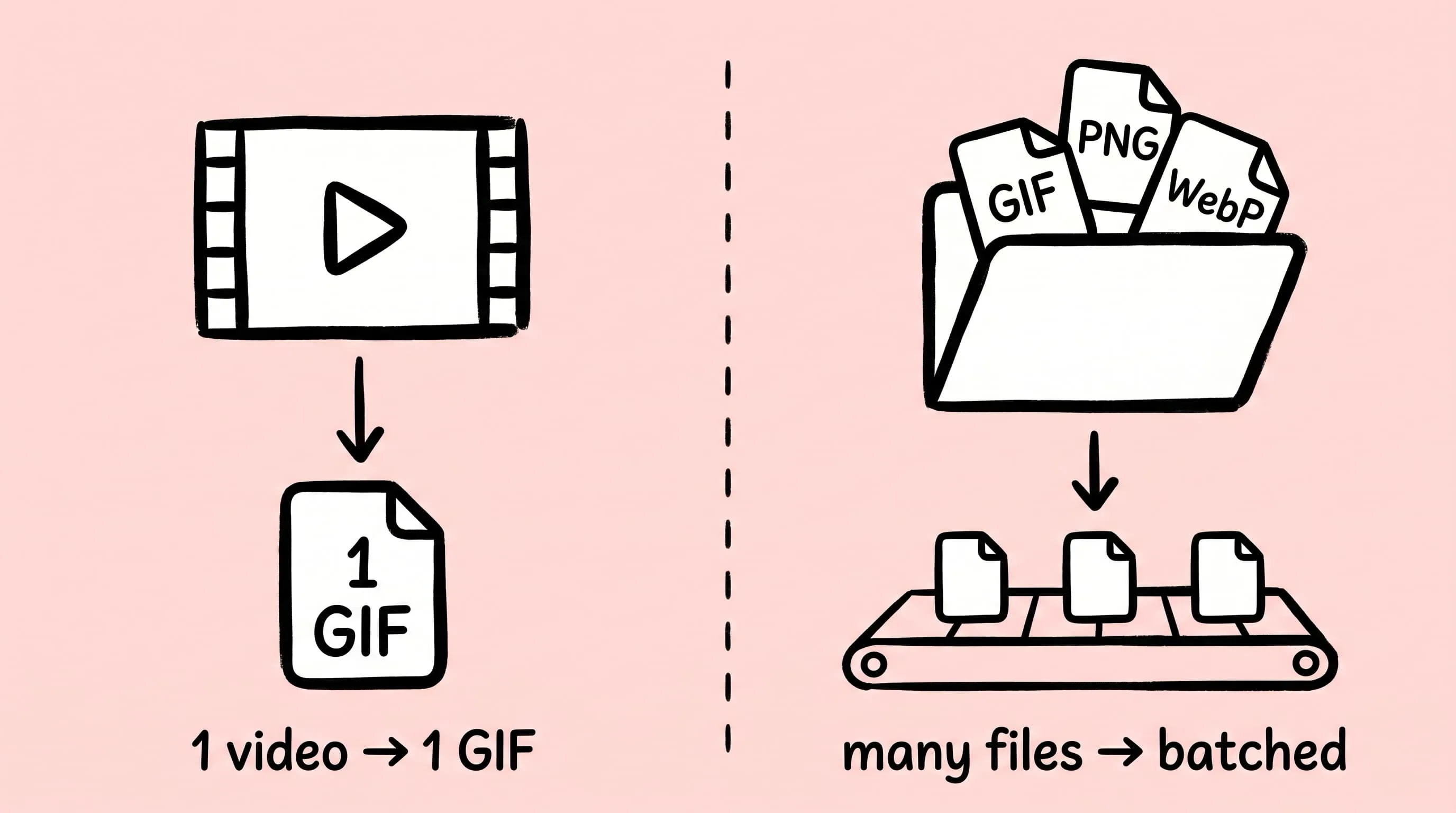
Best gifski Alternative on Mac: When One Video at a Time Isn't Enough
gifski is a great video-to-GIF encoder, but it cannot batch, monitor folders, or compress existing GIFs. Here is the Mac gifski alternative for those jobs.
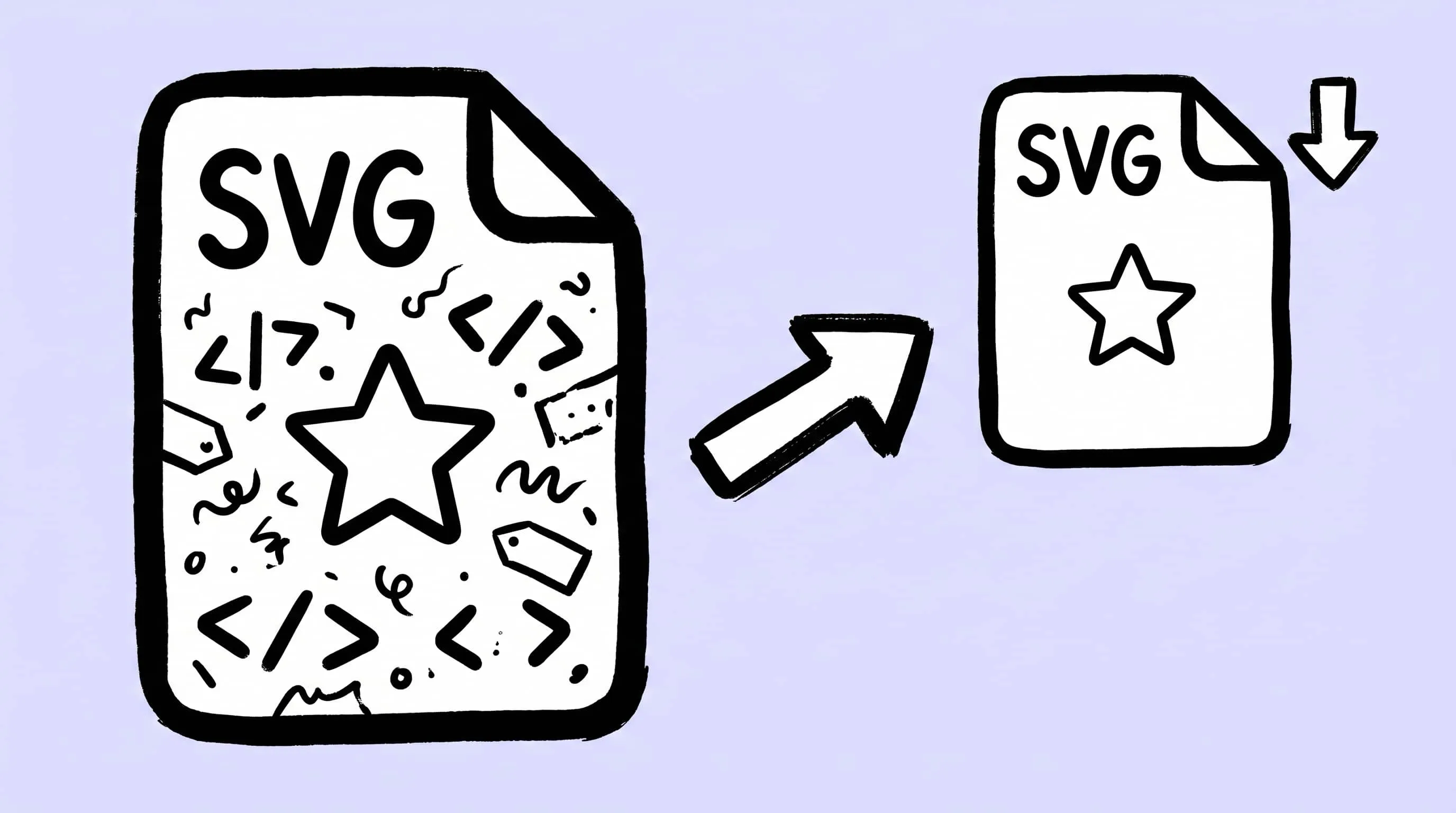
How to Compress and Optimize SVG Files on Mac with Zipic
Need an SVG optimizer on Mac? Compress and optimize SVG files with Zipic — strip editor bloat, pick from six quality steps (Q1–Q6), and batch entire icon sets.