Batch Compress PDF on Mac with pdfoptim Rust Engine
Batch compress PDF on Mac without uploading to Adobe. Inside Zipic's in-house pdfoptim Rust engine and how it compares to Ghostscript on real samples.
If you’ve tried to batch compress PDF on Mac, you have probably bounced between four bad options. Adobe Acrobat asks you to upload to its cloud. Preview’s “Reduce File Size” filter is a fixed preset with no controls and often turns scans into mush. Online compressors will shrink the file, but your contract or design proof leaves the machine. Ghostscript works, but it’s a 100+ MB C toolchain with a flag manual.
Zipic does this differently. Inside Zipic is pdfoptim — our own PDF compression engine, written from scratch in Rust. Drop a PDF (or a folder of them) into the window, pick a compression level, and Zipic handles everything else locally. No cloud upload. No extra download. No flags.
When You Actually Need to Batch Compress PDFs
The usual suspects:
- Designers shipping client review files — an 80 MB layout proof that bounces off email, won’t go through chat.
- Finance / admin packing monthly and quarterly reports — a dozen PDFs that add up to 200+ MB before you even attach them.
- Scanned contracts and invoices for archive — 20–50 MB each, your cloud storage fills up in months.
- Teachers and trainers distributing handouts and exams — each file has to fit inside school or corporate email caps.
The common thread: batch, size limits (attachments, uploads, storage quotas), and the file still has to be readable on the other end.
Why PDFs Get So Heavy
Three culprits, almost always: embedded images at their original DPI, entire font files dragged in for a handful of glyphs, and structural streams written carelessly by the authoring tool. Add them up and a routine business PDF lands in the 20–100 MB range — over Gmail’s 25 MB and Outlook’s 20 MB attachment caps, slow to preview, expensive to host.
pdfoptim attacks all three: it downsamples and re-encodes oversized images, subsets fonts down to the glyphs your document actually uses, and rewrites the PDF structure with modern streams. The work happens entirely inside the Zipic process on your Mac.
How Zipic’s PDF Compression Got Here
Three steps, two years:
- Zipic 1.8.3 (Nov 2025) — first PDF support, using the built-in macOS Quartz filter. It worked, but compression was weak and quality control was poor.
- Zipic 1.9.0 (Mar 2026) — switched to Ghostscript for real compression. The catch: Ghostscript was an optional external dependency. Users had to download it on first use, which meant a ~30 MB prompt before anything happened.
- Zipic 1.9.3 (Apr 2026) — replaced Ghostscript with our in-house pdfoptim. No download. No prompt. PDF compression works the moment you install Zipic.
That last step is what this article is really about: building our own engine so PDF compression behaves like the rest of Zipic — drop a file in, get a smaller file out.
pdfoptim vs Ghostscript: Our Test Results
The promise of “we wrote our own engine” only matters if the numbers hold up. Here is pdfoptim against Ghostscript 10.x on a six-PDF sample set covering text-only contracts, mixed CJK + image documents, photo-heavy reports, and scanned forms — all run at the equivalent of an ebook preset:
| Sample | Original | pdfoptim | Ghostscript |
|---|---|---|---|
| Text-only contract | 197 KB | 119 KB (−39.6%) | 122 KB (−38.1%) |
| Mixed CJK + light images | 605 KB | 436 KB (−27.9%) | 386 KB (−36.1%) |
| Photo-heavy report | 32.2 MB | 27.3 MB (−15.4%) | 27.1 MB (−15.9%) |
| Scanned form | 2.1 MB | 860 KB (−60.2%) | 956 KB (−55.7%) |
| Image-heavy slide deck | 19.6 MB | 10.0 MB (−48.7%) | 10.2 MB (−47.8%) |
| Photo book | 81.7 MB | 20.2 MB (−75.3%) | 20.9 MB (−74.5%) |
Across six samples, pdfoptim averages 44.5% reduction and Ghostscript averages 44.7% — effectively a tie, with pdfoptim ahead on four out of six samples. The point is not that we beat Ghostscript by a wide margin. The point is that a Rust engine bundled inside the app, with no external download and no flags to learn, can hit the same ratio Ghostscript took thirty years to reach.
The one sample where Ghostscript clearly wins is the CJK-heavy PDF — font subsetting across shared CJK fonts is still on our tuning list for the next Zipic update.
How to Compress PDFs in Zipic
The workflow is the same as the rest of Zipic: configure a preset, then drop files. No separate “PDF mode,” no Start button.
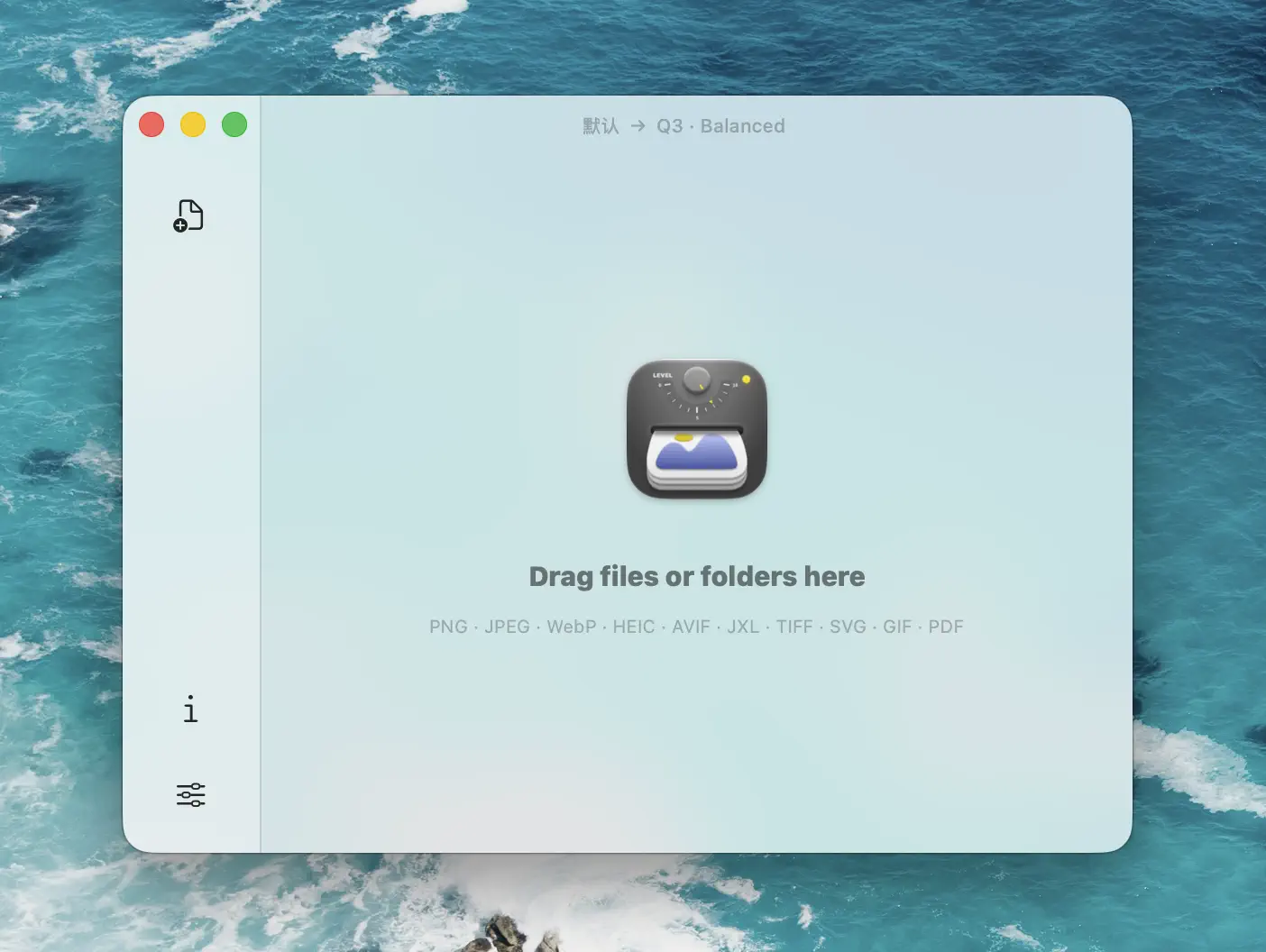
Open Compression Settings at the bottom-left, set the level, and that’s it:
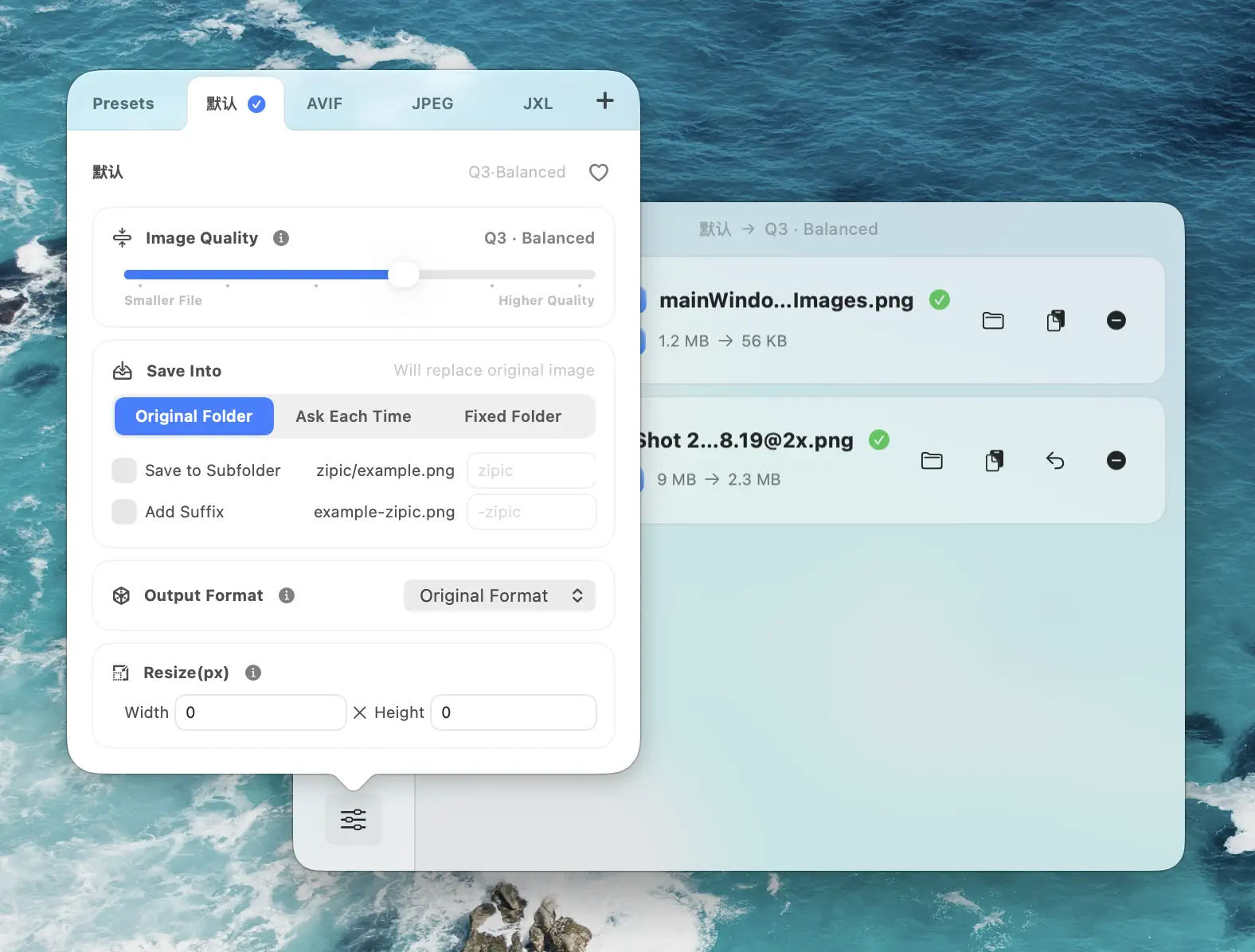
Rough size savings at each level (same PDF, different levels):
| Quality | Best for | Typical savings |
|---|---|---|
| 1 | Print-shop submission, archival | 5–15% |
| 2–3 | Email, web distribution, everyday printing | 40–60% |
| 4–5 | Chat attachments, web previews, phone reading | 60–80% |
| 6 | Aggressive compression, visible quality loss | 70–85% |
How much you actually save depends on what’s inside: image-heavy PDFs gain the most; pure-text PDFs are already small and have less to give.
Trying to compress a PDF without losing quality under a hard upload cap is a different job from batch compression. Before raising the level, calculate a per-page budget; an oversized layout may need re-exporting or rebuilding instead.
Drop a single PDF or a folder of them. Batch jobs run in parallel — ten files take roughly the time of the largest one.
A few practical tips for batch runs:
- Save to a sibling folder, not in place. If something goes wrong, the originals are still there.
- Mix PDFs and images in the same folder. Zipic auto-routes by format — PDFs through pdfoptim, JPEGs through zipic-jpeg, PNGs through pngoptim. No interference.
- A PDF that “won’t shrink” is usually encrypted, or already pushed to its limit by a previous compressor — see “When pdfoptim Won’t Help” below.
For automation, the same Zipic tools work on PDFs as on images: folder monitoring, Apple Shortcuts, and the URL scheme (zipic://compress?url=<path>&level=3&format=original).
Why Strength Is the Only Setting
You may have noticed Zipic doesn’t expose DPI thresholds, JPEG quality bands, font-subsetting strategies, or any of the other knobs Ghostscript has. That’s how we build the product. Every PDF is different; picking the right combination of those parameters takes experience most users don’t want to acquire. So we expose only the compression strength and let the engine pick the rest. The complexity stays inside the software, not on you.
When pdfoptim Won’t Help
- Encrypted PDFs. Zipic detects them and surfaces a friendly prompt rather than silently failing. Remove the password in Preview (Export with no password), then drop the unlocked file back in.
- OCR. pdfoptim doesn’t OCR scans. If you need a searchable PDF, run OCR first (Preview’s Markup tools, or macOS 26’s built-in OCR), then compress.
- Already-compressed PDFs. A PDF that’s been through pdfoptim or a well-tuned Ghostscript pass has usually 0–5% left to give.
FAQ
Can I still edit, search, and print a compressed PDF? Yes. pdfoptim only touches images, fonts, and the file structure — it doesn’t change the text layer, annotations, form fields, bookmarks, or hyperlinks. The compressed PDF opens normally in Preview, Adobe Reader, and Word; text is selectable and searchable; forms still accept input. Print quality depends on level: levels 2–3 are indistinguishable from the original on letter-size paper; levels 4–5 may show softness if you zoom in on photographs.
Will Zipic upload my PDF anywhere? No. pdfoptim runs entirely inside the Zipic process on your Mac.
Why is PDF compression a Pro feature? PDF compression is the most engineering-heavy format Zipic supports. The Pro tier funds the in-house engines — pdfoptim alongside zipic-jpeg, pngoptim, gifoptim, and svgo-swift.
Can pdfoptim handle CJK PDFs? Yes. CJK fonts are typically Type0/CID composites; pdfoptim subsets the underlying fonts to the glyphs the document actually uses. CJK documents often see the largest absolute size reductions — most of the embedded font is unused glyphs.
Why did some of my PDFs barely shrink? Two common reasons: the PDF is already mostly text or vector content with little to compress, or it has been through a compressor before and is near its floor. Both are working-as-intended outcomes.
Related Articles
- Batch Compress Images on Mac: Complete Tutorial
- Automate Image Compression with Apple Shortcuts
- Zipic URL Scheme: The Complete Reference
- APNG and Animated WebP on Mac with the pngoptim Engine
- ICNS File Compression on Mac with pngoptim
Try Zipic
If you’ve been uploading PDFs to a stranger’s server to save 5 MB, stop. Download Zipic, set the level to 2–3, drag a folder of PDFs into the main window. pdfoptim handles the rest — locally, in seconds. PDF compression is a Pro feature; every download includes a full 7-day Pro trial. See pricing.
Related Reading
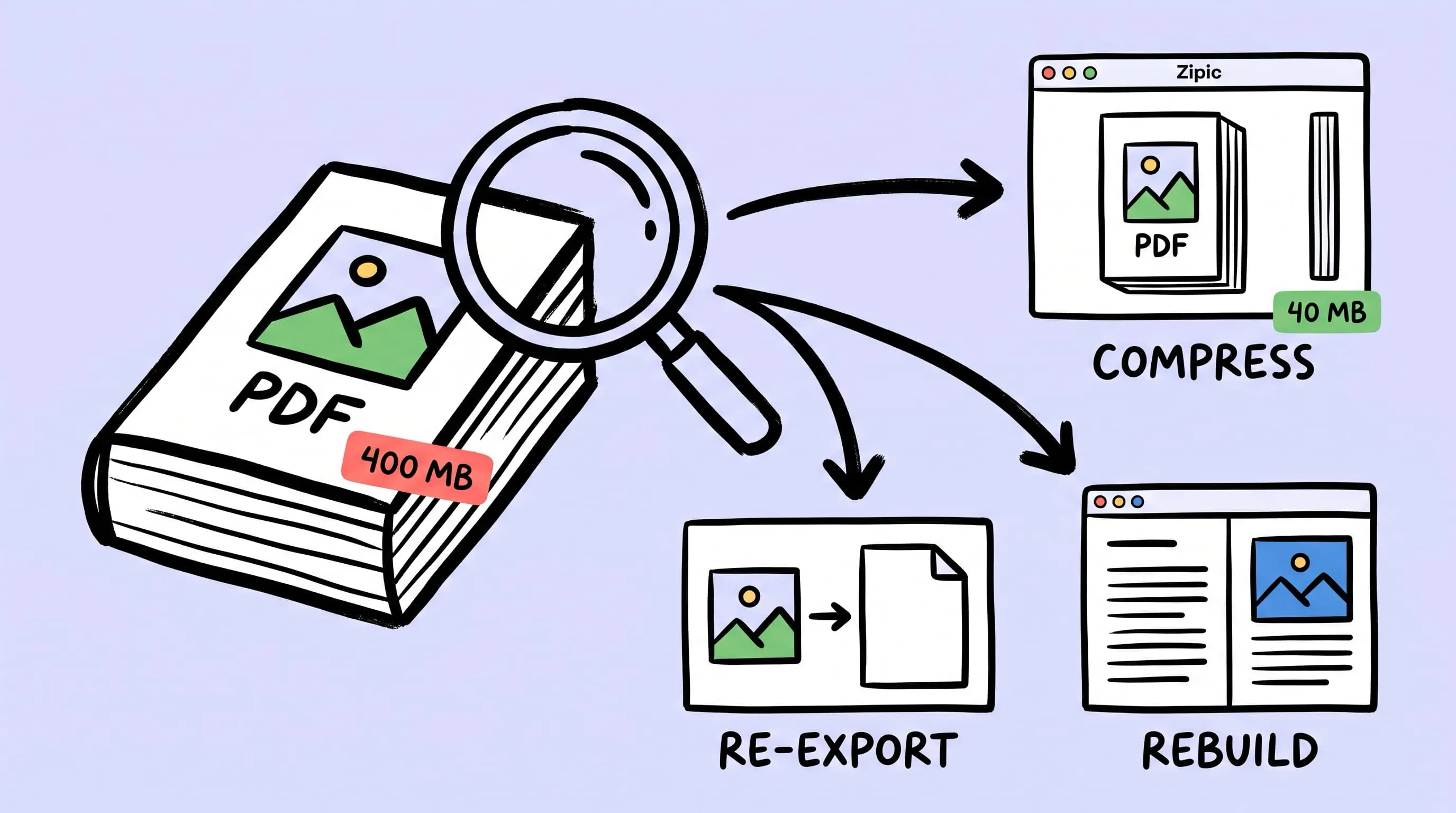
Compress a PDF Without Losing Quality: Diagnose It First
Learn how to compress a PDF without losing quality by diagnosing oversized images, export settings, and layout problems before choosing a compression level.
Batch Compress Images on Mac: Folders, Samples, and Automation
Batch compress images on Mac safely: sample first, protect originals, then scale with folders, Raycast, monitoring, or Shortcuts.
How to Compress Images on Mac Fast (Without Ruining Quality)
Compress images on Mac with drag-and-drop, Finder, presets, and batch automation — protect originals, check quality at 100%, then scale the workflow.
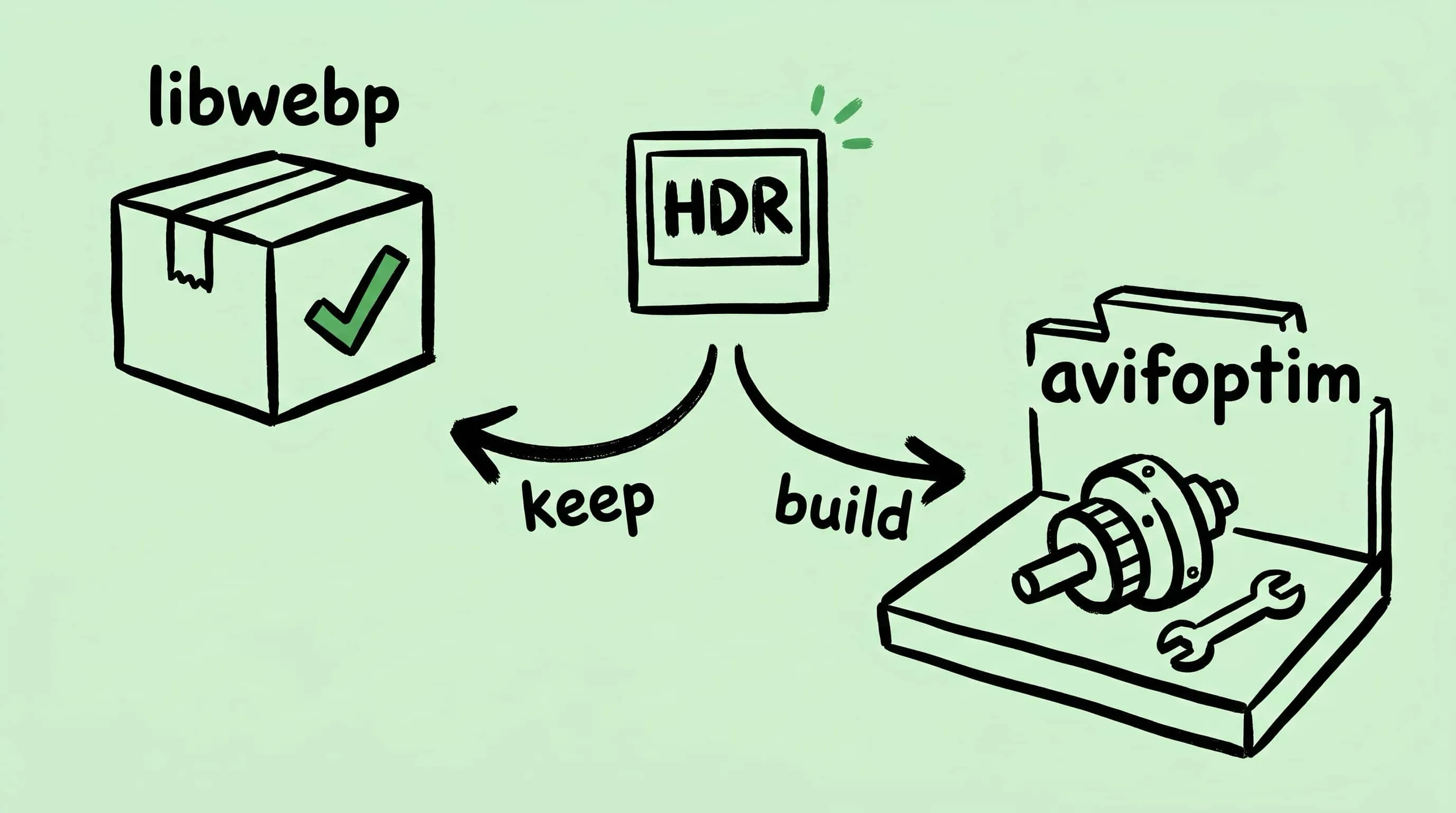
Why Zipic Kept libwebp for WebP but Built Its Own AVIF Encoder
Zipic keeps Google's libwebp for WebP but built avifoptim after libavif failed to preserve iPhone HDR photos. The engineering trade-off explained.