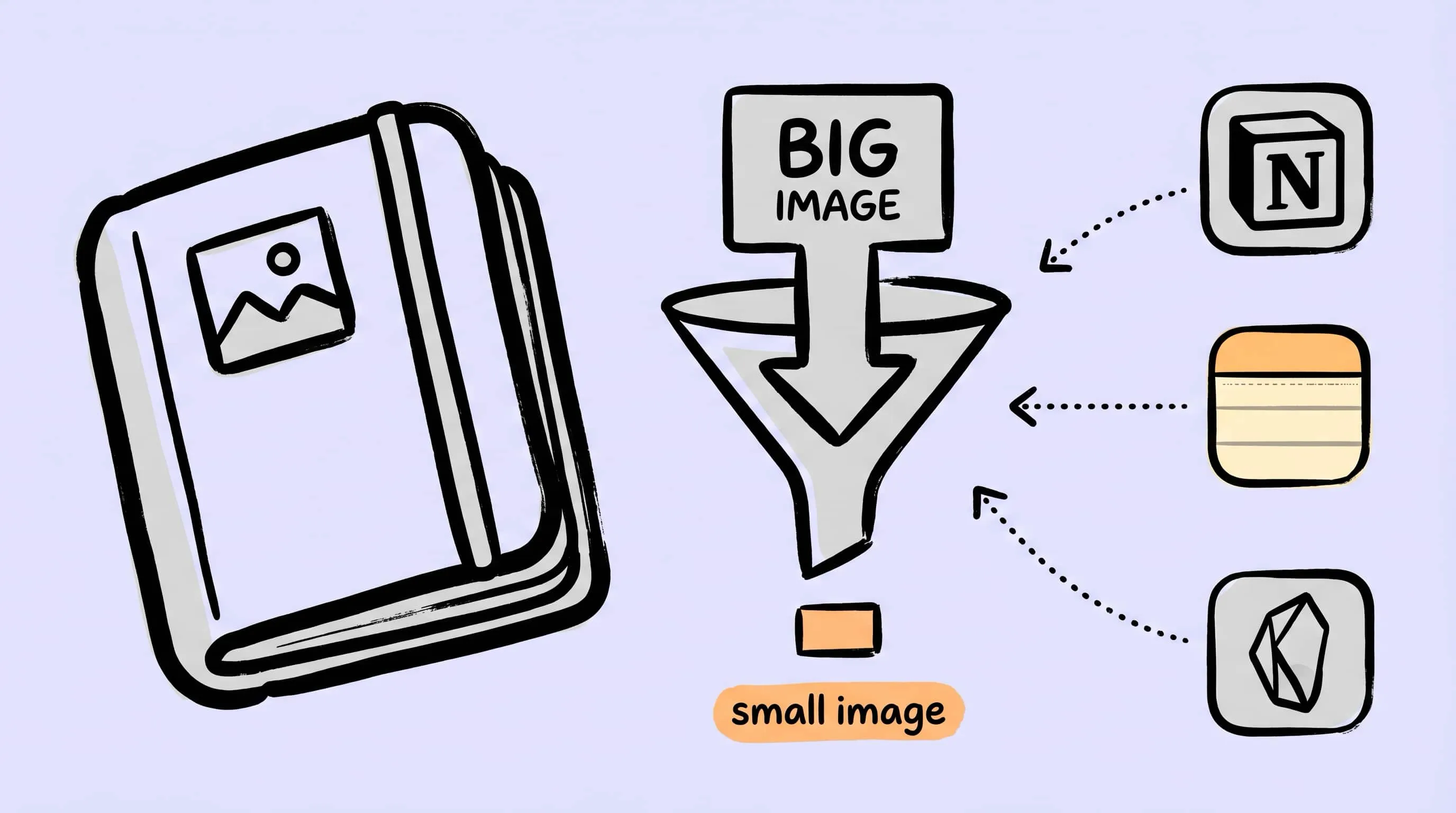
Compress Images for Notion, Obsidian, and Apple Notes on Mac
Notion's free plan caps single uploads at 5 MB, Apple Notes chokes around 75 attachments per note, and an Obsidian vault on iCloud bloats fast. Here's how to compress note images on macOS so syncing, sharing, and searching stay smooth.
A note that feels light when you write it can turn heavy by the time it syncs. Drop a 4K screenshot into a Notion page and a free-plan recipient sees an upload error. Paste twenty PNG receipts into one Apple Note and Maximum attachments reached blocks the next image. Run an Obsidian vault on iCloud for six months and your Macs spend more time syncing pasted images than they do indexing the actual Markdown.
The fix isn’t a new note app. It’s a 90-second compression habit between capture and paste. This guide shows what each major note app actually limits in 2026, the file sizes you should target for each, and how to set up an Obsidian/Notion/Apple Notes pipeline on macOS that compresses images automatically before they ever enter a vault.
What These Note Apps Actually Limit
The constraint isn’t always a hard error message — sometimes it’s just slow sync, a clipped page, or a search that quietly stops returning anything useful. Here’s where each app draws the line:
| App | Hard limit on images | Soft pain point |
|---|---|---|
| Notion (Free) | 5 MB per file upload | Pages with many uploads load slowly on weak connections |
| Notion (Plus / Business / Enterprise) | 5 GB per file upload | Multi-image pages still hurt mobile open time and offline cache |
| Apple Notes | No published per-file size; users hit Maximum attachments reached around 45–75 attachments per note |
iCloud sync slows when notes carry full-resolution screenshots |
| Obsidian (the app itself) | None — it’s a local-first Markdown editor | Vault size balloons when you paste raw PNG screenshots; iCloud / OneDrive / Dropbox sync is what enforces real limits |
A few practical implications. Notion’s 5 MB free-plan cap is the lowest, and a single 4K iPhone screenshot is often already over it. Obsidian has no server-side limit, but a vault you store in iCloud Drive inherits iCloud’s 50 GB / 200 GB / 2 TB tier — and pasted images are usually the biggest single contributor to growth. Apple Notes’ attachment ceiling is undocumented but real: users on Apple’s discussion boards consistently report blocking errors somewhere between 45 and 75 image attachments per note.
How Small Should Note Images Be?
Note images don’t need email-newsletter discipline, but they do need some discipline. These targets cover most cases:
| Use case | Target dimensions | Target file size |
|---|---|---|
| Inline screenshot in a doc | 1200–1600 px wide | 150–300 KB |
| Reference photo (research note) | 1600–2400 px long edge | 300–600 KB |
| UI mockup / design crop | Long edge ≤ 2000 px | 200–500 KB |
| Receipt or document scan | 1500 px long edge | 200–400 KB |
| Whiteboard / handwritten note | 1600 px long edge | 250–500 KB |
The pattern: long edge 1200–2000 px, file size 150–500 KB. Past that, you’re storing pixels the note app will downscale anyway.
Notion: Compress Before You Upload
Notion is the easiest case to get wrong because it never refuses a file outright on paid plans — it just gets slow. A page with thirty 4K screenshots will load fine on your gigabit office Wi-Fi and crawl on your phone in a hotel lobby.
The 5 MB free-plan cap is a separate problem: a full-screen Mac screenshot on a Retina display is already 2–5 MB. If you’re on Free, or if you collaborate with anyone on Free, you’ll hit that ceiling regularly without compression.
What I do for Notion:
- Image Quality: 3 (visually lossless for screenshots and photos)
- Save Format: WebP — Notion has rendered WebP inline on web and desktop for years
- Resize: Long edge 1600 px (skipped if the source is smaller)
- Save Location: A
~/Desktop/Notion/folder so I always know where to drag from
Drag the compressed file into Notion. A 4 MB screenshot becomes ~250 KB, the page stays fast on mobile, and free-plan collaborators stop running into the 5 MB wall.
Obsidian: A Local Vault Likes Local Compression
Obsidian itself doesn’t care how big your vault is — it’s just a folder of Markdown files. The cost shows up at the sync layer. iCloud Drive, OneDrive, Dropbox, and Obsidian’s own paid Sync service all care, in different ways, about how much you’re moving.
Two patterns dominate vault bloat:
- Pasted screenshots that go into the default
attachments/folder at native macOS retina resolution (often 2–5 MB each). - PDF or scan dumps captured for “I’ll read this later” research notes.
A vault that’s been actively used for a year on a Mac with retina screenshots can easily cross 5 GB, and most of that is images you never re-open.
The right pattern is to compress before the file lands in the vault. Two approaches:
Approach A — Manual paste step. Take the screenshot to Desktop, drag it through Zipic with a “Notes” preset (Q3, WebP, long edge 1600), then drag the output into Obsidian. Slower but explicit.
Approach B — Folder monitoring. Point Zipic’s folder monitoring at the macOS screenshots folder (or any folder you save research images into). New files compress automatically; you just paste the compressed version into Obsidian.
Approach B is what most users settle on after a month of approach A.
If your vault is already bloated, one-shot batch compression works too: drop the existing attachments/ folder onto Zipic and let it compress in place. The Markdown links stay valid because the filenames don’t change.
For more on local-first note workflows, Compress Screenshots on Mac covers the screenshot-folder case in depth.
Apple Notes: Don’t Pile 75 Screenshots Into One Note
Apple Notes has the strangest limit of the three: a per-note attachment count that hits anywhere from 45 to 75 images before you see Maximum attachments reached. There’s no documented limit, no warning before it triggers, and the only fix once you hit it is to start a new note.
Compression doesn’t lift the count limit, but it makes everything around the limit better: smaller per-attachment storage, faster iCloud sync, and a much faster note when you scroll through it on iPhone.
The other Apple Notes pain point is sync. A research note with 30 raw 5 MB screenshots is 150 MB of sync traffic every time iCloud touches it. The same note with compressed 250 KB images is 7.5 MB — 20× lighter on hotel Wi-Fi.
What works:
- Compress before pasting (WebP and HEIC both work with Apple Notes)
- Resize to long edge 1600 px
- Split research notes at ~30 attachments rather than waiting for the error
The drag-and-paste gesture doesn’t change — just the file you drag.
Automate It With Zipic Folder Monitoring
The discipline of “always compress before pasting” only sticks if it doesn’t add steps. Folder monitoring removes the steps:
- Set the macOS screenshot folder (and any “to-paste” folder you use) as a Zipic watched folder.
- Configure a “Notes” preset: Q3, WebP, long edge 1600 px.
- Take screenshots normally — Zipic compresses each new file automatically as it appears.
- Drag the compressed file into Notion / Obsidian / Apple Notes.
For multi-file capture (like exporting a folder of design crops from Figma), Finder’s right-click menu is faster than dragging into Zipic’s window:
For a deeper walkthrough of folder monitoring, see Auto-Compress with Folder Monitoring and the Zipic monitoring guide. For preset basics, the image compression guide covers level/format/resize trade-offs.
Quick Takeaways
- Notion: Free plan caps single files at 5 MB — a single 4K Mac screenshot is already over. Compress to WebP at long edge 1600 px and the cap stops being a wall.
- Apple Notes: Per-note attachment limit kicks in around 45–75 images. Compression doesn’t change the count, but it cuts sync size by 20× and makes notes scroll smoothly on iPhone.
- Obsidian: No app-level limit, but iCloud / OneDrive / Dropbox sync is what enforces real cost. Compress before files land in
attachments/, or batch-compress an existing vault in place — the Markdown links survive. - All three: Long edge 1200–2000 px, file size 150–500 KB, WebP if the recipient is technical, JPEG if you’re not sure.
FAQ
Will Notion / Obsidian / Apple Notes display WebP images? Yes — all three render WebP inline on macOS and iOS in 2026. Notion has supported WebP on web for years. Obsidian renders any format the OS WebKit can render. Apple Notes accepts WebP since macOS Sonoma. The one exception is sharing an Apple Note as PDF — older Quick Look paths can fall back to a placeholder for WebP, in which case JPEG is safer.
Does compressing a screenshot make text harder to read? At Q3 (visually lossless), no. Text in screenshots survives compression because it’s high-contrast against a flat background — exactly the case where modern WebP and JPEG do their best work. At Q4 you may see softening on antialiased text rendered at small sizes; at Q5 it’s visible. Stay at Q3 for screenshots.
Should I compress images already inside an Obsidian vault?
Yes, in place. Drop the attachments/ folder (or whichever folder your vault uses) onto Zipic, choose Replace Original in save options, and Markdown links keep working because filenames stay the same. Back up the vault first if it’s the only copy.
Is folder monitoring overkill for personal note-taking? Probably not — if you take more than a few screenshots a week, the cumulative time saved (and storage saved) is meaningful. The setup is one-time and runs silently in the background.
Sources
- Notion file upload sizes
- Apple Notes attachments — Apple Community discussion
- Obsidian Help — Files and folders
- Zipic monitoring directory auto-compression
- Zipic image compression basics
Related Articles
- Auto-Compress with Folder Monitoring on macOS
- Compress Screenshots on Mac — The Complete Guide
- Image Compression for Email: Smaller Attachments on Mac
- Image Tools for Content Creators and Bloggers
Try Zipic
Stop pasting raw screenshots into your notes. Download Zipic, set up a Notes preset, and let folder monitoring handle the rest. Every download includes a full 7-day Pro trial. See pricing.
Related Reading
How to Compress Images on Mac Fast (Without Ruining Quality)
Compress images on Mac with drag-and-drop, Finder, presets, and batch automation — protect originals, check quality at 100%, then scale the workflow.
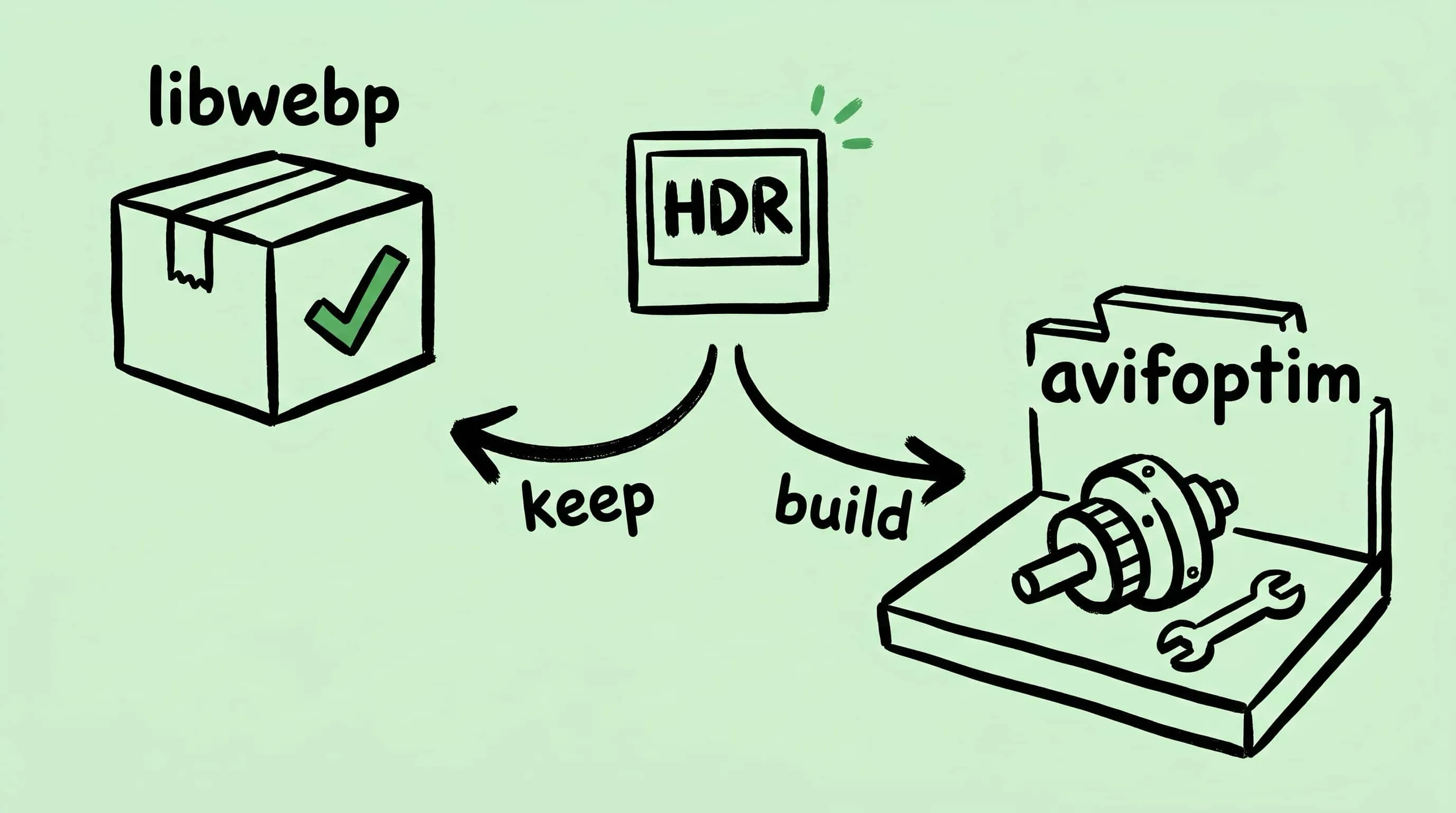
Why Zipic Kept libwebp for WebP but Built Its Own AVIF Encoder
Zipic keeps Google's libwebp for WebP but built avifoptim after libavif failed to preserve iPhone HDR photos. The engineering trade-off explained.
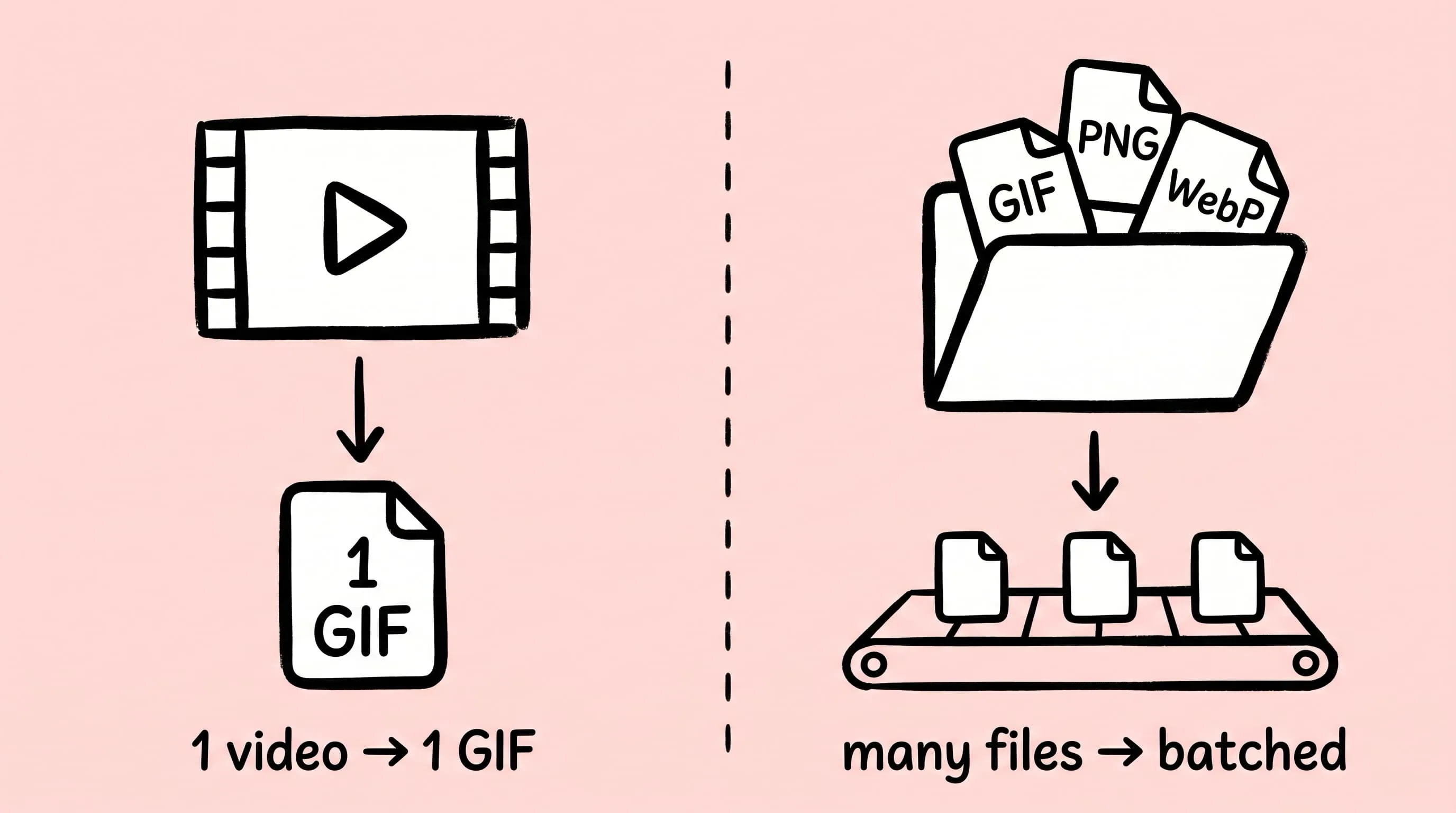
Best gifski Alternative on Mac: When One Video at a Time Isn't Enough
gifski is a great video-to-GIF encoder, but it cannot batch, monitor folders, or compress existing GIFs. Here is the Mac gifski alternative for those jobs.
How to Compress and Optimize SVG Files on Mac with Zipic
Need an SVG optimizer on Mac? Compress and optimize SVG files with Zipic — strip editor bloat, pick from six quality steps (Q1–Q6), and batch entire icon sets.