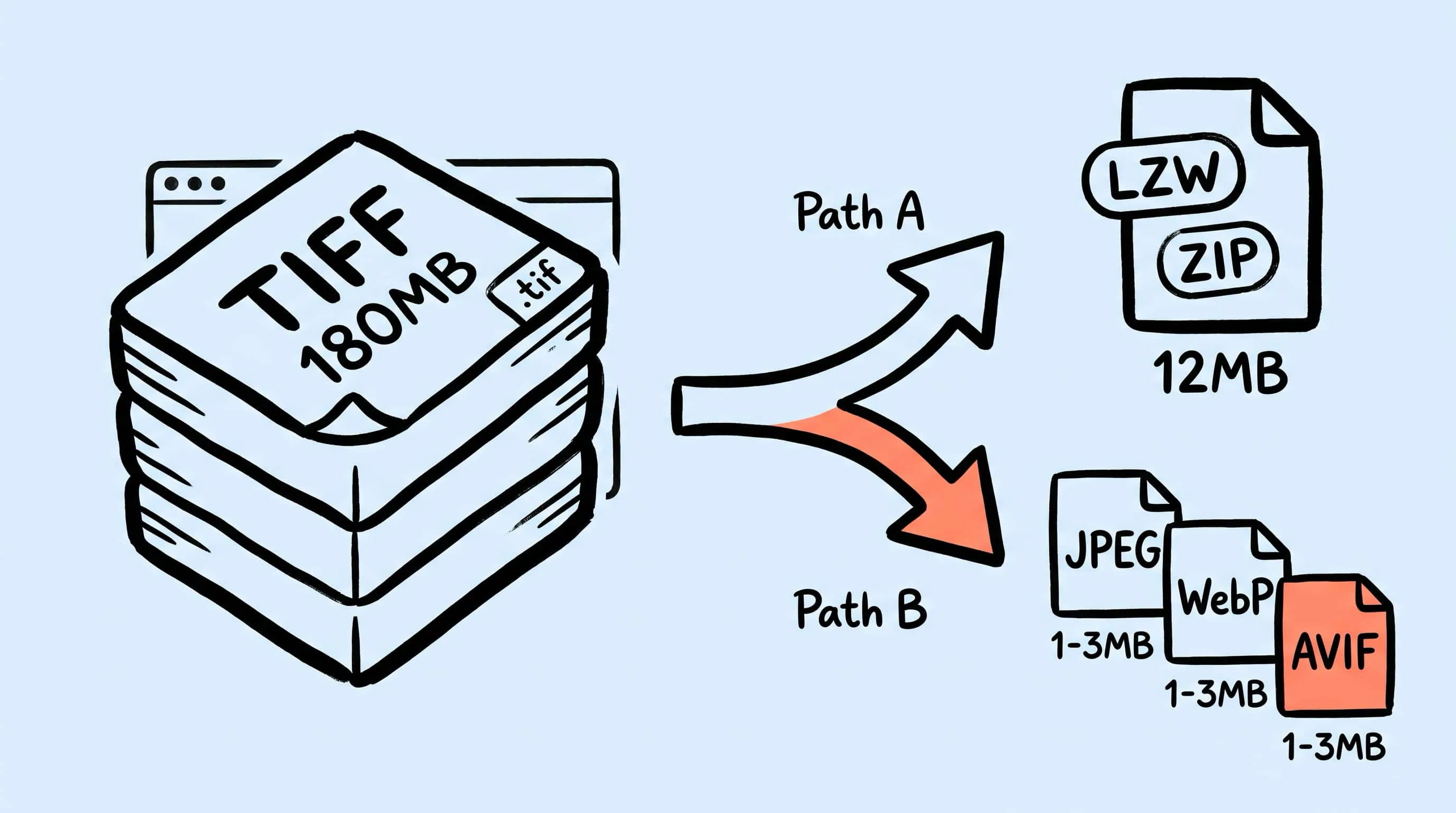
TIFF Compression: How to Reduce Large TIFF Files on Mac
Compress TIFF files on Mac without losing quality. Compare LZW vs ZIP, shrink 100 MB scans, and batch convert TIFF to JPEG, WebP, AVIF, HEIC, or JXL with Zipic.
If you have ever tried to compress TIFF on Mac and ended up with a file that is barely smaller than the original, you have run into the format’s defining quirk: TIFF was never designed to be small. It was designed to be lossless, faithful, and editable forever. That is exactly why scanners, prepress shops, and photographers still ship master files as TIFF — and exactly why those files routinely cross 100 MB and break every workflow that touches them.
This guide is about how to actually reduce TIFF file sizes on a Mac in 2026: what the format will let you do, what it will not, and when “compressing the TIFF” is the wrong question and converting the TIFF is the right one.
Why TIFF Files Balloon on Mac
A TIFF stores pixels at full bit depth with no mandatory compression. That single sentence explains most of the pain.
Do the math on a typical Lightroom or Capture One export:
| Source | Pixels | Bit depth | Uncompressed size |
|---|---|---|---|
| 24 MP camera, 16-bit RGB | ~24,000,000 | 6 bytes/pixel | ~144 MB |
| 12 MP scan, 16-bit RGB | ~12,000,000 | 6 bytes/pixel | ~72 MB |
| Drum-scanned 4×5 negative, 8-bit RGB | ~150,000,000 | 3 bytes/pixel | ~450 MB |
| Multi-page archival TIFF, ~30 pages | scales with page count | 8-bit | 200–800 MB |
The math is not a guess. A 16-bit TIFF stores 6 bytes per pixel — 2 bytes for each of the three channels — and at 24 MP that lands at 144 MB before any container overhead, a number cited repeatedly in the Lightroom Queen forums.
Now layer on the things real-world TIFFs usually carry:
- Multi-page documents from book scans or batch faxing
- Alpha channels preserved from Photoshop comps
- Embedded layers (Photoshop saves them inside TIFF when you tick the box)
- ICC profiles like ProPhoto RGB or AdobeRGB
- EXIF / IPTC / XMP metadata blocks
- HDR gain map auxiliary data on newer iPhones and Sony bodies
None of those are wasteful — they are the reason the file is a TIFF in the first place. They are also the reason it routinely weighs in at 300 MB or more.
Inside TIFF: LZW, ZIP, and Why “Quality” Sliders Do Nothing
TIFF is a container, not a codec. The actual compression — if any — is selected per file. The Adobe TIFF 6.0 specification (June 1992) is still the authoritative reference, and it draws a line between Baseline TIFF (every reader must support) and TIFF Extensions (optional). The two compression options that matter for photographers and archivists in 2026 are both Extensions:
- LZW (tag value 5) — added in TIFF Revision 5.0 (October 1988). Lossless, dictionary-based, and supported by literally every TIFF reader you will ever meet, including ancient prepress RIPs.
- ZIP / Deflate (tag value 8) — the same Deflate algorithm PNG and
.ziparchives use. Lossless, slightly slower than LZW to write, and especially well-behaved on smooth photographic gradients.
There are other options in the spec — JPEG-in-TIFF, PackBits, CCITT Group 4, ZSTD, WebP — but the practical reality on macOS is that the only two values most workflows tolerate are LZW and ZIP. Both are completely lossless. Neither has a quality slider. If a tool offers you a “TIFF quality” knob, it is almost certainly silently doing one of two things: rewriting your file as JPEG-in-TIFF (which most prepress shops will reject), or doing nothing at all and hoping you do not notice.
This is the part that surprises people: on a 16-bit TIFF, LZW often makes the file bigger. Photographers have measured it for years. Jason Odell’s Quick Look at TIFF Compression Options and the DarkroomPhotos comparison both land on the same conclusion: ZIP is the right default for 16-bit, LZW is the right default for 8-bit, and either way the realistic saving on photographic content is roughly 10–20%, not the 70% you get out of JPEG.
That 10–20% is the ceiling on Path A. Anything more dramatic has to come from Path B.
Path A — Compress TIFF in Place: LZW or ZIP + Resize
Path A keeps the file as a TIFF. You stay lossless, you stay archival, you stay compatible with every print shop that has ever asked for a flat TIFF. You just trim what is trimmable: the encoding, and optionally the pixel grid.
The encoding part is one decision. Pick:
- LZW if the file is 8-bit, going to a print vendor, or destined for a legacy RIP that only speaks Baseline + LZW.
- ZIP if the file is 16-bit, generated by Lightroom or Capture One, or staying inside a modern Mac / Adobe / Affinity workflow.
The resize part is where the real bytes live. Halving each dimension cuts the pixel count by 4×, and halving again cuts it by 16×. A 7952 × 5304 export from a Sony A1 dropped to 3976 × 2652 carries the same archival intent at a quarter of the storage cost. Zipic does this in a single pass — set a target width, and the resize and the LZW/ZIP repack happen together.
Two details worth knowing if you care about color and HDR:
- ICC profiles are preserved on the resize path. Your ProPhoto or AdobeRGB tag survives, which is the whole reason you shot 16-bit in the first place.
- HDR gain map data is preserved when present. Zipic detects an HDR TIFF, skips the resize step, and copies the gain map auxiliary data through to the output — exactly what you want for Apple’s HDR display pipeline.
Path A is the right answer when the file has to stay TIFF. It is the wrong answer when the file just happens to have arrived as TIFF.
Path B — Convert TIFF to JPEG, WebP, AVIF, HEIC, or JXL
This is where most people’s TIFF problem actually lives. The file is 180 MB. The destination is a website, an email, an Instagram post, a CMS upload, a Slack thread. Nothing in that destination cares about lossless 16-bit ProPhoto archival. The honest answer is stop shipping TIFFs to people who do not need TIFFs.
Zipic accepts TIFF as a source and can write any of:
| Target format | Typical size from a 100 MB TIFF | Best for |
|---|---|---|
| JPEG (Q80) | 100 MB → 2–5 MB | Universal compatibility, social, email |
| WebP (Q80) | 100 MB → 1–3 MB | Modern websites, blog heroes |
| AVIF (Q60–70) | 100 MB → 0.6–2 MB | Aggressive web delivery on modern browsers |
| HEIC (Q80) | 100 MB → 1–3 MB | Apple-native storage, Photos library |
| JPEG XL (Q80) | 100 MB → 1–3 MB | Long-term web archive, future-proof masters |
| PNG (lossless) | 100 MB → 30–70 MB | Only when transparency + lossless is mandatory |
Those numbers are not marketing — they are what actually happens when a 24 MP 16-bit TIFF goes through a sensible quality setting at the listed quality level. The JPEG row is consistent with the photographer reports on DPReview: a 100 MB TIFF lands at roughly 10–13 MB at high quality, and well under 5 MB once the quality dial is tuned for web delivery.
Browser support is the other reason Path B usually wins. Outside Safari, no major browser natively renders TIFF in an <img> tag — Chrome and Firefox trigger a download dialog instead, as documented across TIFF viewer guides and the OpenSeadragon issue tracker. Per StatCounter’s global numbers, Safari holds roughly 18.4% of all-device share in 2026 — meaning a TIFF embedded in a public web page is, in practice, a broken image for the other ~81% of visitors.
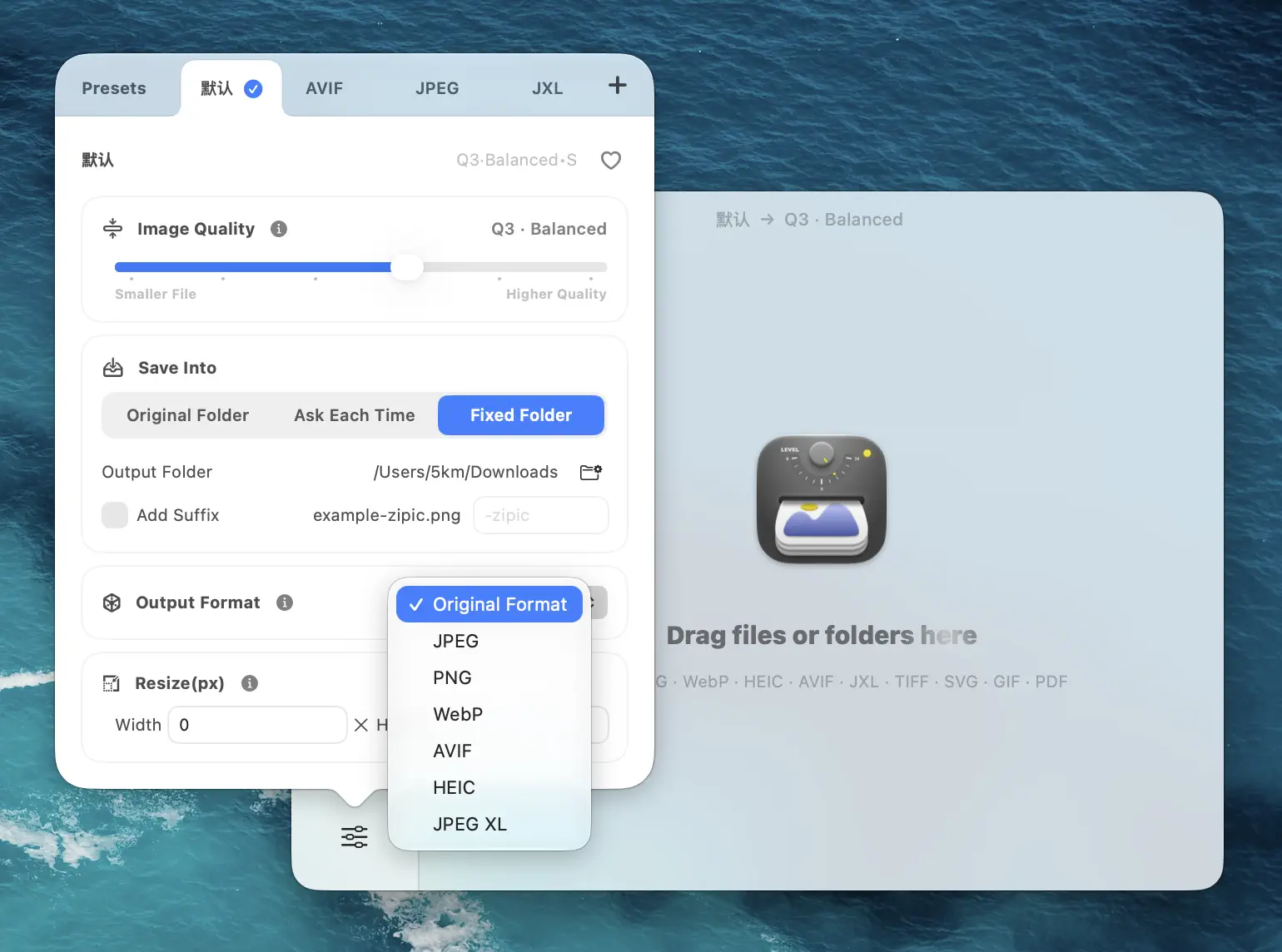
The conversion itself is part of the same drag-and-drop. Set Save Format to your target in the preset, drop the TIFFs, done.
How to Compress TIFF on Mac With Zipic
A note before the steps: TIFF compression is a Pro-only feature in Zipic, alongside ICNS, AVIF, JPEG XL, SVG, APNG, and PDF. The free build silently skips TIFF inputs — the honest call, since there is no way to ship lossless LZW or ZIP behind a free-tier paywall without misleading users about what they are getting.
With Zipic Pro installed, the entire workflow is three things:
-
Open Compression Settings, edit (or duplicate) a preset, and pick Save Format → TIFF if you want Path A, or any of JPEG / WebP / AVIF / HEIC / JXL for Path B. The TIFF compression algorithm (LZW or ZIP) lives in the same panel.
-
Drop the TIFF files into the main window. There is no Start button. Zipic processes everything in parallel against the active preset.
-
Let it finish. ICC profiles ride through automatically. HDR gain maps are copied to the output. EXIF / IPTC / XMP metadata is preserved when the Preserve Metadata option is on — important if the file is going to a print vendor, a stock agency, or a museum archive.
That’s it. No “TIFF Quality” slider, because the underlying CoreGraphics encoder does not honor one. No “Strip Layers” option, because you should not be flattening someone else’s master in a compression tool. The compression is what it is: lossless, repackaged, and faithful.
For deeper batch workflows, see Batch Compress Images on Mac: Complete Tutorial. For the lossy / lossless tradeoff that decides between Path A and Path B, see Lossy vs Lossless Compression Explained.
When to Keep TIFF, and When to Convert It
The decision tree is shorter than people think.
Keep it as TIFF when:
- It is a master / archive file you may re-edit, re-export, or hand to another retoucher. Lossless integrity is the entire point.
- A print vendor or prepress workflow asked for TIFF. They almost certainly mean flat 8-bit CMYK at 300 DPI with LZW, per the PSPrint Photoshop guidelines. Do not improvise here.
- It is a multi-page archival scan — book pages, microfilm, government records. TIFF’s container handles multi-page natively; JPEG and WebP do not.
- The file carries alpha channels that downstream compositing depends on, and your destination is another editing app rather than a browser.
- It came from a CT, MRI, or scientific instrument that emits TIFF for traceability. Convert and you lose chain-of-custody.
Convert it when:
- The destination is a website, blog, email, Slack, social post, CMS — anything rendered by a browser or a phone.
- You are sending client previews or contact sheets, not deliverables.
- You need to email a batch under Gmail’s 25 MB attachment limit (effectively ~12.5 MB on disk after MIME encoding doubles the payload). A 180 MB TIFF is hopeless; a 1.5 MB JPEG or WebP sails through.
- The file is going on a portfolio site where Core Web Vitals matter. See Image Optimization for Photographers: Compress Without Losing Detail for the per-channel preset numbers.
The mistake to avoid is the symmetric one: converting an irreplaceable archival master to JPEG to “save space,” and TIFF-ing a web hero “for quality.” Both lose. Use Path A on the things that have to stay TIFF; use Path B on everything else.
Batch and Folder Monitoring for TIFF Pipelines
Once a TIFF preset exists, Zipic’s Folder Monitoring feature can watch a directory and process every TIFF that lands in it — useful for scanning workflows where the scanner drops files into ~/Scans and you want them auto-compressed before they fill the disk, or for retouching pipelines where Capture One spits TIFFs into a delivery folder.
Two patterns worth setting up:
~/Scans/raw→~/Scans/archivewith a TIFF-LZW preset for archival fidelity, plus a parallel JPEG preset for an immediate browseable copy.~/Deliveries/[client]/tiff→~/Deliveries/[client]/webwith a WebP-Q80 preset, so every retoucher TIFF gets a web-ready sibling without anyone running a manual export.
Both reuse the same preset machinery — the monitor is just the trigger. Configure the Monitoring Directory once; forget about it forever.
Why “Just Use Preview” Is a Trap
A common Mac assumption is that Preview can do this. Technically it can save TIFFs with compression. Practically, the option has been broken since Monterey 12.1 — when the source is itself a TIFF, the “Compression” dropdown is silently ignored on export and the saved file is the same uncompressed dump you started with. The behavior is documented in the Apple Support thread and across multiple DPReview forum threads, and there is no documented fix on current shipping macOS.
The other Mac defaults — sips, Photos, QuickLook — fare no better. sips will rewrite a TIFF but does not let you pick LZW vs ZIP, while Photos and QuickLook re-encode through a JPEG path that defeats the entire point of staying lossless. With TIFF more than any other format, you want a tool that knows what it is touching.
TIFF Compression FAQ
Can I make a TIFF lossy to shrink it dramatically? You can technically wrap a JPEG inside a TIFF container (JPEG-in-TIFF, tag value 7), but most prepress workflows reject it and it defeats the entire reason TIFF exists. If you need lossy, change the container — convert to JPEG, WebP, AVIF, HEIC, or JXL via Path B. Zipic does not expose JPEG-in-TIFF for exactly this reason.
Why does the quality slider have no visible effect on TIFF? Because LZW and ZIP are both mathematically lossless — there is nothing for a quality knob to throw away. Sliders that appear to control “TIFF quality” in some tools are either no-ops or are silently re-encoding to JPEG-in-TIFF.
Why is TIFF a Pro-only feature in Zipic? TIFF support sits in the same Pro-only group as ICNS, AVIF, JXL, SVG, APNG, and PDF. The shared rationale is that these formats either need format-specific encoding paths, carry production workflow guarantees (ICC, HDR, metadata, multi-page), or both. Zipic Free supports JPEG, PNG, WebP, HEIC, and GIF, which covers the majority of casual use; TIFF lands on the production side of the line.
Will Zipic strip my Photoshop layers when it compresses a TIFF? No. Zipic uses the system encoder and writes a flat single-image TIFF with the same pixel data, ICC profile, and (optionally) metadata. If your source contained Photoshop layers, the compressed output will be a flattened equivalent — which is what you want for delivery and archival, but not what you want if you plan to re-edit in Photoshop. Keep the layered original separately.
ZIP or LZW for my 16-bit print master? ZIP. On 16-bit data LZW typically grows the file rather than shrinking it; ZIP usually saves around 10–20% on photographic content. The only reason to pick LZW on a 16-bit TIFF is a downstream RIP that explicitly cannot read Deflate.
Does this work on macOS Tahoe 26?
Yes. Zipic’s TIFF path uses CoreGraphics’ CGImageDestination with kCGImagePropertyTIFFCompression, which is a stable system API. ICC, HDR gain map, and metadata behavior all carry through on the current release.
Related Articles
- Batch Compress Images on Mac: Complete Tutorial
- Lossy vs Lossless Compression Explained
- Image Optimization for Photographers: Compress Without Losing Detail
- How to Choose the Right Image Format for Your Project
- How to Convert Images Between Formats on Mac (Batch Guide for 2026)
Learn more: Choosing Image Formats · Image Compression Basic
Stop wrestling with 180 MB TIFFs from your scanner or retoucher. Download Zipic and add TIFF Compression to your Mac workflow. Every download includes a full 7-day Pro trial. Zipic Pro unlocks TIFF, ICNS, AVIF, JXL, SVG, APNG, and PDF compression alongside unlimited presets, Drag to Notch, and folder monitoring.
Related Reading
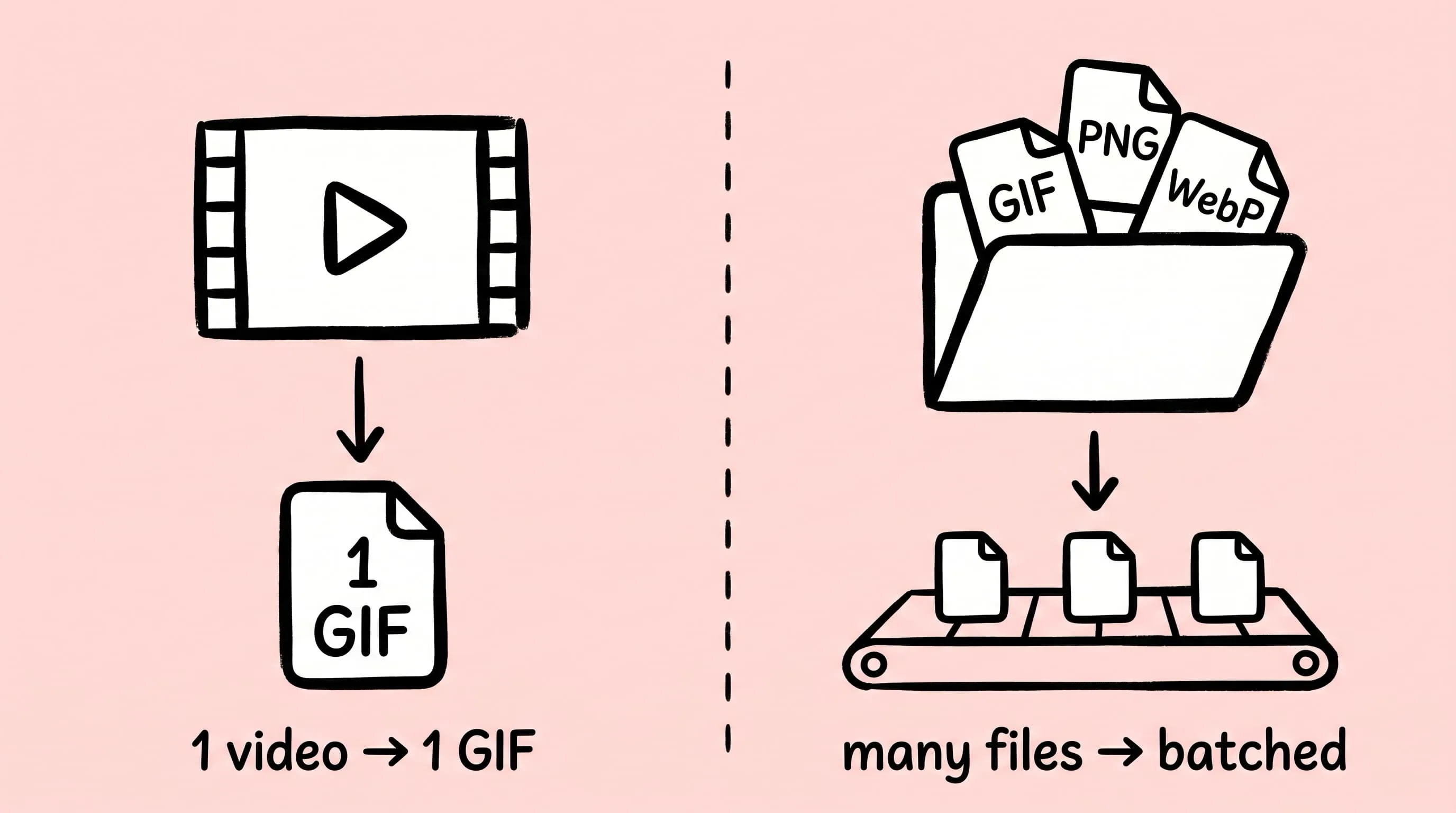
Best gifski Alternative on Mac: When One Video at a Time Isn't Enough
gifski is a great video-to-GIF encoder, but it cannot batch, monitor folders, or compress existing GIFs. Here is the Mac gifski alternative for those jobs.
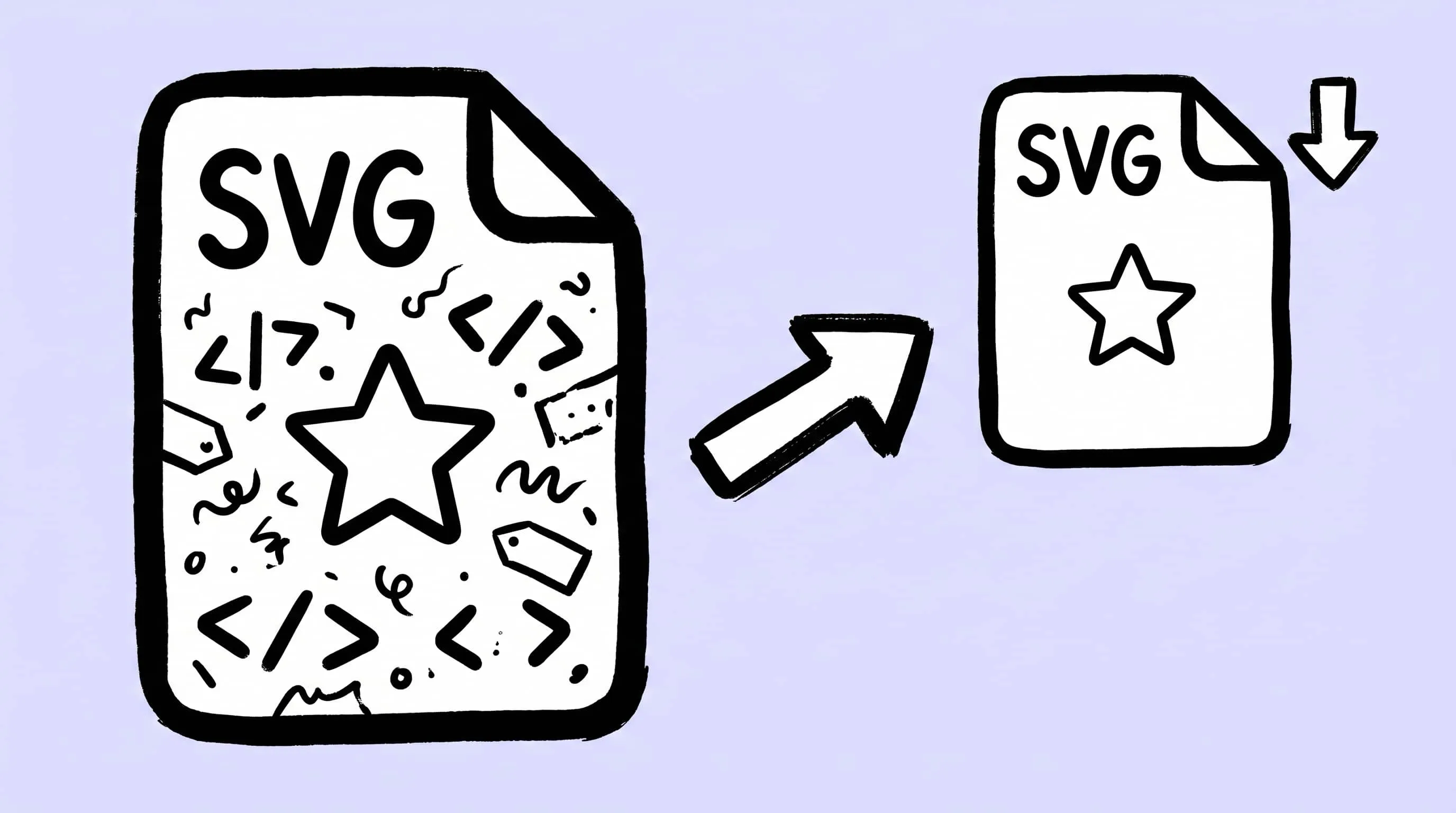
How to Compress and Optimize SVG Files on Mac with Zipic
Need an SVG optimizer on Mac? Compress and optimize SVG files with Zipic — strip editor bloat, pick from six quality steps (Q1–Q6), and batch entire icon sets.
GIF Compression on Mac: Reduce Size and Keep Animation
Animated GIFs are often 10x larger than they need to be. Learn why, when to keep GIF vs convert to WebP/MP4, and how to compress GIFs on Mac in 2026.
What Is Image Compression? A Beginner's Guide for Mac Users
What is image compression, and why does it matter? This beginner's guide explains how image compression works, lossy vs lossless, and how to compress images on Mac.