Batch Remove EXIF on Mac: Strip Metadata Before Publishing
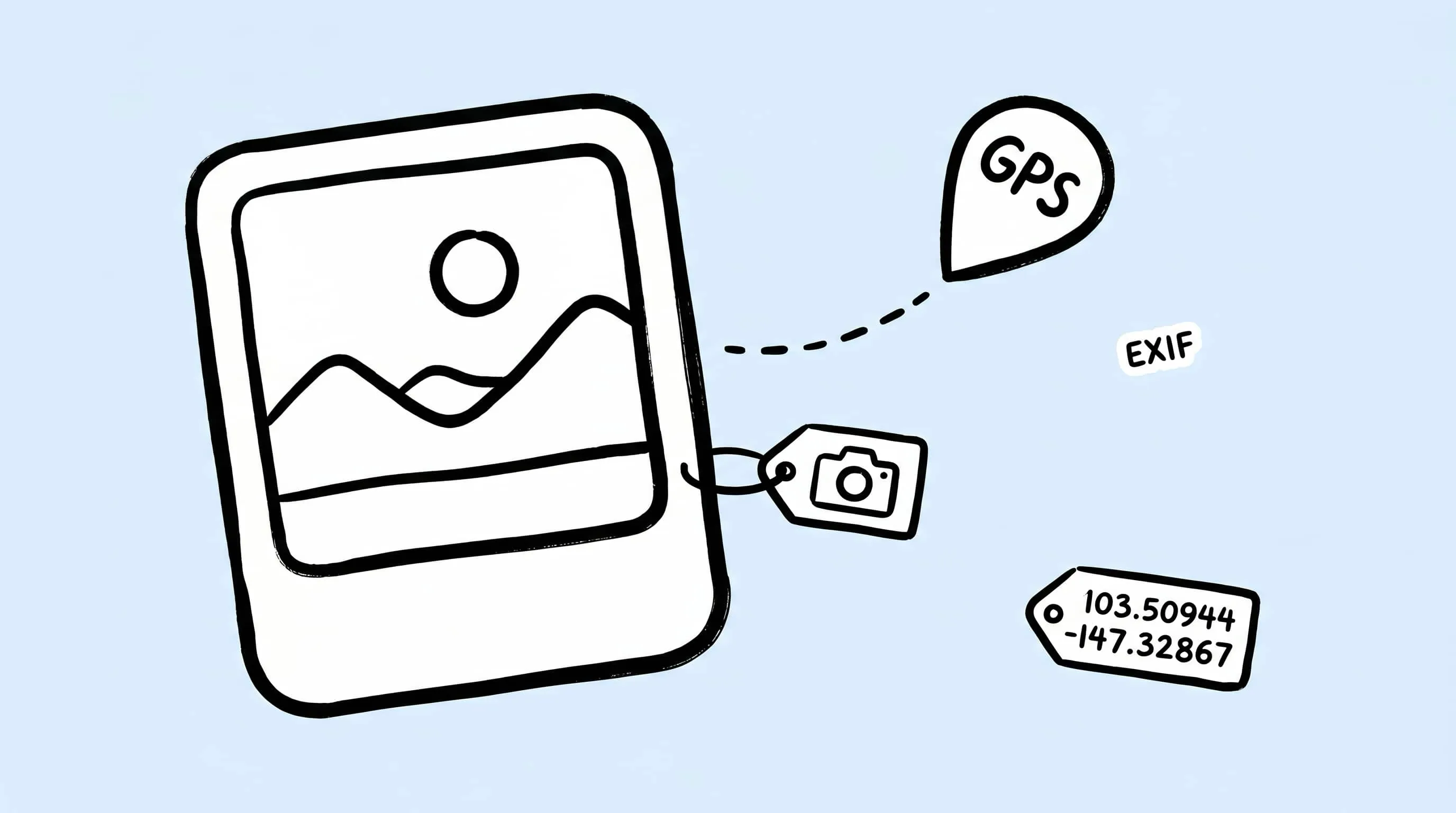
Photos carry more than pixels — GPS coordinates, camera and lens data, capture time. Here is how to batch remove EXIF on Mac and publish only clean copies.
When you batch remove EXIF on Mac, the real question is not file size — it is what each photo carries with it. A photo rarely exports as just pixels. GPS coordinates, camera model, capture time, lens data, and software history all travel inside the file. That information is useful in your own library, but it does not belong on a public upload.
The safe approach is to keep two files for each photo: an original that stays on your Mac with full metadata, and a publishing copy with that metadata removed. This guide covers the second one — how to clean photos before they leave your Mac for public sites, social posts, documentation, press kits, and client review folders.
Why Strip Metadata Before Publishing
Metadata is not bad by default. Photographers use it to sort shoots, prove camera settings, recover capture dates, and keep editing context. The problem starts when that metadata stays inside a file you publish without checking it.
Apple’s personal safety guide explains that Camera location services can embed coordinates into photos and videos, and that people you share with may be able to access that location metadata. Apple’s Photos & Privacy page also notes that shared photos can include metadata such as location information, edit history, and depth information depending on how you share them.
That guidance is reason enough to give the two files different metadata policies:
| File | Metadata policy | Why |
|---|---|---|
| Archive original | Keep EXIF, GPS, IPTC, color profile, edit history where available | Search, proof, cataloging, future edits |
| Publishing copy | Remove EXIF and GPS unless the channel explicitly needs it | Privacy, cleaner handoff, fewer accidental identifiers |
This article focuses on the second file. For the archive side, read Image Optimization for Photographers.
What EXIF and GPS Metadata Can Reveal
Photo metadata can include harmless technical fields and highly sensitive context in the same file. Treat it as a mixed bag, not as a single checkbox.
Common fields worth reviewing:
- Camera and lens model
- Capture date and time
- Exposure settings
- Orientation and color profile
- Editing software
- GPS latitude, longitude, altitude, and capture location
- Author, copyright, caption, and keyword fields
The most sensitive field is usually location. The EU GDPR definition of personal data explicitly lists “location data” as an identifier in Article 4. The FTC has also treated precise geolocation as sensitive because it can reveal where someone lives, their health, and their religion. If you publish in China, the Personal Information Protection Law lists a person’s whereabouts as sensitive personal information under Article 28.
That does not mean every JPEG is a legal emergency, and this article is not legal advice. It means GPS metadata deserves a deliberate policy before public publishing.
Batch Remove EXIF on Mac with a Zipic Preset
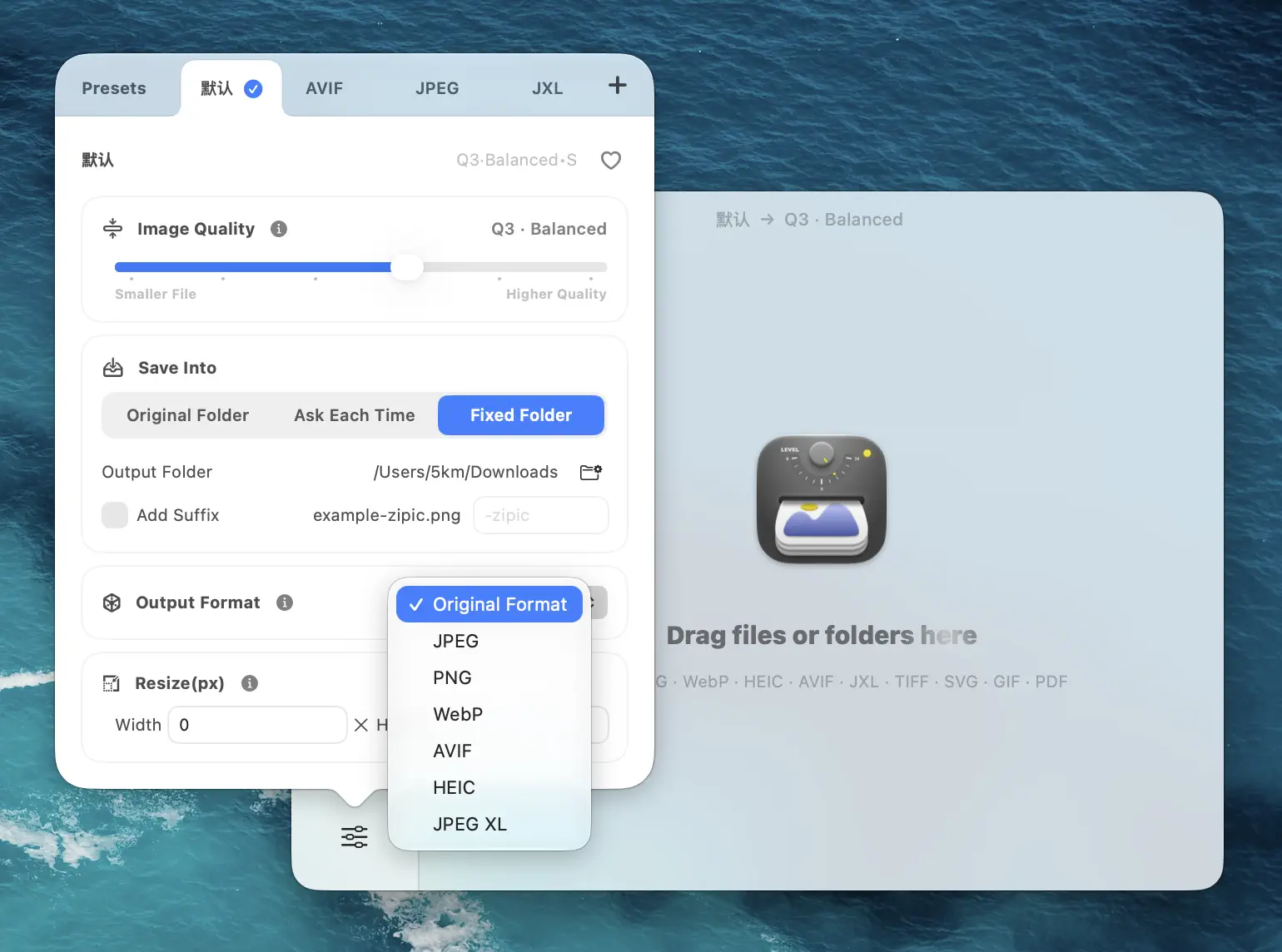
Zipic’s workflow is preset first, files second. Configure the publishing copy once, then drop files into the app. There is no “Start” button to hunt for.
Step 1: open Compression Settings from the bottom-left of Zipic’s main window.
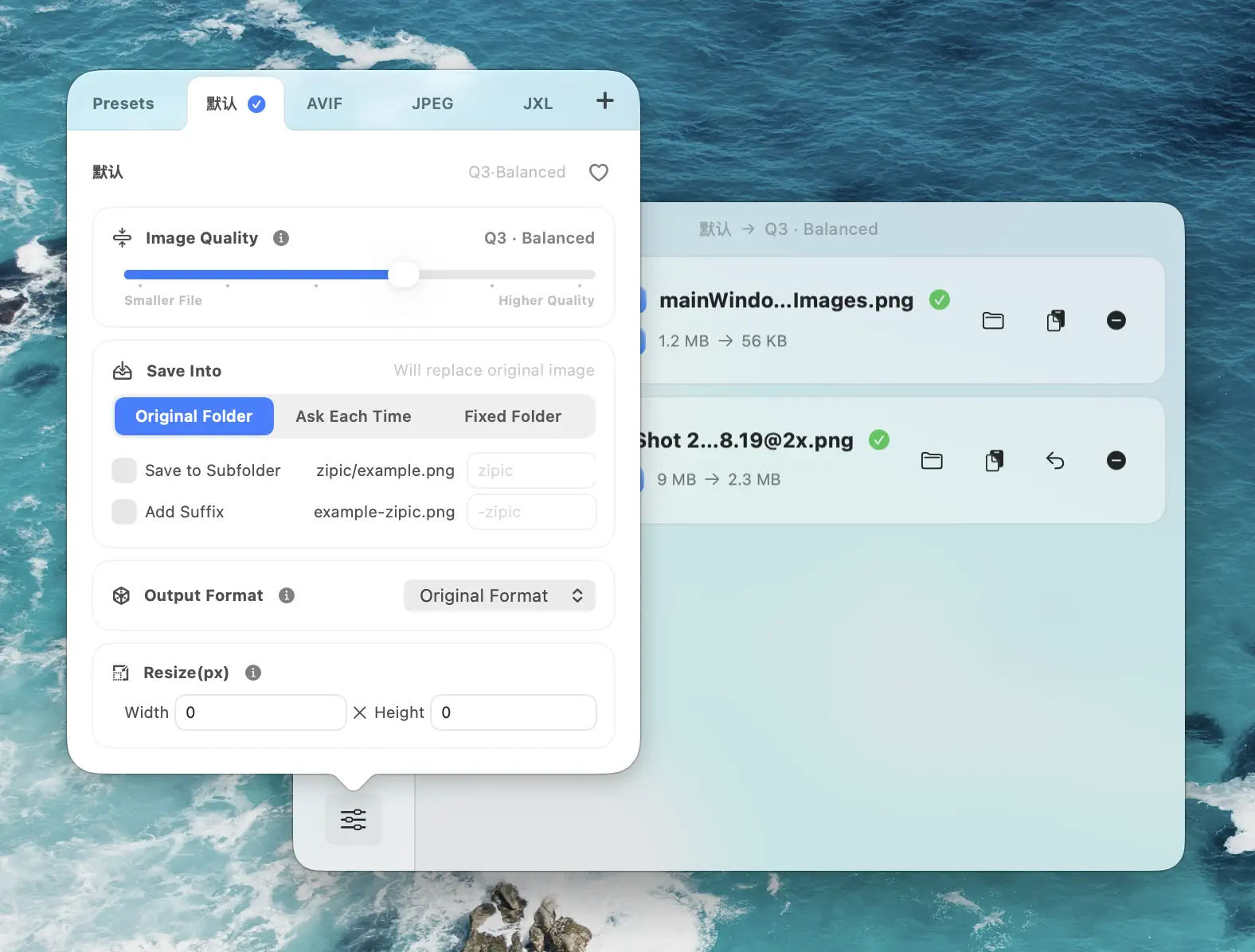
Step 2: create or edit a preset for public publishing. Set a safe output folder so originals stay untouched.
Useful preset choices:
| Setting | Recommended value | Reason |
|---|---|---|
| Output format | JPEG for universal publishing, WebP for web assets | Keeps delivery predictable |
| Compression level | Q2 or 3 | Good visual quality for photos and web images |
| Save location | Custom output folder | Keeps clean copies separate from originals |
| Metadata | Do not preserve metadata for publishing copies | Removes EXIF and GPS from supported output formats |
Zipic Pro exposes metadata deletion as a configurable option. The official Introduction table describes Free as default-retained and Pro as configurable deletion for image metadata. The app’s metadata preservation option applies to common image formats such as JPEG, WebP, and HEIC.
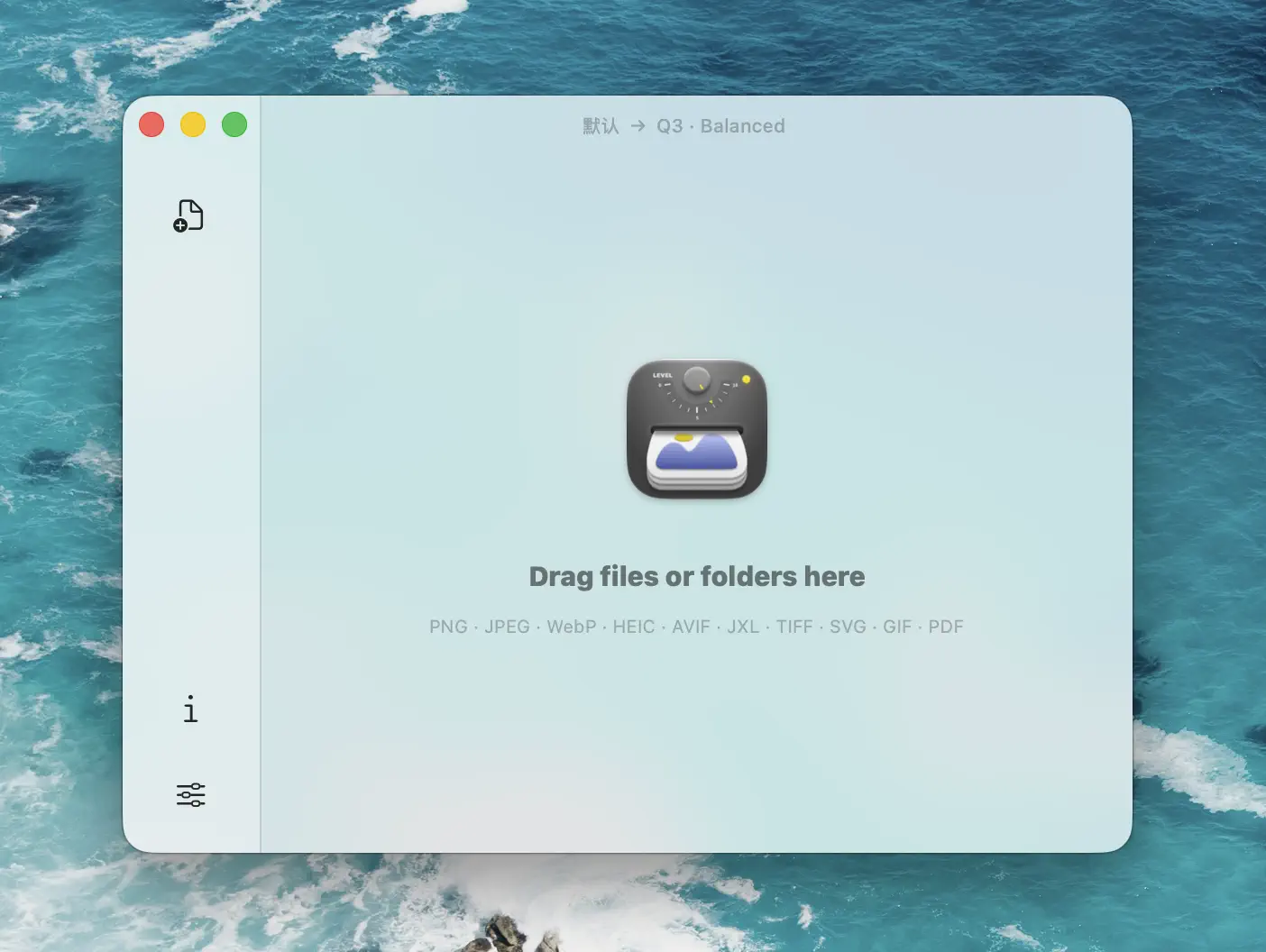
Step 3: drag the export folder into Zipic. Zipic applies the current preset automatically and shows each file in the result list.
Full product reference: Basic Image Compression.
Remove GPS Data from Photos on Mac Without Breaking Your Archive
The safe pattern is not “delete metadata everywhere.” That is how you lose useful catalog information. Use a three-folder workflow instead:
masters/keeps RAW files, full-resolution exports, and full metadata.publish-input/contains the images you plan to clean.publish-clean/receives Zipic output with metadata removed.
Use the clean folder for public upload, press handoff, documentation images, and social media. Use the master folder when you need capture proof, client disputes, portfolio re-edits, or stock-library submissions.
Apple Photos and Google Photos both show why this split matters. Apple lets you review and hide location metadata before sharing from Photos. Google Photos says camera-provided location can be shared in Google Photos and that downloads or email outside Google Photos can still show the original device-saved location. A local clean-copy workflow gives you one simple rule: only the clean folder leaves your Mac.
When You Should Keep EXIF Instead
Removing metadata is not always the right answer. It is a publishing policy, not a universal rule.
Keep metadata when:
- You are submitting photos to a stock library that reviews capture data.
- A client needs shooting time, camera settings, or copyright fields.
- A newsroom or archive workflow needs provenance.
- A photography community expects camera and lens details.
- You are preserving masters for future edits.
Strip metadata when:
- You publish to a blog, help center, marketing page, or landing page.
- You send review images outside the project team.
- You post from home, school, studio, client location, or restricted sites.
- You batch export screenshots or documentation images.
- You do not control where the recipient will forward the file.
The simplest rule: keep metadata in private originals, strip it from public copies.
CLI Option for Repeatable Metadata Cleanup
If your publishing workflow already uses scripts, Zipic’s CLI can make metadata cleanup explicit. The official Command Line Tool supports --preserve-metadata and --no-metadata.
For a public export folder:
zipic compress ~/Pictures/publish-input \
  --format jpeg \
  --level 2 \
  --no-metadata \
  --location custom \
  --output ~/Pictures/publish-clean \
  --json
That command keeps the policy visible in versioned scripts. It also avoids relying on a human remembering which preset was active.
For AI agents and scripts, read Image Compression CLI on Mac. For a no-code batch path, read Batch Compress Images on Mac.
Publishing Checklist
Before you upload a cleaned batch, do this once:
| Check | Pass condition |
|---|---|
| Originals are safe | Output folder is separate from source folder |
| Metadata policy is deliberate | Preserve metadata is off for publishing copies |
| Visual quality is acceptable | Q2 or 3 does not damage faces, gradients, or text |
| GPS is gone | Inspect one output file before uploading the whole set |
| Channel still works | The target site accepts the output format |
If the channel is a social platform, pair this workflow with Image Compression for Social Media. If you also need file-size targets, use Compress Images to Specific File Size.
Related Articles
- Image Optimization for Photographers — keep metadata in archive and delivery workflows.
- Batch Compress Images on Mac — batch folders, Finder, Raycast, and automation.
- Image Compression for Social Media — platform-specific export rules.
- Image Compression CLI on Mac — scriptable local compression with JSON output.
- Lossy vs Lossless Compression Explained — understand what compression changes and what it does not.
Full documentation: Introduction · Basic Image Compression · Command Line Tool
Need clean publishing copies without uploading private photos to a web tool? Download Zipic, build a metadata-stripping preset, and batch remove EXIF on Mac before files leave your machine. Every download includes a full 7-day Pro trial. Zipic Pro unlocks configurable metadata deletion, unlimited compression, and batch workflows.
Related Reading
Batch Compress Images on Mac: Folders, Samples, and Automation
Batch compress images on Mac safely: sample first, protect originals, then scale with folders, Raycast, monitoring, or Shortcuts.
How to Compress Images on Mac Fast (Without Ruining Quality)
Compress images on Mac with drag-and-drop, Finder, presets, and batch automation — protect originals, check quality at 100%, then scale the workflow.
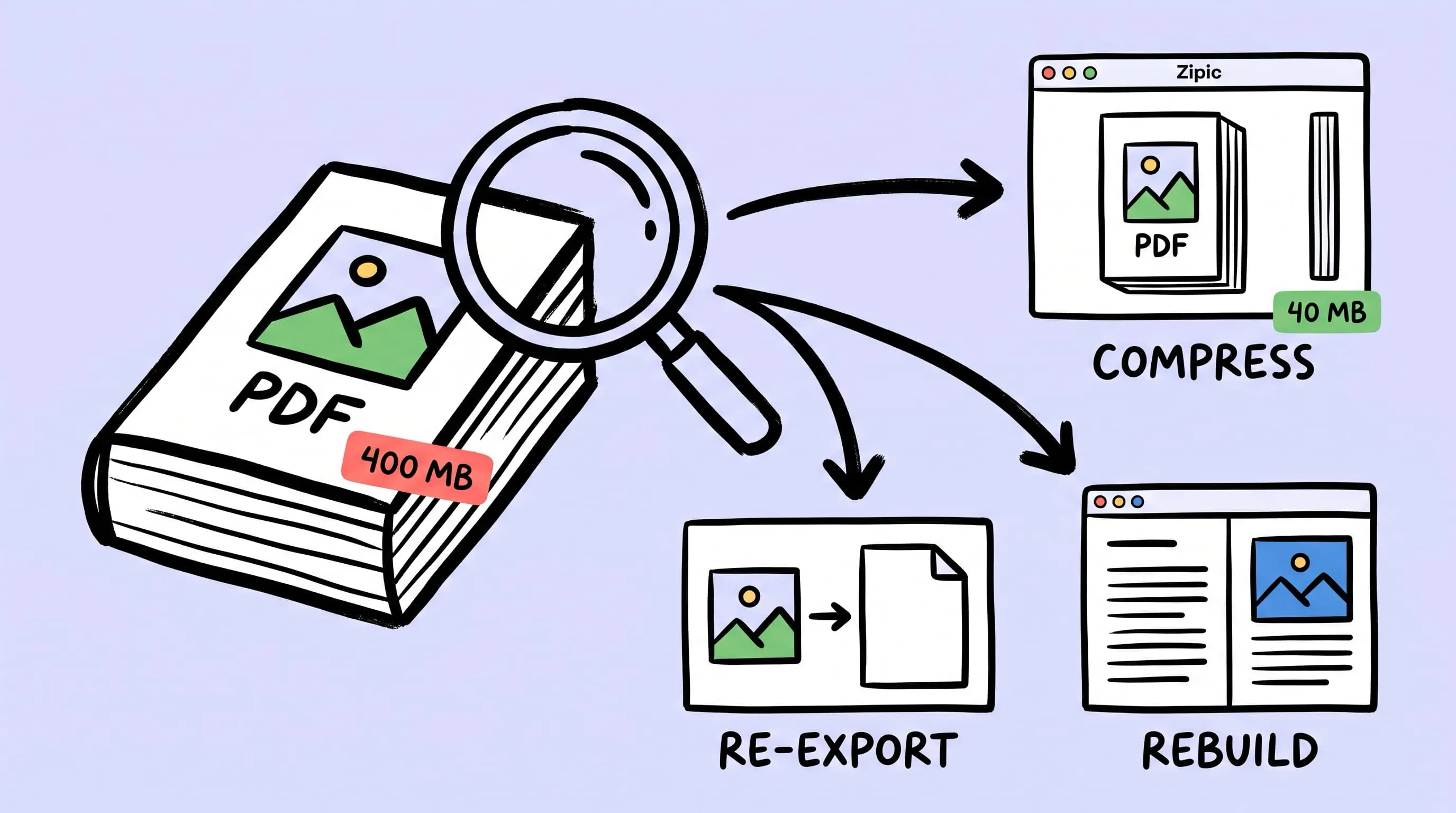
Compress a PDF Without Losing Quality: Diagnose It First
Learn how to compress a PDF without losing quality by diagnosing oversized images, export settings, and layout problems before choosing a compression level.
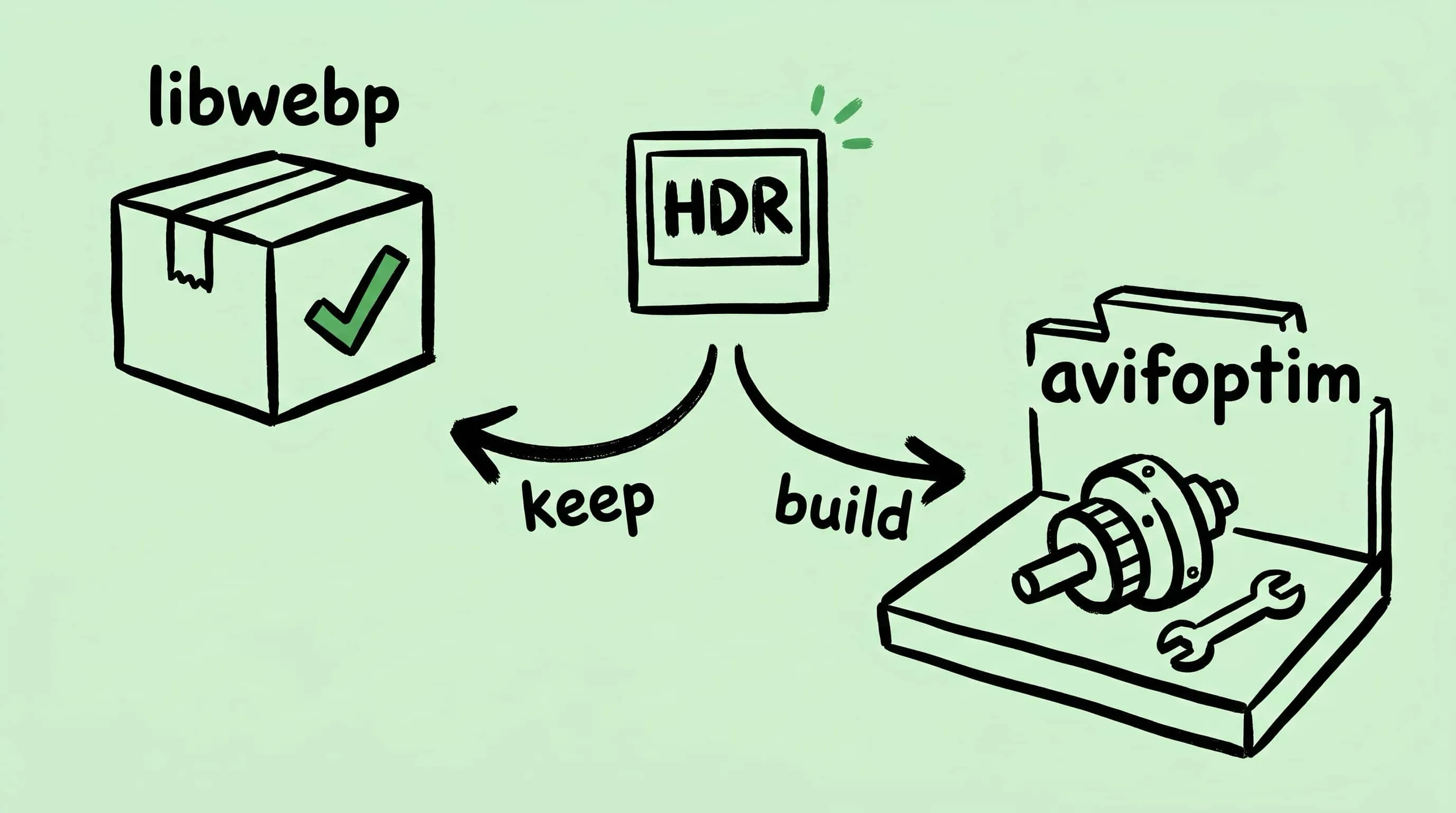
Why Zipic Kept libwebp for WebP but Built Its Own AVIF Encoder
Zipic keeps Google's libwebp for WebP but built avifoptim after libavif failed to preserve iPhone HDR photos. The engineering trade-off explained.