Compress App Icons for iOS & Android: Mobile Dev Workflows
Compress iOS @1x/@2x/@3x icons, Android density buckets, and App/Play Store screenshots in batch. A practical Zipic workflow for mobile app developers.
Mobile apps ship a density matrix that web tools weren’t built for. iOS wants @1x / @2x / @3x for every raster icon; Android wants up to five density buckets. Add an AppIcon set, App Store screenshots at three display sizes, and a Play Store feature graphic, and a single release can carry hundreds of megabytes of source assets before anything compiles.
Generic web compressors don’t fit. Asset Catalog and res/drawable-* pin every file by name; rename one and the build breaks. Xcode’s actool does a lossless re-encode — it never trims bytes the way a real compressor would. And fastlane snapshot captures simulator-native pixels with no resize or compression of its own.
This guide walks through how to use Zipic — a native macOS image compressor with a URL Scheme, AppIntents, and folder monitoring — to plug those gaps without touching filenames or the res/ tree.
Why Mobile Apps Need a Compression Strategy Web Tools Can’t Provide
A web project usually ships one canonical image plus a srcset. A mobile project ships the canonical asset and the entire density matrix, every file pinned to a strict naming contract:
- iOS:
Icon.png,Icon@2x.png,Icon@3x.pnginsideAppIcon.appiconset, withContents.jsonnaming every slot. - Android: the same drawable in
mipmap-mdpi/,mipmap-hdpi/,mipmap-xhdpi/,mipmap-xxhdpi/,mipmap-xxxhdpi/.
Three specifics that catch teams out:
- Asset Catalog supports
.png,.jpg,.heic,.heif,.avci, and.pdf— but not WebP. Vector assets ship as PDF with “Preserve Vector Data” on. (ImageSetType reference) actoolis not a lossy compressor. It re-encodes PNGs into a private premultiplied BGRA container; the bytes you ship come from the bytes you imported. (Asset Catalog Format Overview)- Android Studio’s WebP wizard works one file at a time. It handles lossy and lossless modes and skips 9-patch drawables, but it isn’t a batch pipeline. (Convert images to WebP)
You need a tool that compresses in place, preserves filenames, runs over a folder of densities at once, and skips formats it shouldn’t touch.
Compressing the iOS Icon Matrix Without Breaking Asset Catalog
Apple’s Human Interface Guidelines lay out the matrix:
| Slot | Points | @2x | @3x | Notes |
|---|---|---|---|---|
| iPhone app | 60 pt | 120×120 px | 180×180 px | Required |
| Spotlight | 40 pt | 80×80 px | 120×120 px | Search results |
| Settings | 29 pt | 58×58 px | 87×87 px | Settings list |
| App Store marketing | — | — | 1024×1024 px | sRGB, opaque, no alpha, no rounded corners |
Two HIG rules people miss:
- The 1024×1024 marketing icon is a flat opaque PNG with no alpha. Apple applies the squircle mask itself; pre-rounded corners ship as visible double rounding.
- No alpha in any AppIcon slot. A flattened JPEG-style export is what Apple expects.
For Liquid Glass icons across iPhone/iPad/Mac/Watch, Icon Composer (WWDC25 Session 361) outputs a single layered .icon document plus a flattened 1024 PNG for App Store Connect. Compress that flattened export with Zipic and the layered design stays untouched.
A safe Zipic preset for AppIcon assets:
| Setting | Value | Why |
|---|---|---|
| Format | original (PNG) |
Asset Catalog won’t take WebP |
| Quality | 2–3 | Visually lossless on iconography |
| Save location | original |
Overwrite in place; Contents.json references stay valid |
| Resize | off | Never change icon dimensions |
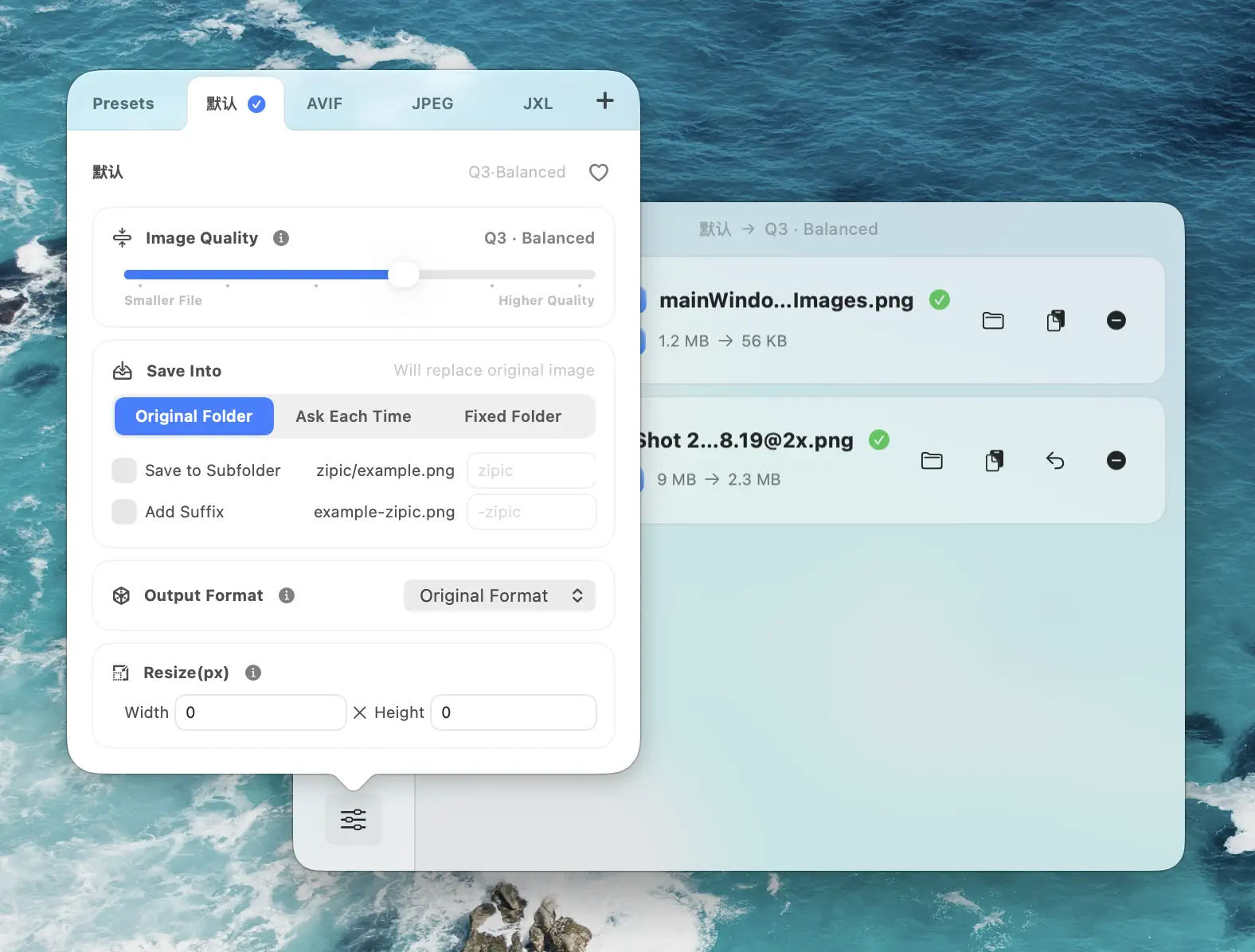
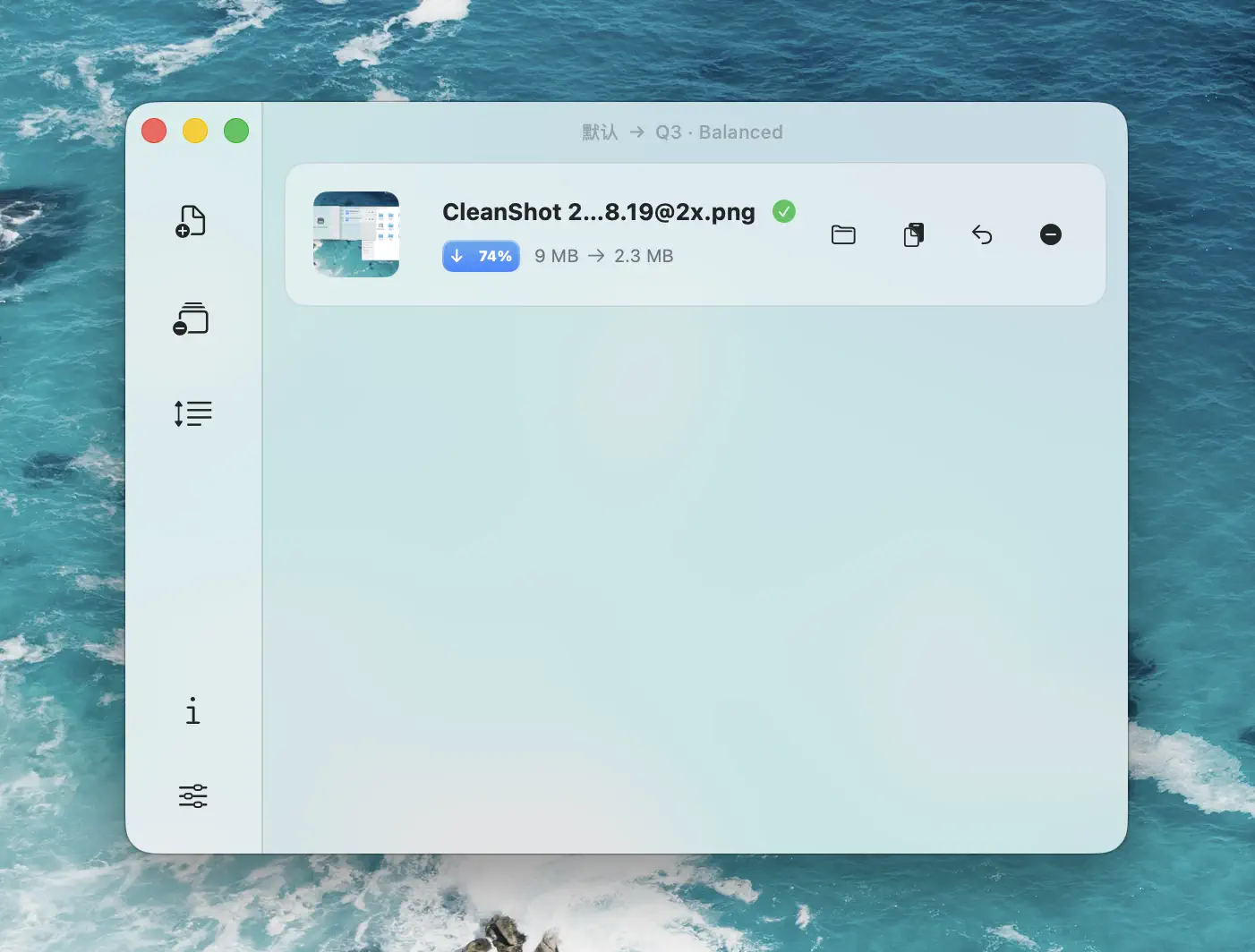
Drop the AppIcon.appiconset folder onto Zipic and every PNG inside gets compressed with the active preset, filenames intact:
For a build phase, the URL Scheme one-liner:
open "zipic://compress?url=$SRCROOT/AppIcon.appiconset&format=original&level=3&location=original"location=original is what keeps Contents.json happy — every filename and relative path stays byte-identical.
Android Density Buckets and Adaptive Icon Layers (mdpi → xxxhdpi)
Android replaces “@2x / @3x” with five density buckets keyed off dpi (screen density reference):
| Bucket | DPI | Scale vs. mdpi |
|---|---|---|
mdpi |
160 | 1.0× (baseline) |
hdpi |
240 | 1.5× |
xhdpi |
320 | 2.0× |
xxhdpi |
480 | 3.0× |
xxxhdpi |
640 | 4.0× |
In integer pixel ratios — counting ldpi (0.75×) through xxxhdpi (4.0×) — that’s 3 : 4 : 6 : 8 : 12 : 16. A useful sanity check when scaling Figma exports up from a “1×” baseline.
Adaptive icons add another layer of structure (Create app icons, AdaptiveIconDrawable):
- Foreground and background layers are each 108×108 dp.
- The center 72×72 dp is the safe zone the launcher will mask into circles, squircles, or teardrops.
- Android 13 added a monochrome layer for themed icons.
For runtime drawables (not adaptive icon layers), two format choices matter:
- WebP — safe lossy/lossless target on API 17 (Android 4.2.1)+, transparency included.
- AVIF — API 31 (Android 12)+. Early Android 12 implementations had quirks; test critical drawables on real devices before switching.
Source: Reduce image sizes.
Batch PNG-to-WebP across all five density folders at once:
open "zipic://compress?url=$PROJECT_DIR/app/src/main/res&format=webp&level=3&location=original"Zipic walks the directory, compresses every PNG/JPEG, and writes WebP siblings (or replaces the originals if your build points at the new files). Vector .xml drawables are left alone.
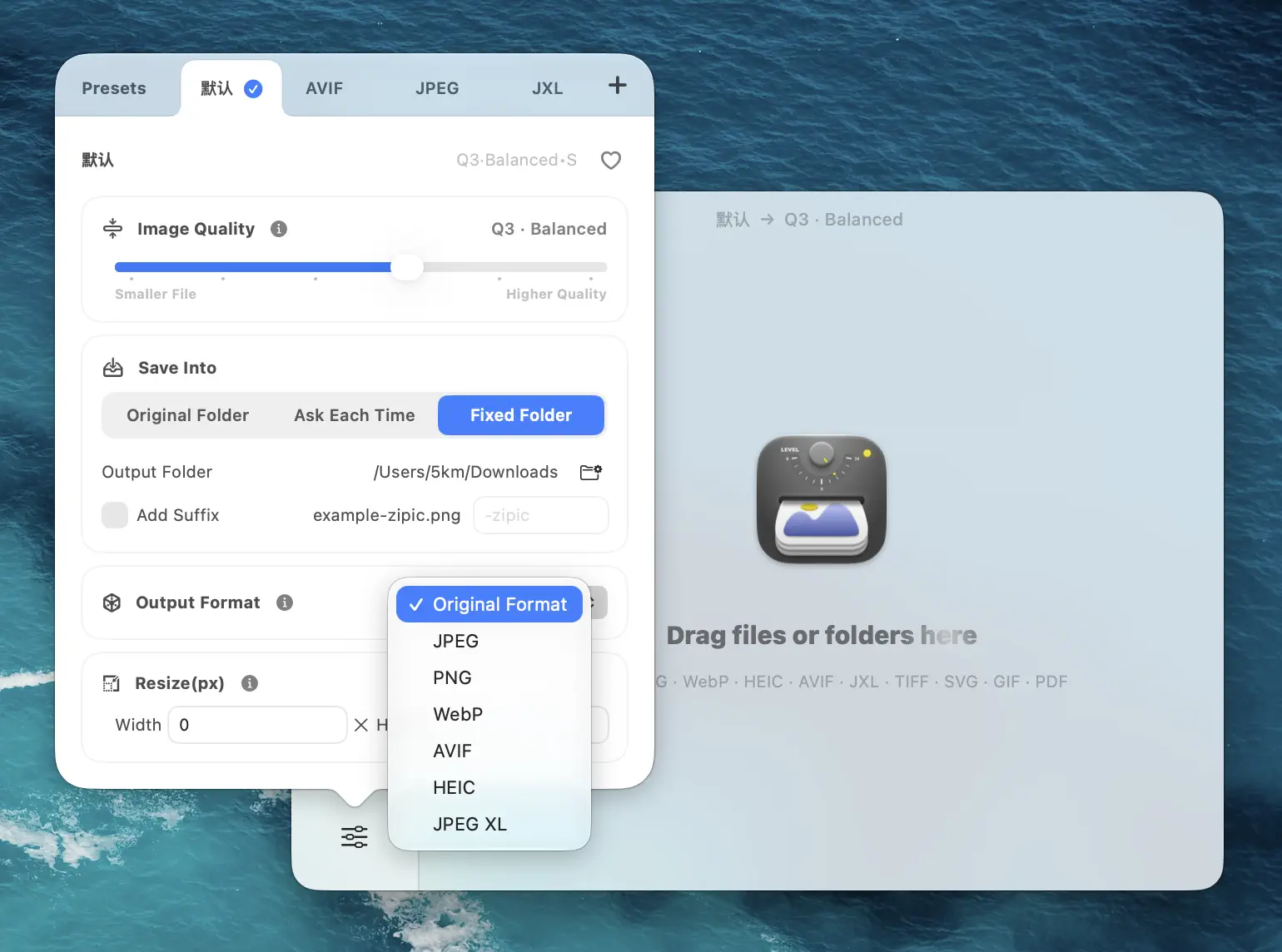
The format picker for one-off tweaks:
App Store and Play Store Screenshots: Resize + Compress in One Pass
App Store (Screenshot Specifications, as of 2026-05):
| Display | Portrait pixels |
|---|---|
| 6.9-inch | 1320×2868 |
| 6.5-inch | 1284×2778 |
| 6.3-inch | 1179×2556 |
App Store Connect accepts .jpeg, .jpg, or .png, 1–10 screenshots per listing.
Google Play (Graphic asset rules):
| Asset | Spec |
|---|---|
| App icon | 512×512 32-bit PNG with alpha, ≤ 1024 KB |
| Feature graphic | 1024×500 24-bit PNG/JPEG, no alpha |
| Screenshots | 24-bit PNG/JPEG; shortest side ≥ 320 px; longest side ≤ 3840 px; longest side ≤ 2× shortest side |
| Screenshot count | 2–8 per device type |
| TV banner | 1280×720 |
The reason this needs a dedicated compression pass: fastlane snapshot captures at simulator-native resolution and fastlane deliver uploads by filename match — neither tool resizes or compresses. A 1320×2868 PNG straight from the simulator is often 4–6 MB.
Zipic resizes and compresses in one URL Scheme call:
# 6.9-inch App Store screenshots → resized JPEG
open "zipic://compress?url=$HOME/fastlane/screenshots/en-US&format=jpeg&level=3&width=1320&height=2868&location=custom&directory=$HOME/store-uploads/ios-69"
# Play Store screenshots → 24-bit PNG inside the 320–3840 px envelope
open "zipic://compress?url=$HOME/fastlane/metadata/android/en-US/images/phoneScreenshots&format=png&level=3&width=1080&height=1920&location=custom&directory=$HOME/store-uploads/play"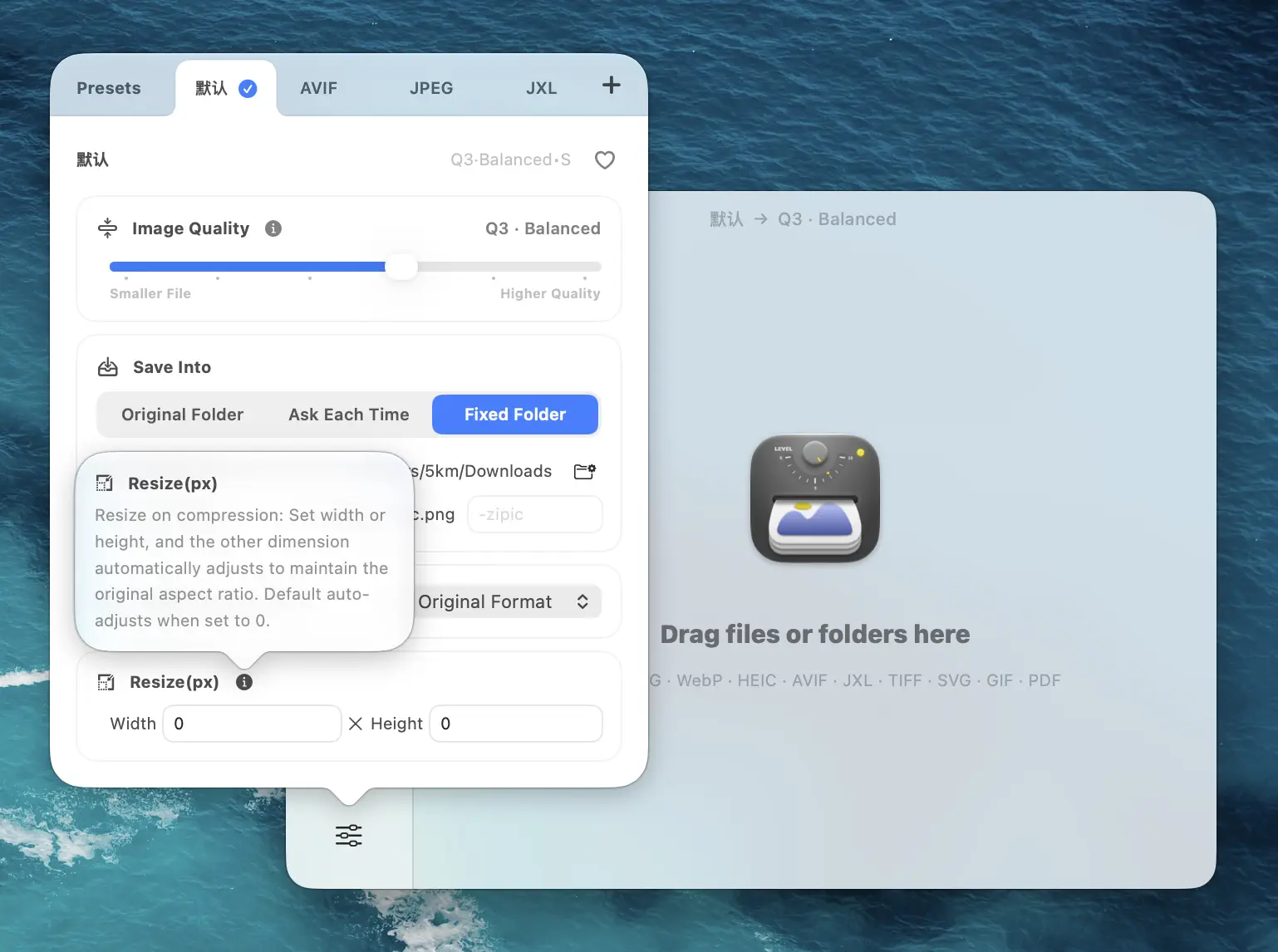
Resize flow on a folder of screenshots — pick a target width, drop the folder, output is upload-ready:
Build a Folder-Monitoring Pipeline for Xcode / Android Studio Exports
URL Scheme calls are great inside a build phase or fastlane lane. The lowest-friction integration is no integration at all — point Zipic Pro’s folder monitoring at the directories your tools already write to:
~/Design/figma-exports/— auto-WebP every PNG/JPEG export~/fastlane/screenshots/— resize + compress beforedeliverruns$DERIVED_DATA/.../*.png— Xcode-built simulator screenshots$PROJECT_DIR/app/src/main/res/drawable-xxxhdpi/— Android Studio drawable exports
Each monitored folder uses its own preset, so lossless PNG for AppIcon assets, level-3 WebP for Android drawables, and resized JPEG for App Store screenshots all run concurrently on different folders.
Settings live in Zipic → Settings → Workflow. Enable silent mode and URL Scheme calls fire from your build script without ever stealing focus from Xcode or Android Studio:
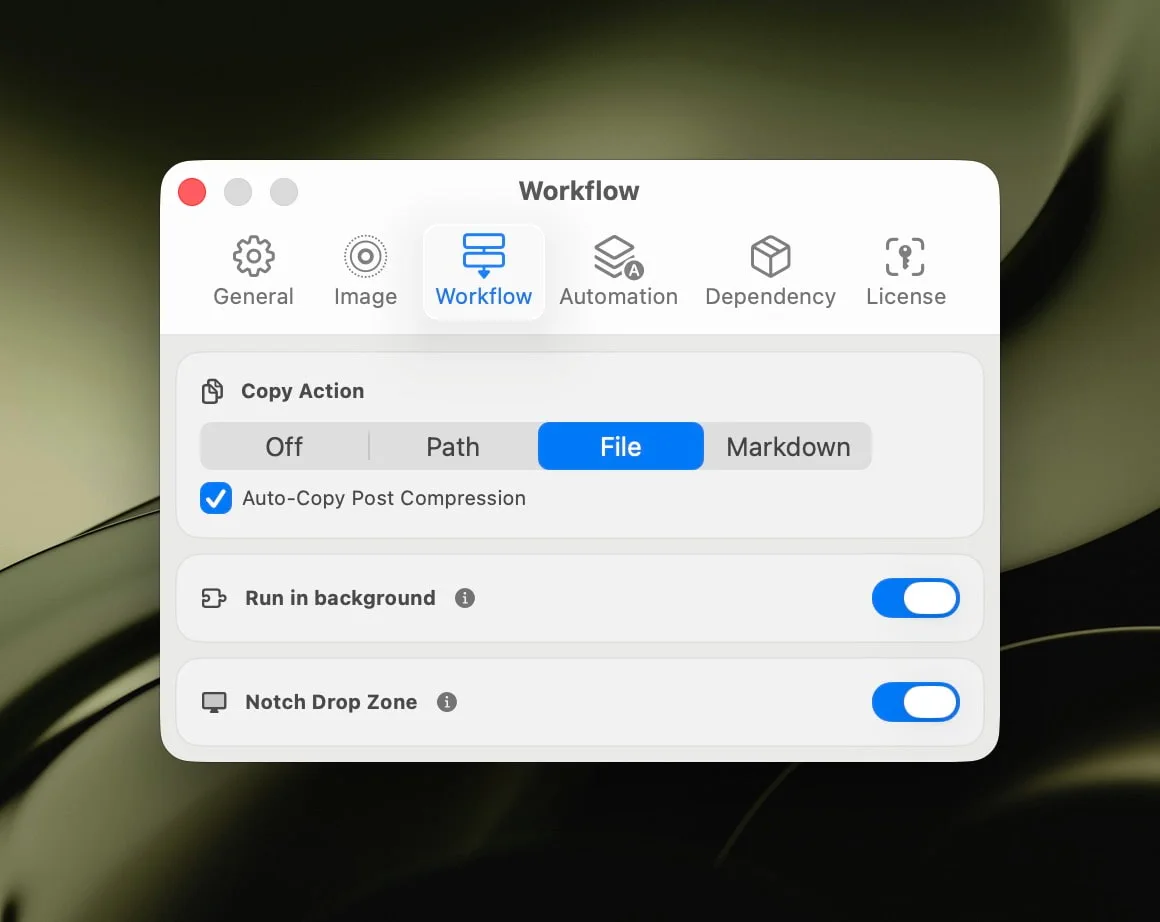
For a deeper walkthrough, see macOS Automation: Auto-Compress with Folder Monitoring and the Monitoring Directory documentation.
App Thinning, Asset Catalog Quirks, and What Compression Cannot Fix
Compression is one lever. Both platforms already do meaningful asset thinning, and a good strategy stacks with them.
iOS — App Thinning (WWDC15 Session 404, On-Demand Resources):
- Slicing — App Store Connect builds device-specific variants; users only download what their hardware needs.
- On-Demand Resources — tagged assets ship lazily after install.
- Bitcode — Apple has wound it down for newer SDKs.
iOS binary limits (Maximum Build File Sizes):
- Total uncompressed binary ≤ 4 GB, and any single
__TEXTsegment ≤ 80 MB. - The 200 MB cellular cap is no longer a hard limit — since iOS 13, users pick “Always Allow”, “Ask If Over 200 MB”, or “Always Ask” in Settings → App Store. Older blog posts still calling it a hard cap are out of date.
Android — App Bundle limits (Maximum app size):
| Asset | Limit |
|---|---|
| AAB base module | ≤ 200 MB |
| Each feature module | ≤ 200 MB |
| Total install-time download | ≤ 4 GB |
| On-demand + fast-follow asset packs (combined) | ≤ 4 GB |
| Legacy APK upload | ≤ 100 MB |
A few “do nots” Zipic users sometimes ask about:
- Don’t compress
.carfiles. Asset Catalogs are compiled byactool; touching the.carbreaks runtime asset lookup. - Don’t lossy-compress 9-patch drawables. Edge patch markers must remain pixel-exact. Android Studio’s WebP wizard skips them on purpose; Zipic does too.
- Don’t change AppIcon dimensions. HIG slots are fixed; only the bytes inside should shrink.
One design note: for toolbars, tab bars, and navigation chrome, Apple’s HIG (Icons) recommends SF Symbols over custom PNG/PDF assets. SF Symbols inherit Dynamic Type, weight, and Dark Mode for free — fewer files in the binary, better accessibility. Save custom assets for places where branding or semantics genuinely require them.
For format choice — when WebP wins, when HEIC is right, when to keep PNG — see How to Choose the Right Image Format for Your Project.
Putting It Together: A Realistic Mobile Pipeline
How the pieces fit on a small mobile team shipping iOS and Android from one repo:
- Designers export from Figma to
~/Design/exports/{ios,android}/. Monitored folders convert iOS exports to PNG Q3 and Android exports to WebP Q3. - iOS engineers drop new icon variants into
AppIcon.appiconset. A pre-archive run-script phase callszipic://compress?url=$SRCROOT/AppIcon.appiconset&format=original&level=3&location=originalso every committed icon is already compressed. - Android engineers wire a Gradle task to call Zipic on
app/src/main/resafterassembleRelease— WebP everywhere except 9-patches and vector drawables. - Release engineers point a third monitored folder at
~/fastlane/screenshots/. Snapshot captures land, get resized and compressed in seconds, anddeliverpicks them up untouched.
Nobody hand-tunes a slider. Presets enforce the standard, monitored folders enforce it automatically, and the URL Scheme is the build-time safety net.
Related Articles
- Image Compression for Web Developers: Automate Your Workflow
- Image Compression Workflow for Design Teams: Figma/Sketch to CDN
- Automate Image Compression with Apple Shortcuts and Zipic
- Batch Compress Images on Mac: Complete Tutorial
- How to Choose the Right Image Format for Your Project
- macOS Automation: Auto-Compress with Folder Monitoring
Full documentation: Workflow Integration | Monitoring Directory | Image Compression Basic
Ready to plug compression into your iOS and Android build pipeline? Download Zipic — free for 25 images per day. Every download includes a full 7-day Pro trial. Zipic Pro unlocks URL Scheme advanced parameters, AppIntents, folder monitoring, and unlimited batch processing — one-time purchase, no subscription.
Related Reading
Batch Compress Images on Mac: Folders, Samples, and Automation
Batch compress images on Mac safely: sample first, protect originals, then scale with folders, Raycast, monitoring, or Shortcuts.
How to Compress Images on Mac Fast (Without Ruining Quality)
Compress images on Mac with drag-and-drop, Finder, presets, and batch automation — protect originals, check quality at 100%, then scale the workflow.
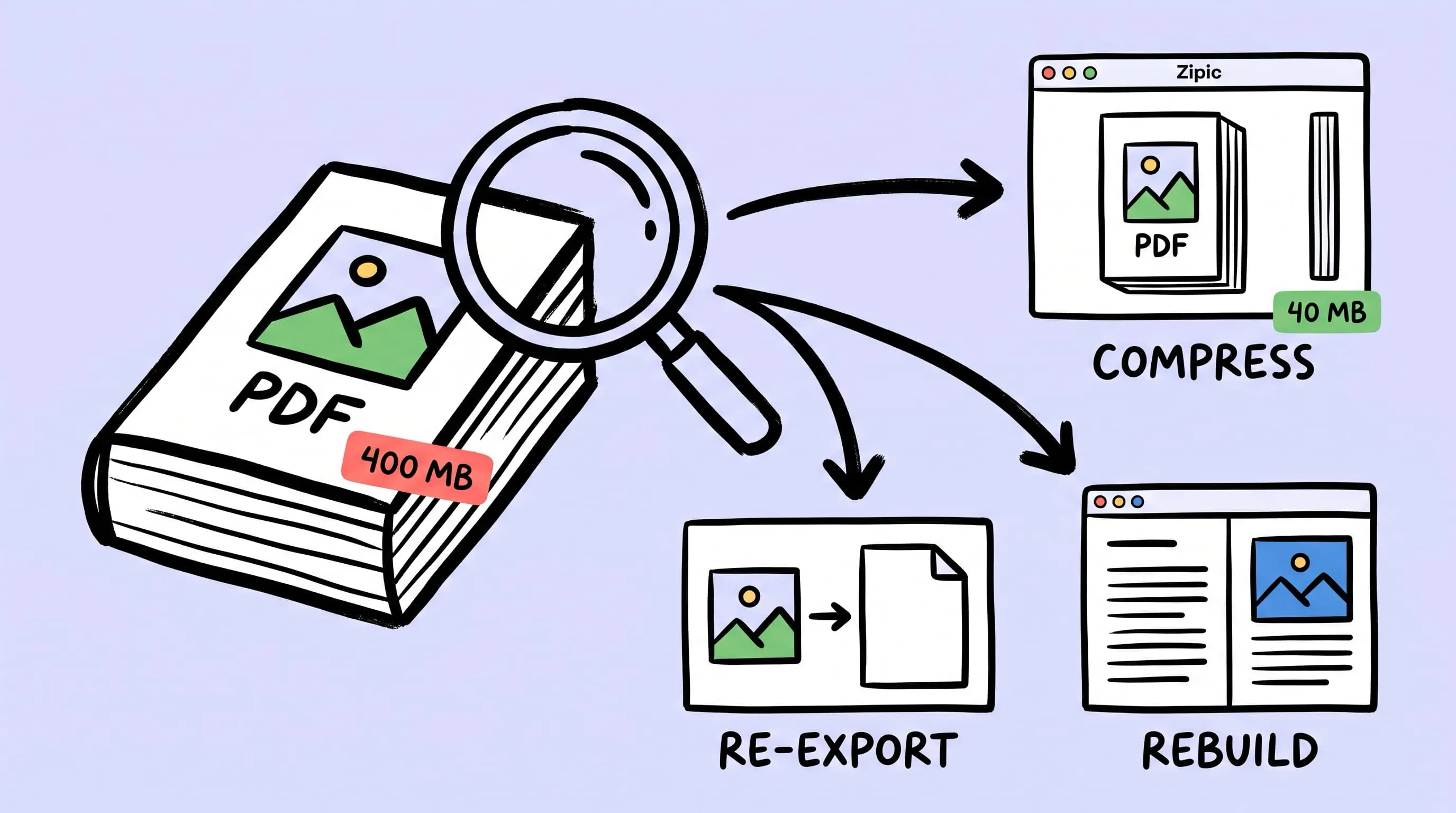
Compress a PDF Without Losing Quality: Diagnose It First
Learn how to compress a PDF without losing quality by diagnosing oversized images, export settings, and layout problems before choosing a compression level.
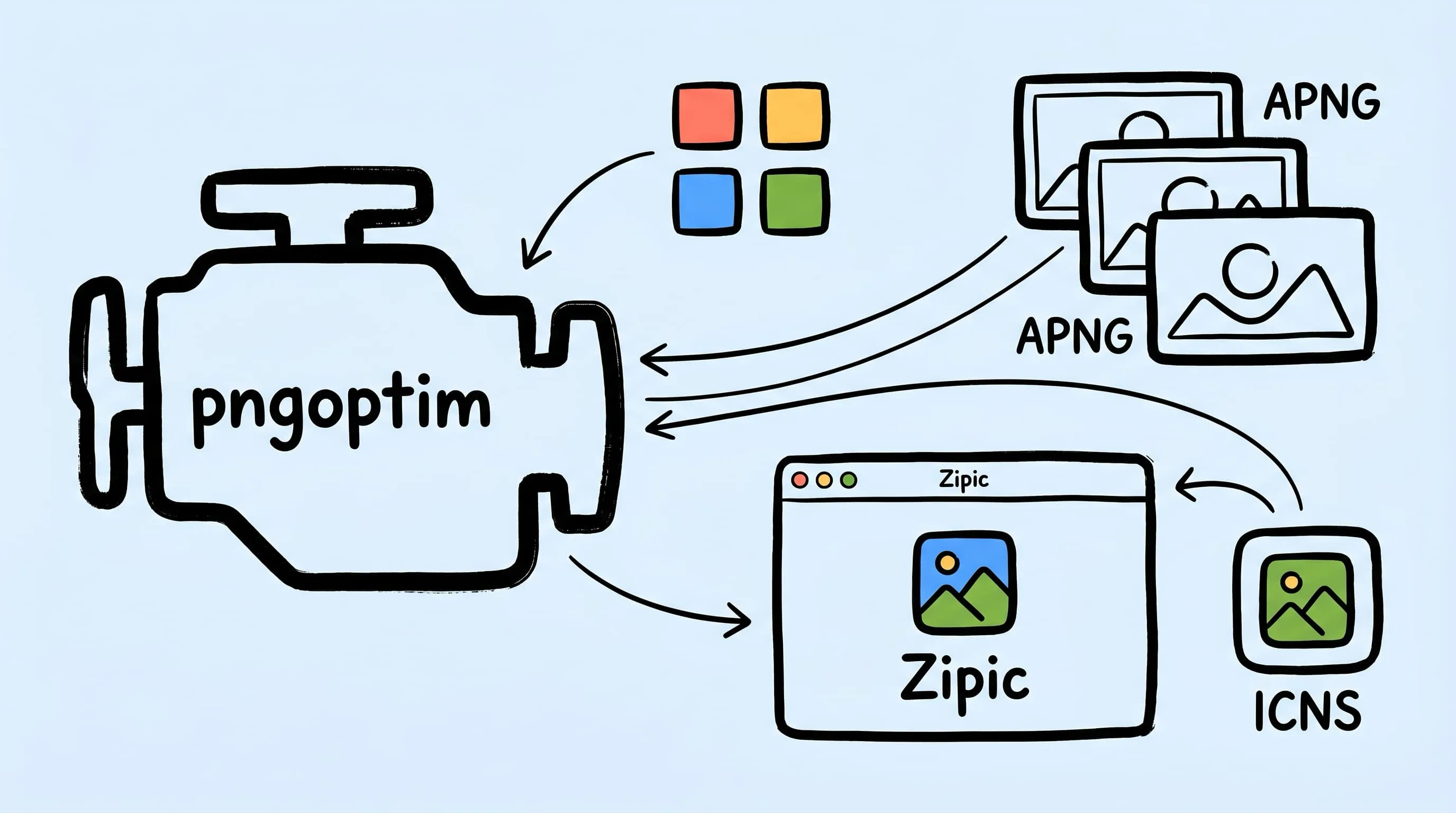
pngoptim Deep Dive: Zipic's PNG Compression Engine for Mac
See how Zipic uses pngoptim for Mac PNG compression: stable presets, APNG handling, ICNS workflow, and predictable batch results for teams.