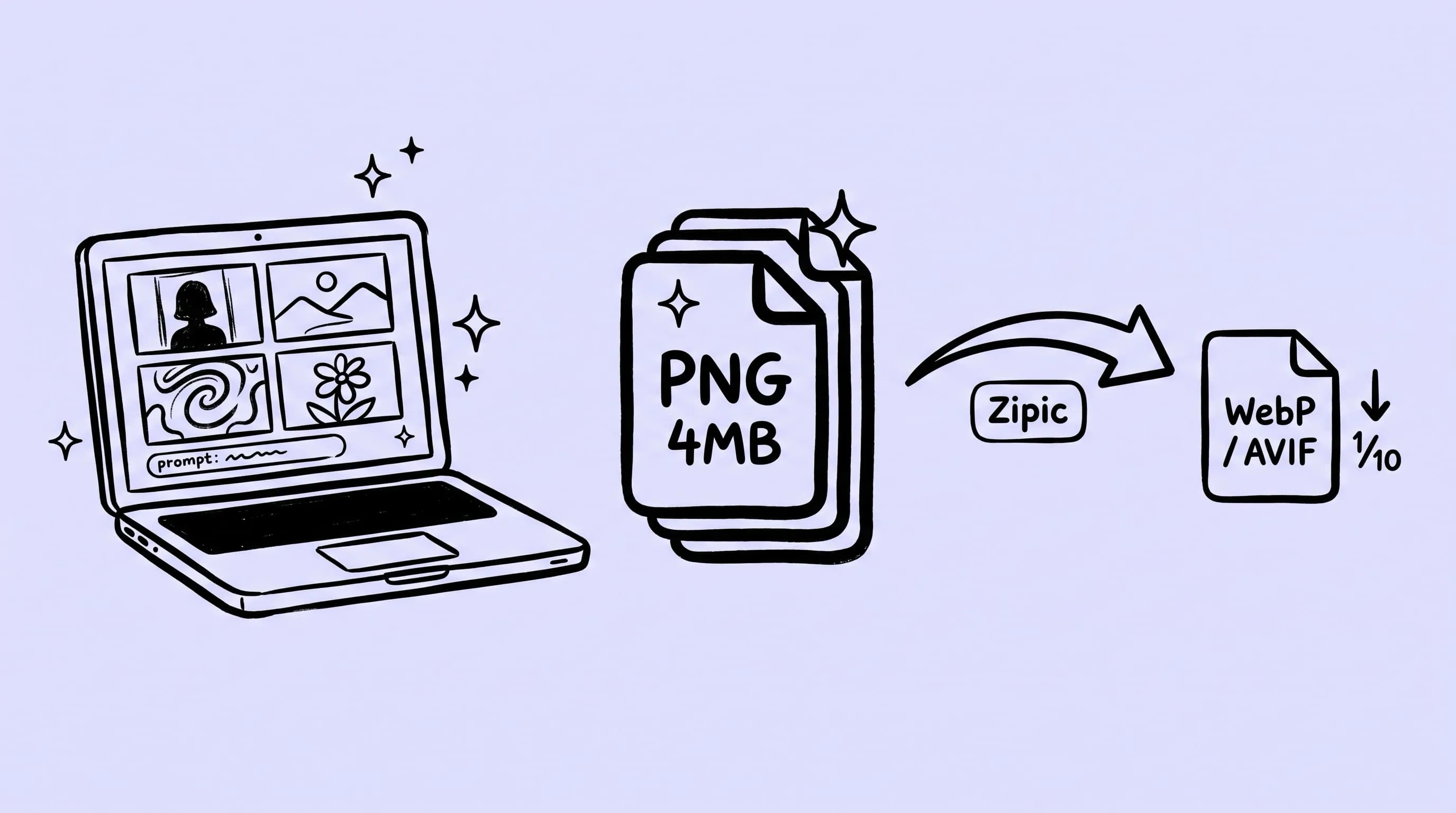
Compress AI-Generated Images on Mac (GPT, Gemini, Midjourney)
AI image generators in 2026 default to 2K-4K PNGs, often several MB each. Batch-compress AI-generated images on Mac with Zipic — keep PNG/JPEG or convert to WebP/AVIF, no visible quality loss.
If you’ve been generating with ChatGPT, the Gemini app, Midjourney, or Nano Banana Pro, you’ve probably seen your Downloads folder quietly fill up with AI PNGs — this generation of models defaults to PNG at 2K–4K, and none of them ships a “compress before download” toggle. Most of those files still need to go somewhere — a portfolio, X, 小红书, a blog post, a client deliverable — and none of those targets wants the original-weight file.
This guide is the practical Mac workflow. Zipic cuts these files by roughly 85% while keeping the original format in our tests; converting to WebP/AVIF squeezes out more on top. Below: a table of what each model / front-end actually puts on disk in 2026 (measured samples, your numbers will vary), then the compression flow.
Why AI-Generated Images Are So Large
Three things conspire against you, and they all stack:
- PNG is the default — but not always. ChatGPT, the Gemini app, Midjourney, and most API endpoints download PNGs. Some consumer front-ends do compress on their end (Google Flow drops 2K Nano Banana renders as ~2 MB JPEGs, for example), but you can’t rely on that — switch to the same model in the Gemini app and you’re back to a 4.5 MB PNG. The output format is decided by the front-end, not the model.
- PNG is terrible at photographic content. PNG is a lossless format optimized for sharp edges and flat color regions — UI mockups, screenshots, line art. AI imagery is the opposite: photo-realistic detail, gradient skies, fine fabric textures, hair strands, particle effects. There are almost no “repeating pixels” for PNG to deduplicate. A 3200×2133 photographic image saved as PNG comes in at 6.72 MB, while the same image as JPEG is 1.73 MB — about a 4× difference for content that looks identical to the eye.
- The default resolution is now 2K–4K, not 1024. This changed in 2026. Nano Banana Pro generates at the 1K / 2K / 4K tier of your choice — at 4K square that’s up to 16 MP. GPT Image 2 reaches 3840 px per edge (up to 8 MP, per OpenAI’s docs). Midjourney V8.1’s
--hdmode ships native 2K (2048×2048) without any upscaling step. Flux 2 Pro pushes 4 MP. The 2025-era 1024×1024 baseline is already a “fast preview” tier in 2026, not the standard output.
PNG isn’t a bad format — it’s the wrong format for this kind of output. The fix isn’t “compress harder,” it’s “convert to a format built for photographic content.”
What Each AI Tool Actually Outputs in 2026
What lands on your disk depends on which front-end you used, not just which model. The samples below are from single test renders we measured this week — useful as ballpark numbers, but real file sizes will shift with prompt complexity, image content, and aspect ratio.
| Front-end / mode | Resolution | Format | Sample file size |
|---|---|---|---|
| ChatGPT — GPT Image 2 default | 1672×941 (~1.5 MP) | PNG | ~1.3 MB |
| Midjourney V8.1 — standard | 1024×1024 | PNG | ~1.5 MB |
| Google Flow — Nano Banana Pro / 2 | 2K | JPEG | ~2 MB |
| Gemini app — Nano Banana Pro | 2K | PNG | ~4.5 MB |
Midjourney V8.1 — --hd mode |
2048×2048 | PNG | ~5.3 MB |
| Flux 2 Pro — API | 4 MP (≈2048²) | PNG | 4–10 MB |
| GPT Image 2 — API, 4K | up to 3840×2160 (8 MP) | PNG | 8–15 MB |
| Nano Banana Pro — API, 4K | up to 16 MP (1:1) | PNG | 15–20 MB |
| Stable Diffusion 3.5 Large — local/API | 1024×1024 (1 MP) | PNG | 2–4 MB |
Three patterns are worth pulling out of this table:
- The same model can span 10× depending on the front-end. Nano Banana Pro hits a couple of MB through Google Flow, a few MB through the Gemini app, and the high teens through the API at 4K — the model is identical, the consumer front-end just compresses harder before serving you the file.
- Even small per-image sizes add up fast in batches. A typical ChatGPT session lands in the tens of MB; a Gemini app session in the low hundreds; a 4K Nano Banana Pro API run can clear 300 MB before you’ve done a single edit.
- PNG dominates desktop and API paths. The exceptions you’ll hit in 2026 are Google Flow (JPEG by default) and any front-end where you’ve explicitly opted into WebP. Everything else is PNG.
If you’re still on the previous generation — GPT Image 1.5 (replaced by GPT Image 2 in ChatGPT Plus by April 2026), DALL-E 3 (API deprecates May 12, 2026 per OpenAI’s Nov 14, 2025 announcement), or Flux 1.1 Pro / Pro Ultra — files are smaller, but the workflow below applies identically.
Pick the Right Format for AI Output
Compression isn’t one decision, it’s a routing decision. Where the image is going decides the format.
- Keep PNG when you genuinely need lossless and alpha — print prep, layered design files, an output you’ll feed back into Stable Diffusion as an
img2imgreference. PNG’s lossless nature matters here even though the file is huge. - JPEG is the fastest path to “small and universally supported.” For social posts where the image has no transparency, JPEG at quality 80–85 is indistinguishable from the PNG and a fraction of the size.
- WebP is the right default for the web. Lossy WebP holds up beautifully on photographic content. Lossless WebP is also about 23% smaller than PNG, per Google’s own WebP study, so even when you need to preserve every pixel, switching off PNG is a free win. Browser support sits at 96.39% globally as of March 2026 (caniuse).
- AVIF is the most aggressive choice. Files are typically 20–50% smaller than equivalent-quality WebP, with broad support at 94.9% globally. For a portfolio site or anywhere bandwidth matters, AVIF first.
If you’re not sure where to start, the Choosing Image Formats guide walks through the decision tree more thoroughly. For deeper dives, see WebP vs PNG vs JPEG and our AVIF compression overview.
Batch Compressing AI Images on Mac with Zipic
Before we walk the steps, here’s what Zipic actually did on three of the files from the table above — same input, format kept identical (PNG → PNG, JPEG → JPEG):
| Source | Before | After | Reduction |
|---|---|---|---|
| ChatGPT default PNG | 1.3 MB | 169 KB | −86% |
| Gemini app PNG (Nano Banana Pro) | 4.7 MB | 580 KB | −87% |
| JPEG (2752×1536 illustration) | 2.1 MB | 148 KB | −92% |
These three are illustrative single-image samples — real reductions vary with image content — but across the AI output we tested, keeping the original format consistently lands in the 80–90% range. The format-conversion play (PNG → WebP/AVIF) we covered above is on top of that, when you want to push further.
Zipic is a macOS-native batch compressor that handles all 12 formats — including the WebP / AVIF / JXL targets we just talked about — without leaving Finder. It’s designed for exactly this shape of task: a folder of PNGs in, a folder of optimized output out.
What’s behind those format paths matters too. PNG output runs through pngoptim and JPEG output through zipic-jpeg, both engines Zipic built in-house. AVIF output goes through avifoptim — also our own — because off-the-shelf AVIF encoders couldn’t reliably preserve HDR Gain Map data from iPhone photos. WebP is the one we didn’t rebuild: Google’s libwebp is already the industry standard and there was no production reason to compete with it. For the full engineering story behind those choices, see Why Zipic Kept libwebp for WebP but Built Its Own AVIF Encoder and the pngoptim Deep Dive.
The flow on Zipic is “preset first, files second.” There is no Start button — you configure the preset you want, then drop files in, and compression runs immediately.
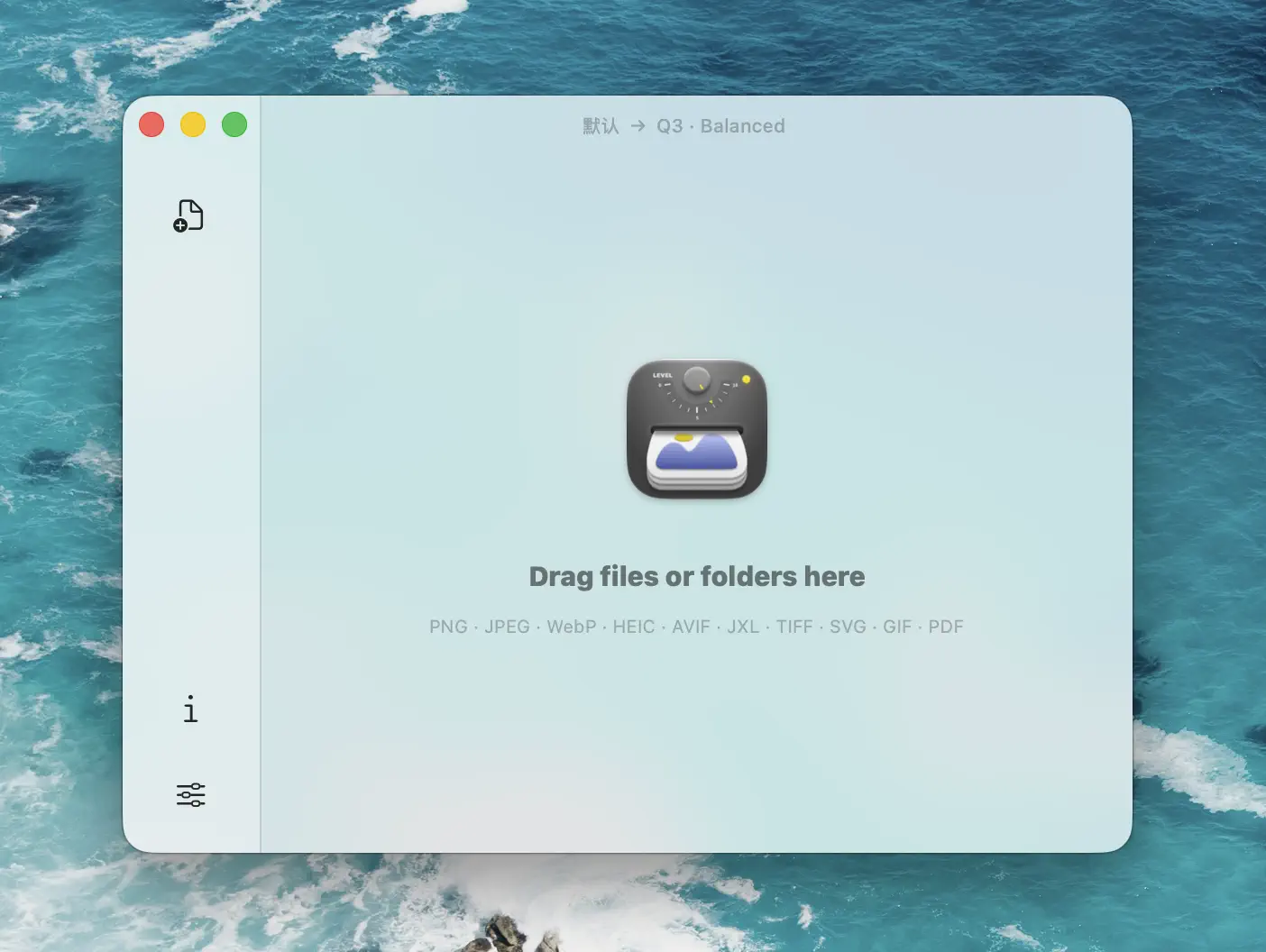
Step 1 — Build a preset for AI output
Pick or create a preset in the left panel. For most AI-image use cases I keep three:
- Web Posting — JPEG quality 82, longest side 1600 px. For X, Instagram, 小红书 posts that don’t need transparency.
- Portfolio AVIF — AVIF quality 70, longest side 1920 px. For your portfolio site, behance, or anywhere you control the rendering pipeline.
- Lossless Archive — WebP lossless, no resize. For client deliverables when you can’t lose a single pixel but want the file size win over PNG.
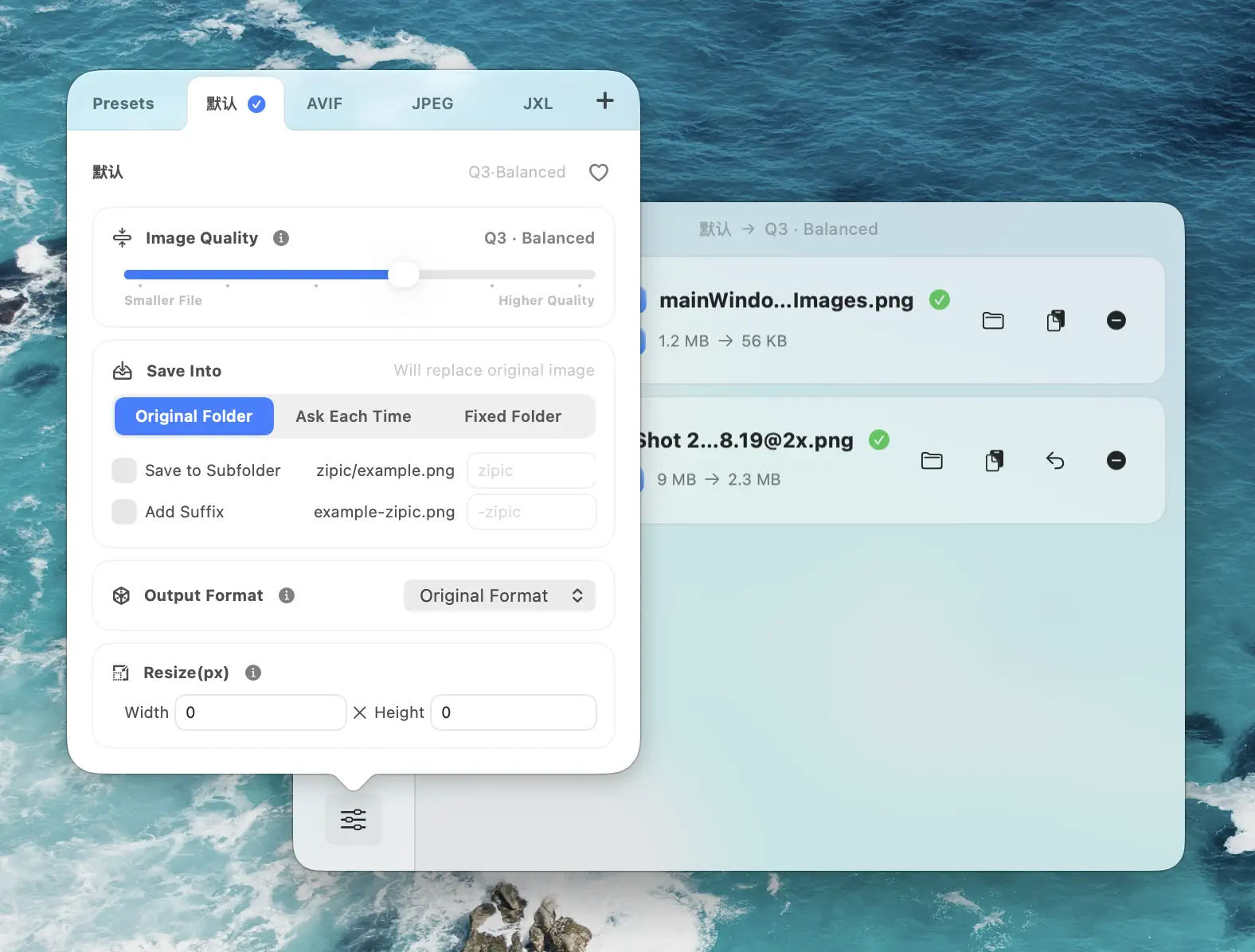
The format selector is where you decide what the AI’s PNG turns into:
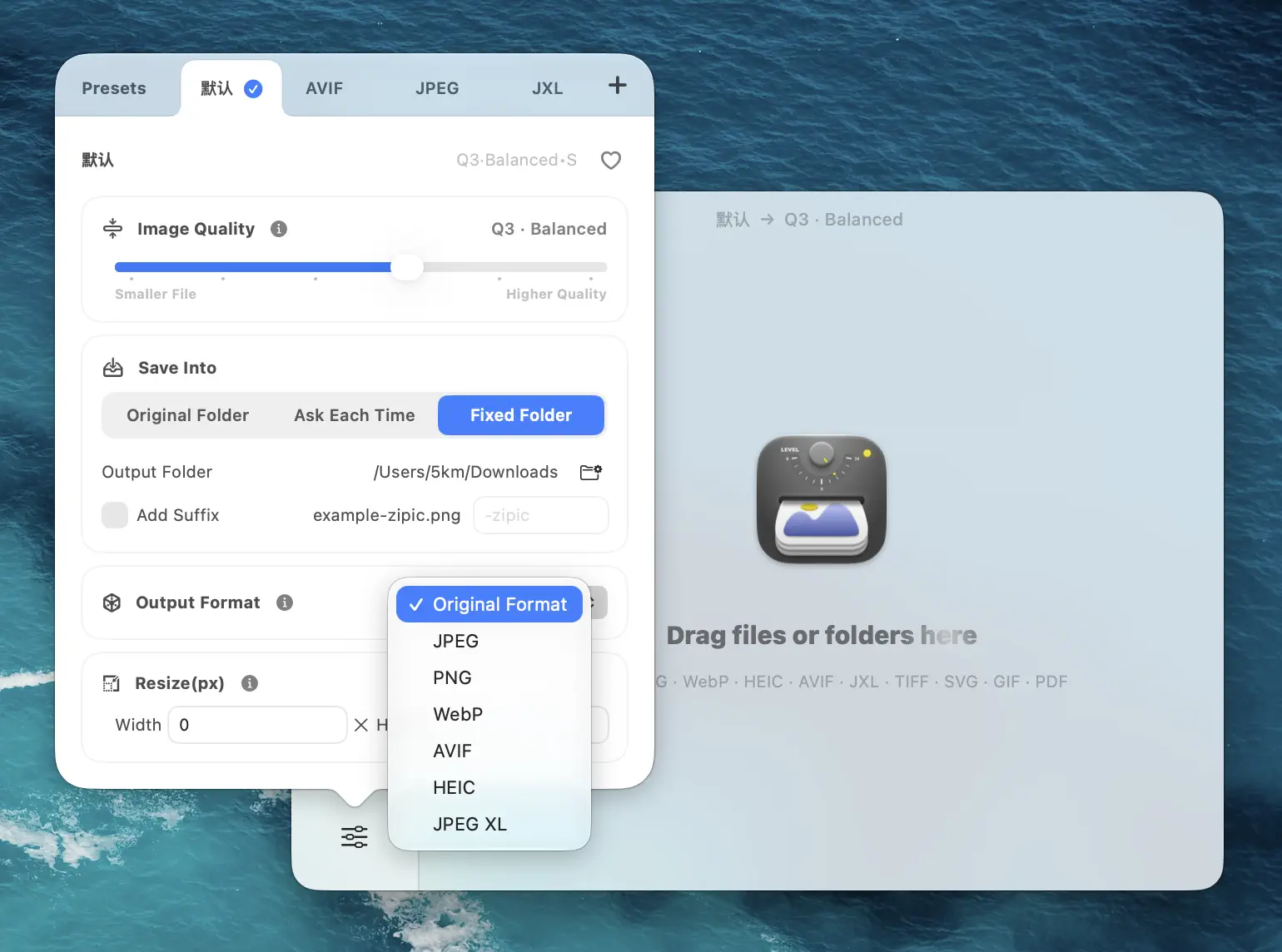
Step 2 — Drop the folder in
Once the preset is active, drop your Nano Banana / GPT Image 2 / Midjourney output folder onto the Zipic window:
Zipic walks the folder, runs everything through the active preset, and writes results either next to the source files or into a destination folder you’ve specified. A 20-image Nano Banana Pro 4K session — 300–400 MB of PNGs — finishes compressing in under a minute on a modern Mac.
Step 3 — Multiple presets in one pass (optional)
If you need both web-ready and portfolio-quality outputs from the same source, enable several presets and Zipic will write each output into its own subfolder. One drop, three formats, no second pass.
Three Workflows for AI Creators
Pick the one that matches what you’re doing right now.
Workflow A — Posting to X / Instagram / 小红书
The platforms re-encode whatever you upload, so there’s no point sending the heavy original — whether it’s a small ChatGPT PNG or a hefty 4K API render. Strip it down before upload:
- Format: JPEG (or WebP if the platform takes it — X does, Instagram doesn’t)
- Quality: 80–85
- Longest side: 1600–2048 px
- Why: the platform’s own JPEG encoder is going to compress your image again on its end. Sending a smaller, near-lossy-equivalent file means the cumulative quality loss is lower than uploading the bloated PNG.
Workflow B — Portfolio site / Behance / personal blog
Bandwidth is your bill, page-load is your bounce rate. Be aggressive:
- Format: AVIF, fall back to WebP
- Quality: 70 (AVIF) or 78 (WebP)
- Longest side: 1920 px (full-bleed) or 1280 px (in-grid thumbnails)
- Why: AVIF at 70 is visually equivalent to JPEG at 90 on photographic content, at roughly half the file size. On a heavy 4K Nano Banana Pro render, that’s typically the difference between a double-digit-MB PNG and a sub-1 MB AVIF after the 1920 px resize. Pair this with the social-media compression playbook when the same image needs both treatments.
Workflow C — Client deliverable (preserve the original)
The client paid for the prompt-engineering hours; they get the original PNG too. But you still want a smaller “preview” version for review:
- Keep: the original PNG, untouched
- Add: a Lossless WebP copy (≈23% smaller, byte-perfect identical pixels)
- Add: a JPEG quality 90 review copy at the original resolution
Zipic’s multi-preset mode (Step 3 above) does all three in one drag.
Common Pitfalls When Compressing AI Output
Three things to watch for that don’t show up until you zoom in:
- Watermarks and signatures. Midjourney’s corner mark, a Stable Diffusion 3.5 workflow’s embedded LoRA signature, your own portfolio watermark — these are tiny high-frequency features and they’re the first things to get smudged when JPEG quality drops below 70. If a watermark matters, stay at quality ≥80 or use a lossless target.
- Particle, fog, and bokeh detail. AI imagery is heavy on volumetric lighting, dust motes, and atmospheric haze. These are exactly the high-frequency textures that JPEG struggles with at low quality settings. If your prompt asked for “ethereal mist,” don’t ship it at JPEG 60.
- The original PNG is an asset, not just a file. You’ll want it back when re-rolling a variation, when feeding it into
img2img, when running a different upscaler, or when a client asks for a print-ready 300 DPI version six months from now. Compress copies; never overwrite the source.
For a deeper breakdown of when lossy compression bites and when it doesn’t, the lossy vs lossless guide goes through the trade-offs systematically.
TL;DR for AI Creators
Three lines, three contexts:
- Posting today? JPEG 82, longest side 1600 px. Done.
- Portfolio site? AVIF quality 70, longest side 1920 px. A heavy 4K Nano Banana Pro PNG can drop from double-digit MB to under 1 MB.
- Client deliverable? Keep the PNG. Ship a Lossless WebP next to it. 23% smaller, byte-equivalent.
Ready to clear the AI-image pile in your Downloads folder? Download Zipic free at https://zipic.app/Zipic.dmg — the free tier handles 25 images per day, plenty for a typical Nano Banana Pro or Midjourney session. Every download includes a full 7-day Pro trial. For unlimited batches, all 12 formats including AVIF and JXL, and folder monitoring, Zipic Pro is a one-time $19.99.
Want deeper background on the format choices? Read the Choosing Image Formats guide or the Image Compression Basics walkthrough.
Related Articles
- Why Zipic Kept libwebp for WebP but Built Its Own AVIF Encoder — the WebP / AVIF engineering trade-off explained.
- pngoptim Deep Dive: Zipic’s PNG Compression Engine for Mac — what an in-house PNG/APNG engine actually buys you.
- Image Tools for Content Creators and Bloggers — full publishing pipeline from generation to publish.
- Image Compression for Social Media — platform-by-platform size and format guide.
- How to Choose the Right Image Format — the decision tree applied to every common situation.
- Best AVIF Compression Tool for Mac — going further with next-gen compression.
Related Reading
Batch Compress Images on Mac: Folders, Samples, and Automation
Batch compress images on Mac safely: sample first, protect originals, then scale with folders, Raycast, monitoring, or Shortcuts.
How to Compress Images on Mac Fast (Without Ruining Quality)
Compress images on Mac with drag-and-drop, Finder, presets, and batch automation — protect originals, check quality at 100%, then scale the workflow.
Compress a PDF Without Losing Quality: Diagnose It First
Learn how to compress a PDF without losing quality by diagnosing oversized images, export settings, and layout problems before choosing a compression level.
pngoptim Deep Dive: Zipic's PNG Compression Engine for Mac
See how Zipic uses pngoptim for Mac PNG compression: stable presets, APNG handling, ICNS workflow, and predictable batch results for teams.